Aruba S2500 Series Mobility Access Switch | Installation Guide S2500 Mobility Access Switch | 17
The management port has an LINK/ACT LED on its left side and Speed LED on its right side. During
operation, the LED provides the following status information:
Mini USB Console Connector
The S2500 is equipped with one Mini USB connector (see Figure 6) that provides console access for direct
local access. If you are connected using the Mini USB connector and the RJ-45 Console Port, the Mini USB
connection will take priority.
Mini USB Driver
To use the Mini USB console port, you must install the Aruba Mini USB driver on the computer that will
manage your S2500. To download the driver:
1. Go to https://support.arubanetworks.com.
2. Click on the Tools & Resources tab.
3. Open the USB Console Driver folder.
4. Open the Mobility Controller and Mobility Access Switch folder.
5. Select the file appropriate to your application. The corresponding operating system is in the file name.
Console Port
A serial console port is provided for connection to a terminal, allowing for direct local management. The
port’s RJ-45 female connector accepts an RS-232 serial cable with a male connector.
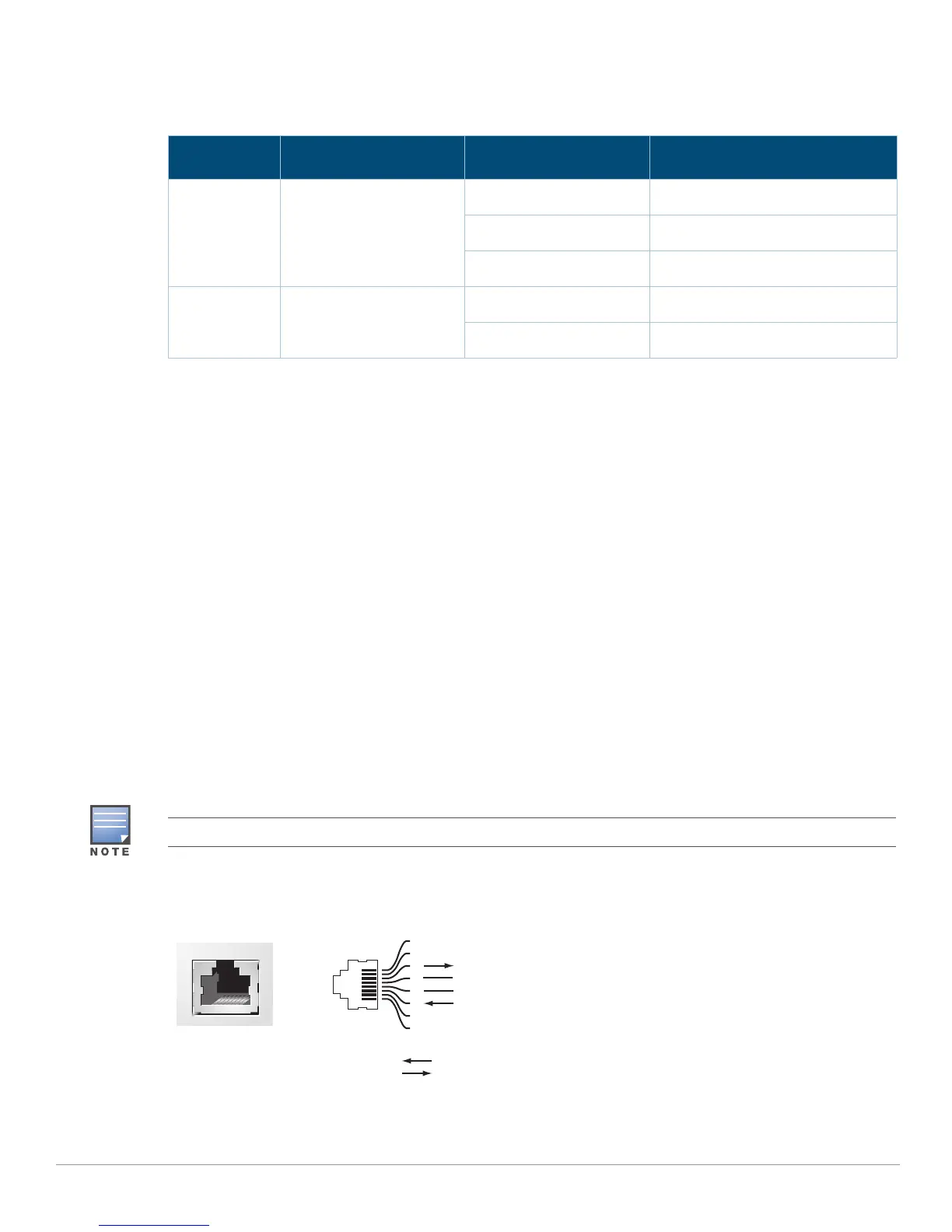
Figure 7 Serial Console Port Pin-Out
Table 12 S2500 10/100/1000BASE-T (RJ-45) Management Port
LED Function Indicator Status
LINK/ACT Link Status Information Green (Solid) Link has been established
Green (Blinking) Link activity
Off No link on port
Speed Interface Speed Green (Solid) 1000Mbps
Off 10/100Mbps
The console port is equipped with two LEDs, however these LEDs do not have a function and will not turn on.
Serial
Console Port
1
2
3
4
5
6
7
8
TxD
GND
RxD
RJ-45 Female
Pin-Out
Direction
Input
Output
GND


 To Next Page