18 | S2500 Mobility Access Switch Aruba S2500 Series Mobility Access Switch | Installation Guide
Communication settings for the serial console port are indicated in the following table:
USB Interface
The S2500 is equipped with one USB 2.0 interface (see Figure 6). A USB storage device can be used to save
and upload configurations to the mobility access switch. USB functions are controlled through the LCD
panel on the front of the mobility access switch. For more information on the LCD panel and its functions,
see “LCD Panel” on page12.
SHUTDOWN LED
The S2500 is equipped with a SHUTDOWN LED (see Figure 6), which serves two functions:
If you execute the system halt command from the CLI or the LCD screen, the SHUTDOWN LED will
become red once the system halt is complete.
If the temperature of the S2500 exceeds the temperature threshold, the SHUTDOWN LED turns on and
the S2500 shutsdown to protect itself from damage. The CPU threshold is 212 ºF (100 ºC). To check the
temperature of the chassis at anytime, scroll to the Environmental screen under the Status menu on
LCD.
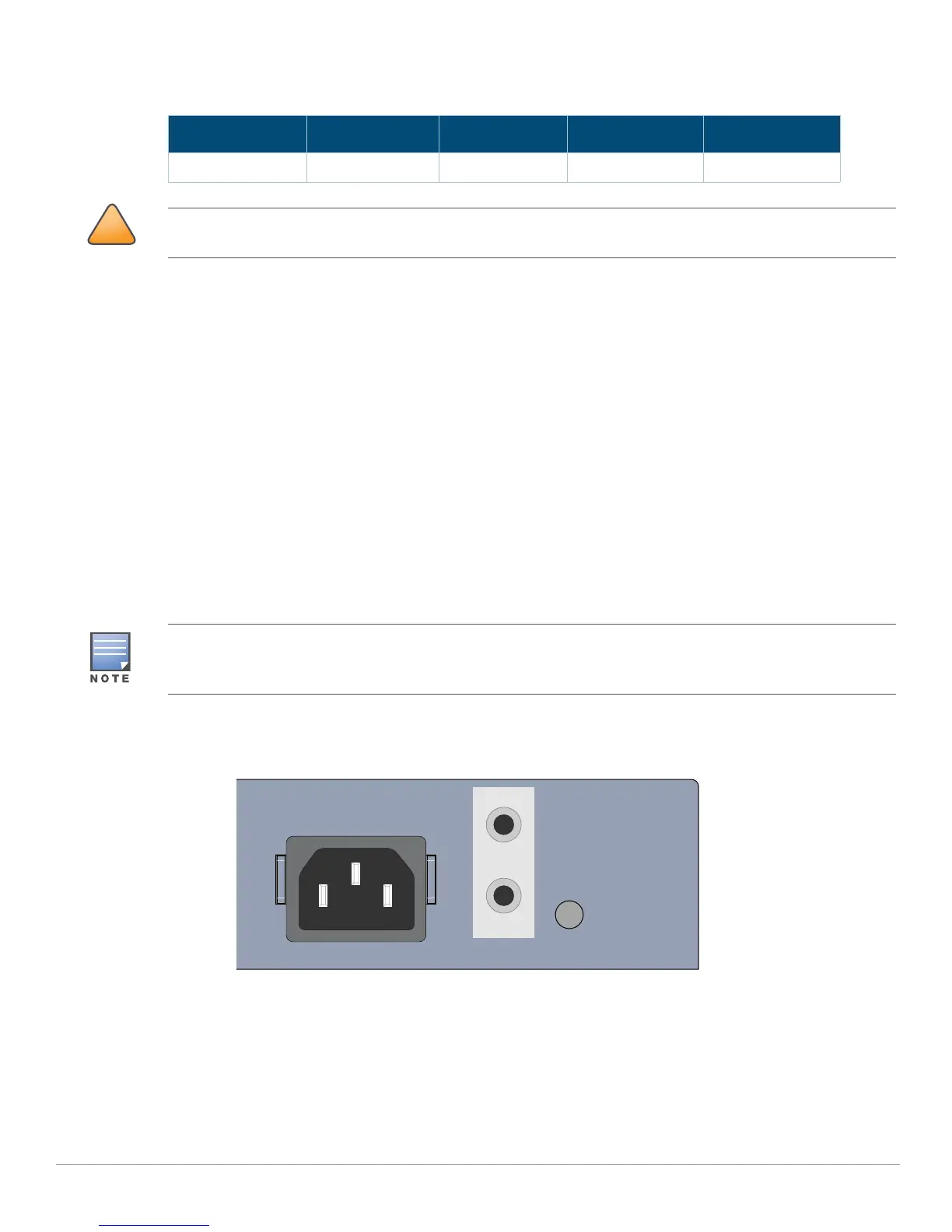
Figure 8 AC Power Connector
Power Supply
The Aruba S2500 is equipped with one integrated AC power supply (150W or 580W, depending on the
model).
150W Power Supply: This power supply has a single voltage rail, at 12V, and does not support PoE.
Table 13 Console Terminal Settings
Baud Rate Data Bits Parity Stop Bits Flow Control
9600 8 None 1 None
The CONSOLE port is compatible only with RS-232 devices. Do not insert any cable from a PoE-powered port in
this port because this may damage the system.
The S2500 software also sends traps to provide a warning once the system temperature approaches the system
tolerance. Additionally, you can monitor the current system status using the CLI or LCD Screen. For more
information on traps and system monitoring, see the latest ArubaOS User Guide for Mobility Access Switch.


 To Next Page