Select Radio as Playing Source
Open the Source Menu and then touch [Radio].
Select One Radio Band
Touchthe[Band]iconontheuserinterfacetoselectoneradiobandamongFM1,FM2,FM3,AM1and
AM2.
Tune
Auto Tuning
Press [ ] / [ ] icon on the user interface to seek a higher / lower station.
To stop searching, repeat the operation above or press other keys having radio functions.
Note:
When a station is received, searching stops and the station is played.
Manual Tuning
Method 1:
During manual tuning, the frequency will be changed in steps.
Press and hold [ ] / [ ] icon on the user interface more than 1 second to tune in a higher / lower
station.
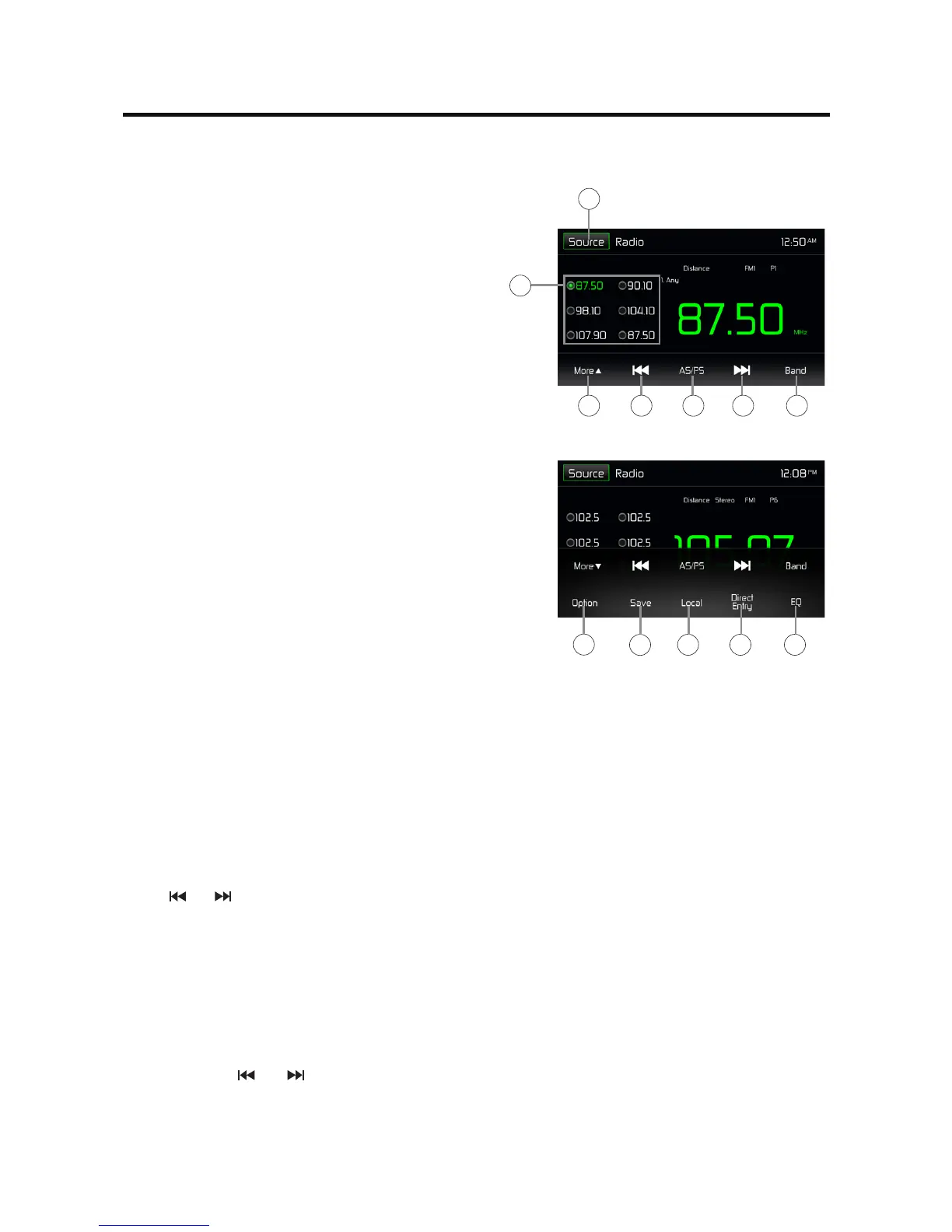
RADIO TUNER OPERATION
1. Return to home menu.
2. Preset stations list.
3. Show/Hidethenextlineofoptionsmenu.
4. Seek backward
Tune backward(long press)
5. Auto searching.
6. Seek forward
Tune forward(long press)
7. Band switch.
8. Show RDS options
9. Show the save list
10. Choose local or distant seeking mode.
11. Enter frequency directly.
12. Enter EQ menu.
Tuner TFT Display
1
2
3 4 5 76
9
10 11 12
8


 To Next Page