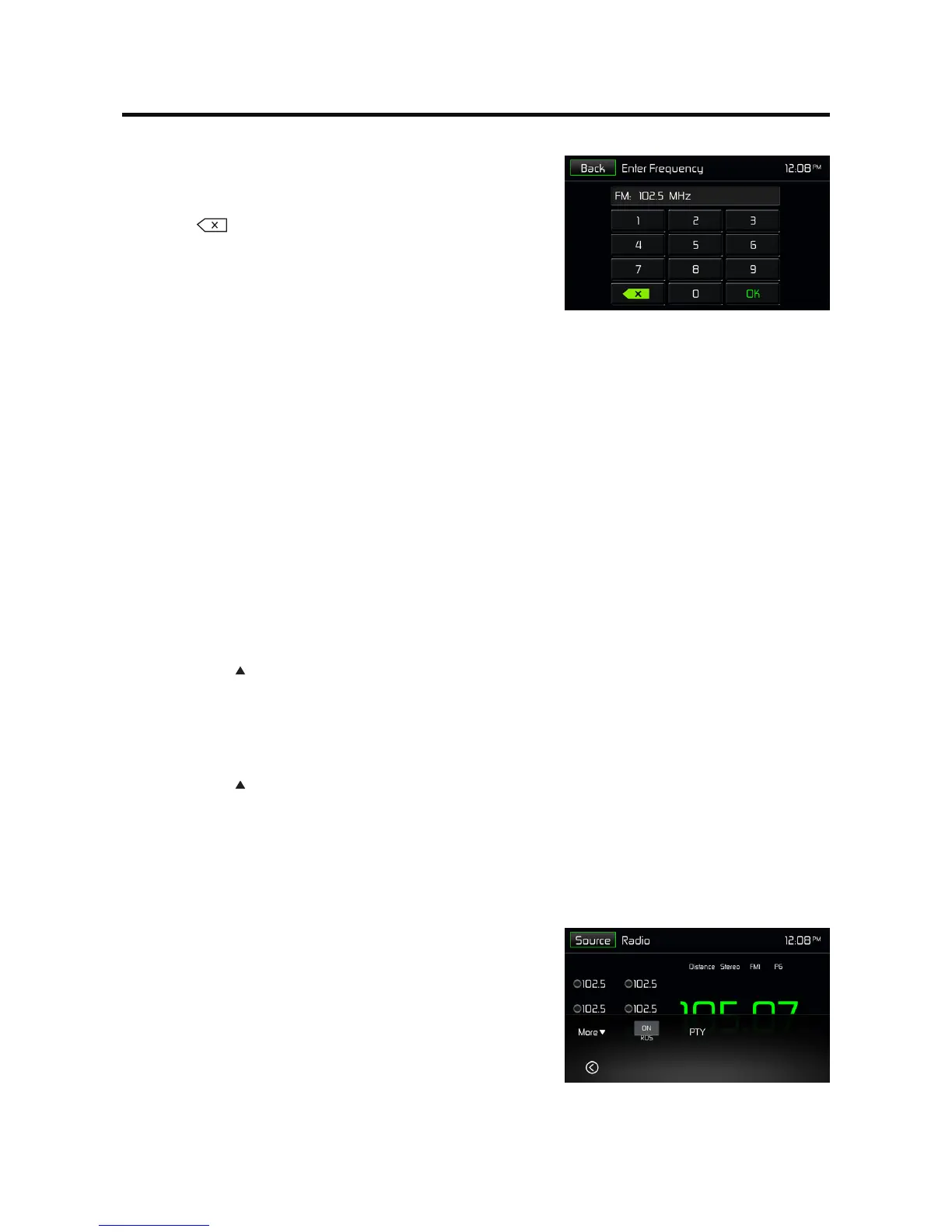
Method 2:
1. Touch the numeric keypad icon [ Direct Entry ]. Numeric
keyboard is displayed, touch numbers to input frequency.
2. Touch [ ] to delete the input numbers step by step.
3. Touch[OK]toenter.
Preset Station
Theunithas5bands,suchasFM1,FM2,FM3,AM1,AM2,andeachbandcanstore6stations;hencethe
unitcanstore30stationsintotal.
Search Stations Automatically
Touch [ AS/PS ] to search station and store 6 strongest stations in current band automatically.
Manual Store
1. Tune to a station.
2. Press and hold one of the channels 1 to 6 on the screen to save the selected station.
Tune to a Preset Station
1. At radio mode, select a band (if needed).
2. Touch one of the preset channels on the screen.
Local Seeking
Press the [ More ] and [ Local/Distance ] icons to choose the Radio Distance or Local .
When the [ Local ] displays, only stations with a strong signal strength will be detected .
EQ Selection
Press the [ More ] and [ EQ ] icon to enter the EQ setup menu.
Option Screen
Touching the Options icon will display the following RDS, CT and PTY functions on the Tuner TFT LCD
display screen.
RDS ON/OFF - The Radio Data System (RDS) enables traffic
reports to be received and provides many facilities, including
enabling the radio station name to be displayed.
PTY - The Program Type (PTY) function displays the program
category of the current station such as category (news, sports,
talk etc.) Use the scroll bar to select various categories. After
selecting a category, press the Search or down arrow icon to
scan to the next station of the selected category. Touching the
Back icon returns the user to main tuner screen.


 To Next Page