EQUALIZER CONTROL MENU
The Audio Control feature allows you to easily adjust your audio system
to meet the acoustical characteristics of your vehicle, which vary
depending on the type of vehicle and its measurements. Proper setting
oftheFaderandBalancebooststheeectsofthecabinequalizer.
Select Preset Equalizer
1. Enter the EQ setup mode
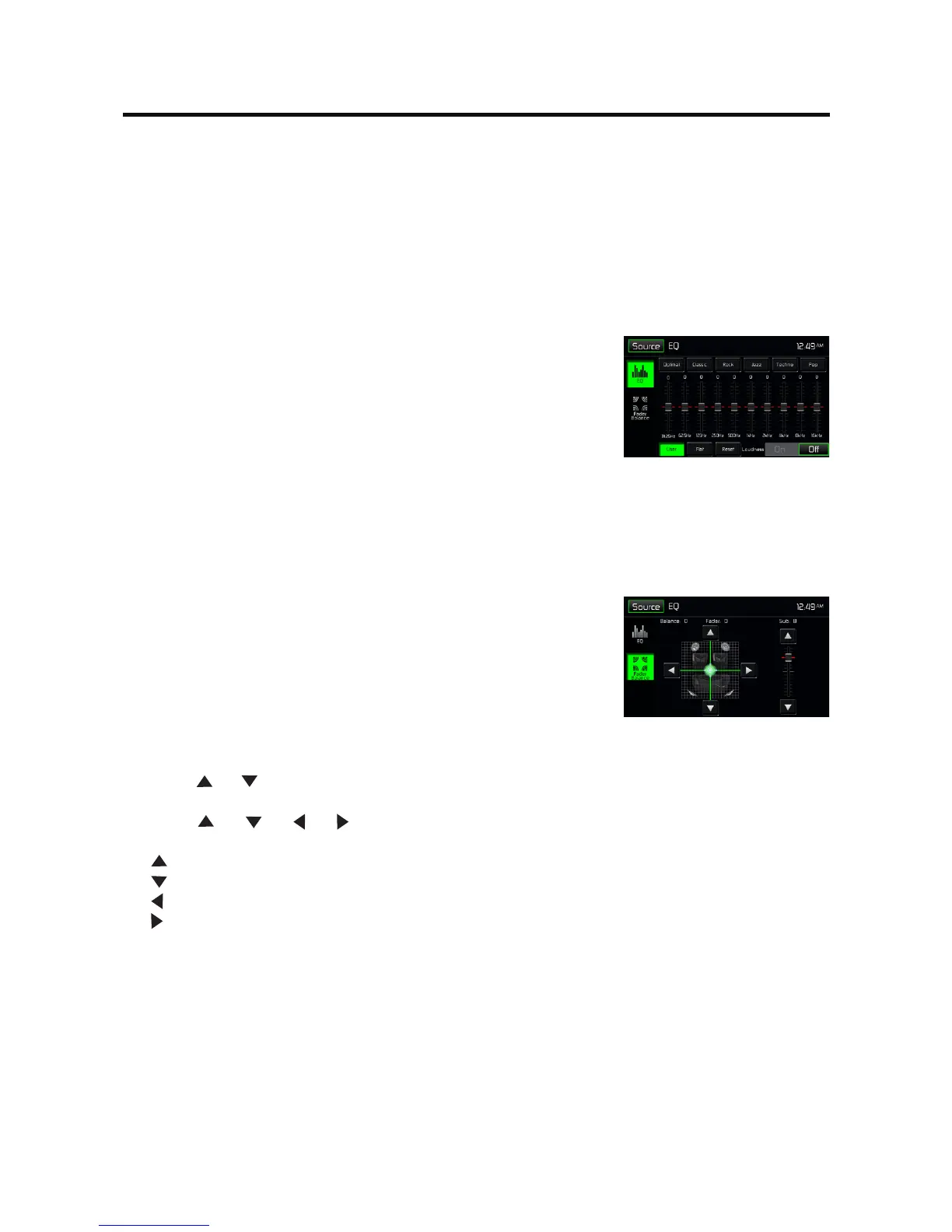
Touch the [ EQ ] icon in the user interface and the EQ setup interface
will display on the screen.
2. Select EQ mode
Touch the desired EQ selection: [ Optimal ] / [ Classic ] / [ Rock ] / [
Jazz]/[Techno]/[Pop],andtheEQmodewillchange.
Adjust EQ Parameters
To adjust EQ parameters, select [User] and touch and drag the
parameters adjustment bar.
[ User ]: Set the desired audio eect.
[ Flat ]: Select the original audio eect.
[ Reset ]: Reset the user settings.
Adjust Fader Balance
You can adjust front/back/left/right balance of the speaker and the
subwoofer volume to get balanced listening effect according to the
surroundings and your interest.
1. Enter the EQ setup mode
Touch the [ Fader Balance ] icon in the user interface and the EQ
setup interface will display on the screen.
2. Adjust subwoofer volume
Touch [ ] / [ ]toadjustsubwoofervolumefrom-12to+12.
3.Adjustfader/balancevalue
Touch [ ] / [ ] / [ ] / [ ] to adjust fader / balance value from
-20to+20.
[ ]: Front speaker
[ ]: Rear speaker
[ ]: Left speaker
[ ]: Right speaker
Notes:
1. The parameters of the EQ modes has been preset and you can not
change them besides ‘User’.
2. The value of Sub is independent of EQ mode and can be adjusted
separately.



 To Next Page