Connecting the USB Device
1. Open the USB door.
2. Connect an USB device into the USB connector.
Play starts automatically.
NOTES:
1. If there are audio files supported on the USB stick, the system will enter the audio files menu
automatically.
If there are no audio les, but there are video les supported on the USB stick, the system will enter
the video les menu automatically.
If there are no audio or video les, but there are picture les supported on the USB stick, the system
will enter the picture les menu automatically.
If there no above audio/video/picture les supported in the USB stick, the screen will display “Load
Error!”.
2. Not all USB devices are compatible with the unit.
Removing the USB Device
1. Select another source in the main menu.
2. Remove the USB device.
Audio playback
Theprinciplesofaudioplayback(MP3/WMA)fromdatacarriersareidenticalforallsources.
Select the desired source via the main menu.
The device changes to the desired source and the playback starts.
If the playback does not start with the audio playback, touch the [ List ] icon to change to the folder/le
list.
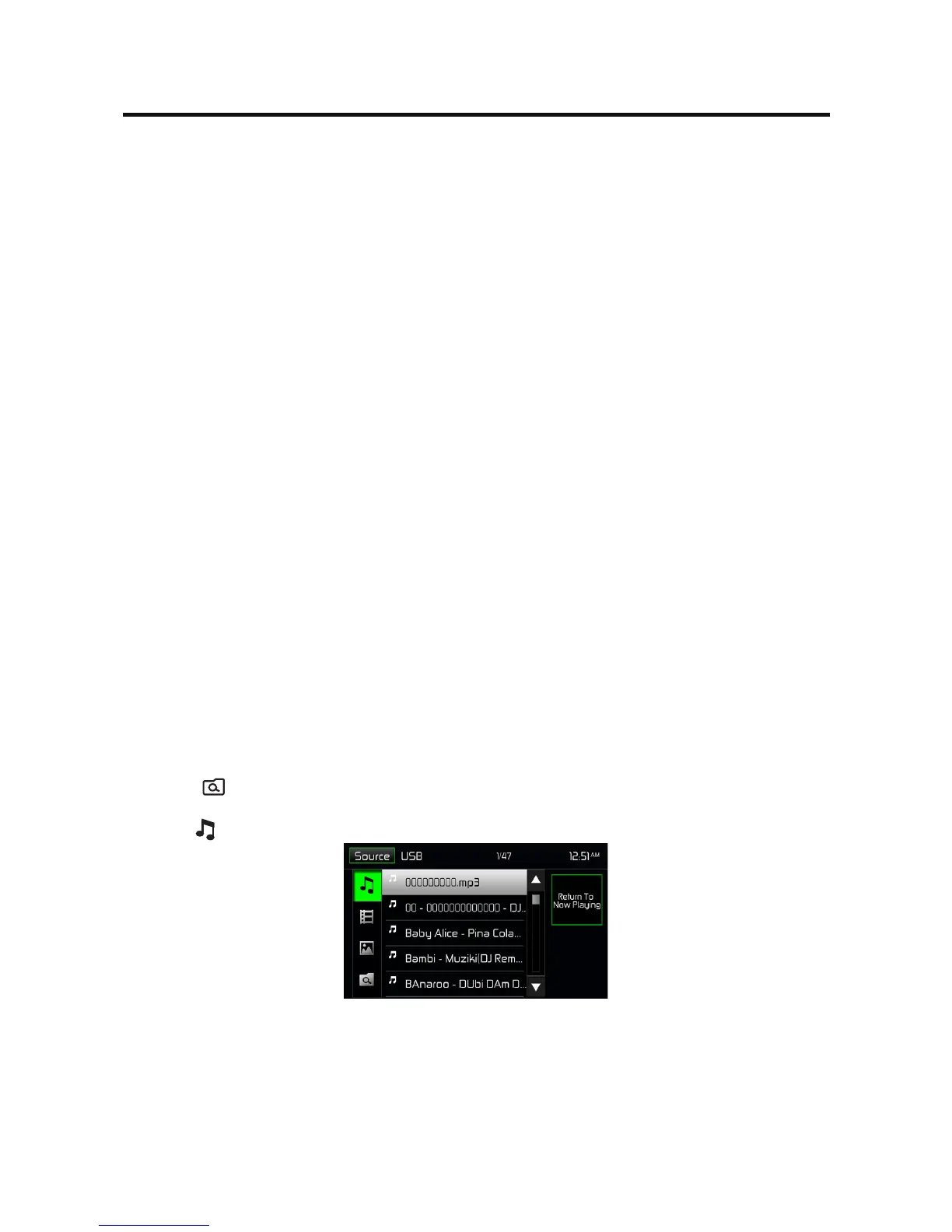
Touch the [
] icon to display all the folders and les of the data carrier.
- Or -
Press the [ ] icon to display all the audio les of the data carrier.
After starting a title, the playback menu is displayed.
USB OPERATION


 To Next Page