25
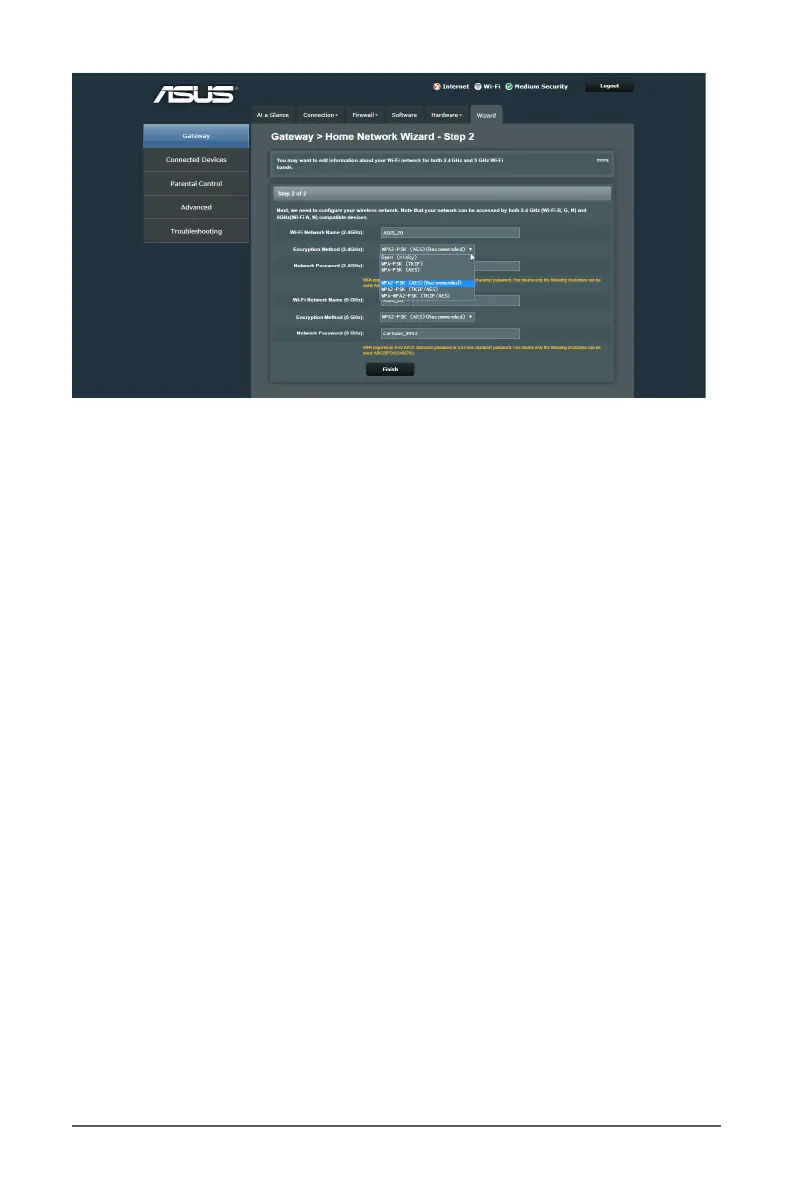
To change your login password and Wi-Fi security:
1. From the navigation panel, go to Gateway > Wizard tab.
2. Type your current login password.
3. Set a new password and type the new password again.
Passwords can contain from 8~20 alphanumeric characters
(A-Z, 0-9) and are case sensitive.
4. Click the checkbox in the Show Typed Password to conceal
the password if you like to.
5. When done, click Next Step.
6. On the Wi-Fi setup screen, assign a new SSID (Service Set
Identier) name containing up to 32 characters for your
Wi-Fi Network Name to identify your wireless network. Wi-Fi
devices can identify and connect to the wireless network via
your assigned SSID. The SSID information banner are updated
on the Status page once new SSIDs are saved to the settings.
7. From the Encryption Method dropdown list, select the
authentication method for your wireless security. If you select
WPA-PSK (Pre-shared Key)/WPA2-PSK (with TKIP or AES) as
the authentication method, key in security passkey in the
Network Password eld.
8. When done, click Finish.


 To Next Page