5-26
Chapter 5: BIOS Setup
User Password
To set a user password:
1. Select the User Password item and press <Enter>.
2. From the Create New Password box, key in a password, then press <Enter>.
3. Confirm the password when prompted.
To change a user password:
1. Select the User Password item and press <Enter>.
2. From the Enter Current Password box, key in the current password, then press
<Enter>.
3. From the Create New Password box, key in a new password, then press <Enter>.
4. Confirm the password when prompted.
To clear a user password:
1. Select the Clear User Password item and press <Enter>.
2. Select Yes from the Warning message window then press <Enter>.
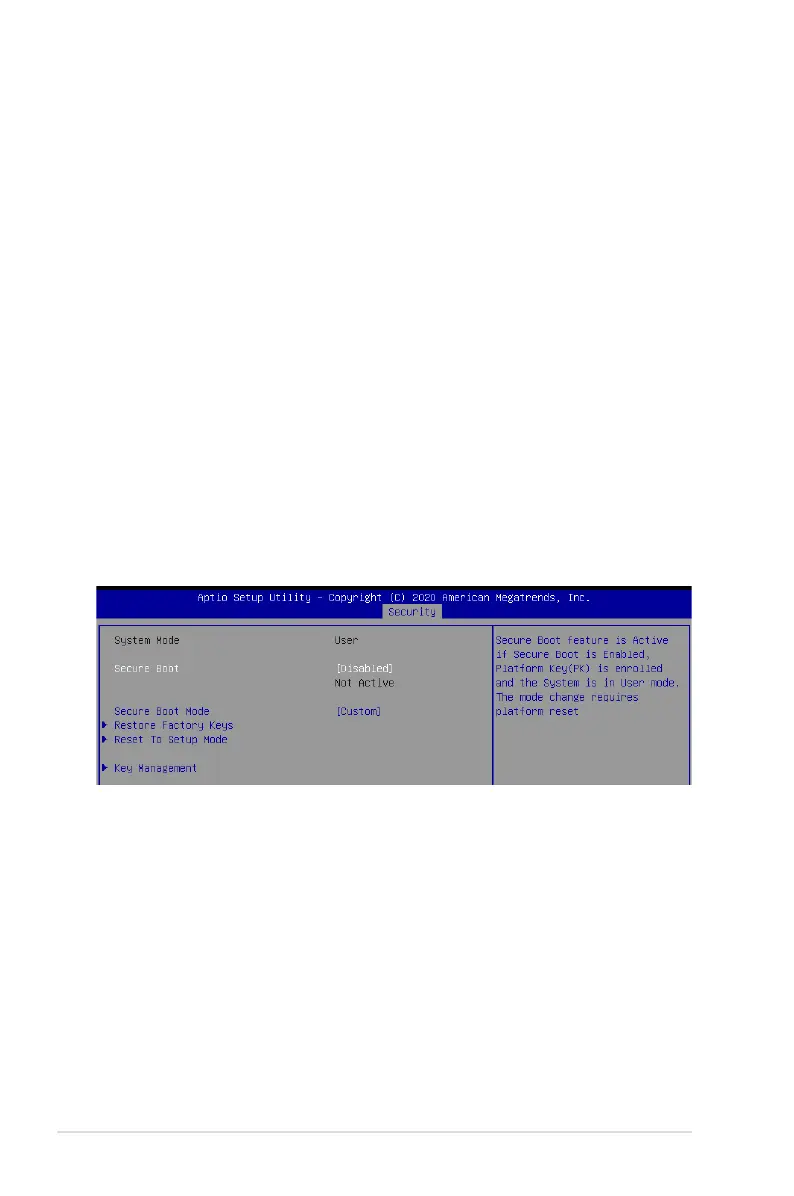
Secure Boot
This item allows you to customize the Secure Boot settings.
Secure Boot [Disabled]
Secure Boot can be enabled if the system is running in User mode with enrolled platform Key
(EPK) or if the CSM function is disabled.
Configuration options: [Disabled] [Enabled]
Secure Boot Mode [Custom]
Allows you to set the Secure Boot selector.
Configuration options: [Custom] [Standard]
Restore Factory Keys
This option will force the system to User Mode, and install factory default Secure Boot key
databases.
Reset to Setup Mode
This option will delete all Secure Boot key databases from NVRAM.




 To Next Page