ASUS RS100-E9-PI2
5-3
3. Press <Tab> to switch to the Driveeld.
4. PresstheUp/DownarrowkeystondtheUSBashdiskthatcontainsthelatestBIOS
then press <Enter>.
5. Press <Tab> to switch to the Folder Infoeld.
6. PresstheUp/DownarrowkeystondtheBIOSlethenpress<Enter>.
7. Reboot the system when the update process is done.
5.1.2 ASUS EzFlash Utility
TheASUSEzFlashUtilityfeatureallowsyoutoupdatetheBIOSusingaUSBashdisk
without having to use a DOS-based utility.
The succeeding BIOS screens are for reference only. The actual BIOS screen displays
may not be the same as shown.
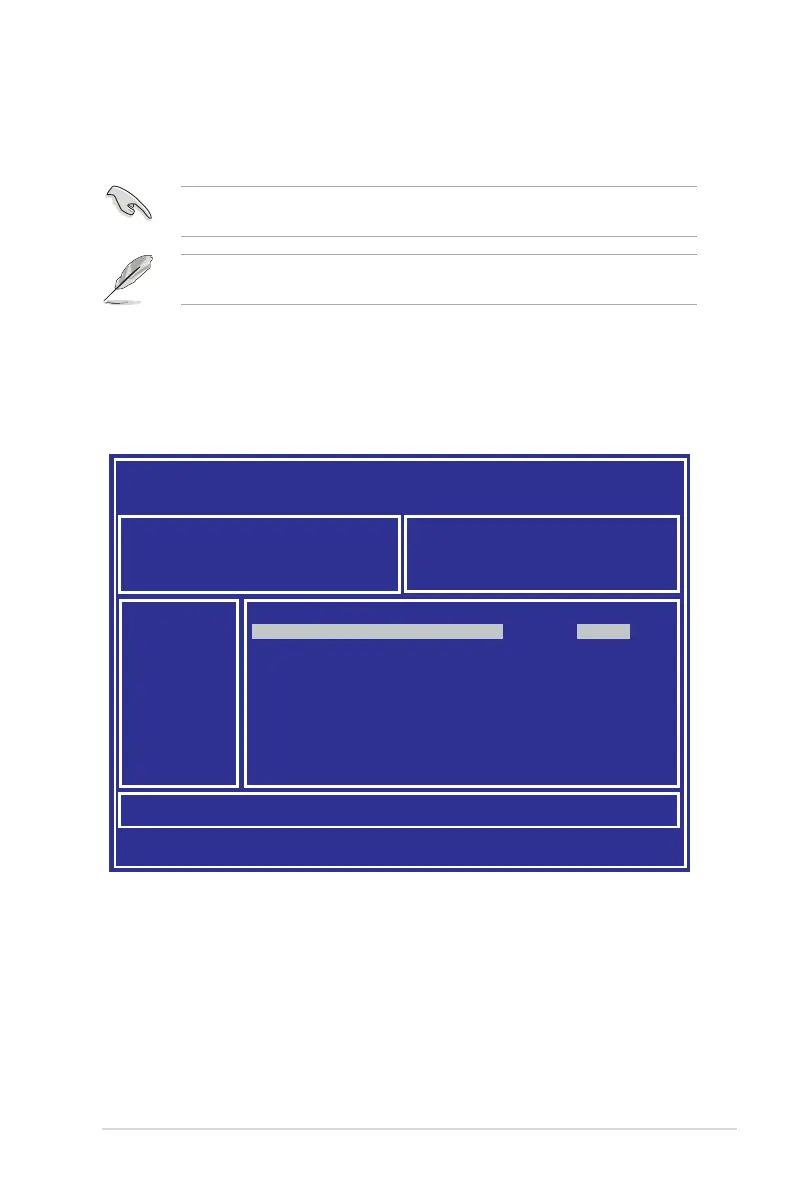
To update the BIOS using EzFlash Utility:
1. InserttheUSBashdiskthatcontainsthelatestBIOSletotheUSBport.
2. Enter the BIOS setup program. Go to the Tool menu to select Start EzFlash and press
<Enter> to enable it.
Download the latest BIOS from the ASUS website at www.asus.com before using this
utility.
ASUS Tek. EzFlash Utility
[Up/Down/Left/Right]:Switch [Enter]:Choose [q]:Exit
FS0
System Volume Information
<DIR>
Windows
<DIR>
P10S-M-DC BIOS <DIR>
Current Platform
Platform : P10S-M-DC
Version : 0201
Build Date :07/20/2015
New Platform
Platform : P10S-M-DC
Version : 0206
Build Date :08/01/2015




 To Next Page