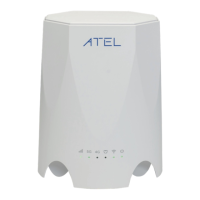
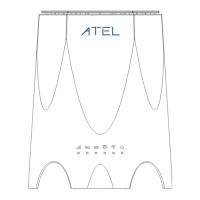
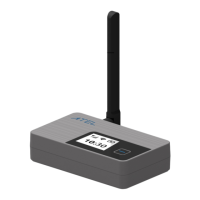
ATEL V810 Series
V810A and V810AD Data User Manual
V6.9, July 17, 2023
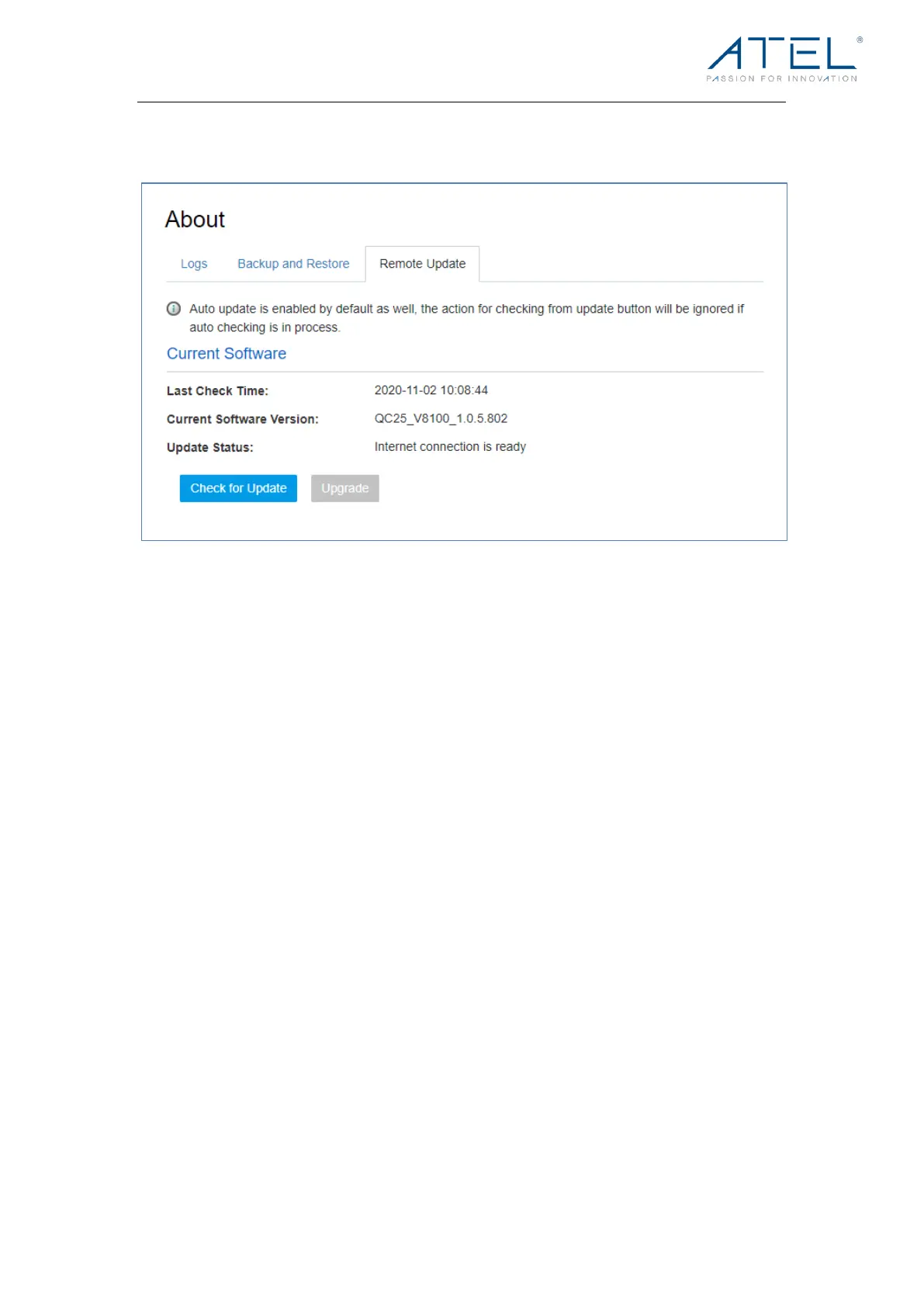
Remote Update
To avoid poten tial d amag e from p ower loss durin g a software upgrade, please ensure
that you connect your V810 to a wall charger for external power prior to starting any
software updates.
! Check for Update:
The “Check for Update” button is only active (blue button) every 6 hours. When active, you
can click the “Check for Update” button to check for a new software version. If a new version
is detected, the “Upgrade” button will become active (blue color).
! Upgrade:
If a software upgrade is available, click the active “Upgrade” button to launch the upgrade
manually. Once the upgrade is completed, the device will reboot, and the new software
version will be displayed.


 To Next Page