LL
co
.....
N
"
N
.....
0
N
>
co
Setting a home address/favorite as the
destination
Applies to: vehicles with navigation system
You can quickly and easily start route guidance
to your home address using the home address
function. Favorites allow easier access to fre-
quently used destinations .
.. Press the I NAV/MAPI button repeated ly unt il
the
Enter destination menu is displayed
¢ page 201, fig. 182 .
Setting a home address as the destination
Requirement: a home address must be stored
¢ page 207 .
Your Home address is shown d irectly in the Enter
destination
menu @ Q page 2 01, fig. 182 .
- Se lect : Home address > Start route guidance.
Setting a favorite as the destination
Requiremen t : a favorite must be stored as a des -
tination
¢ pag e 208 .
- Ente r at leas t the first three lette rs of the de-
sired favorite in t he free text search inp ut fie ld.
The favorites found are shown in the Infot ain-
ment system display @)
¢ pag e 201 , fig. 18 2 .
- Select and confirm the desi red en t ry.
- Select and confirm
Start route guidance.
@ Tips
- Additional settings for the home address
can be found un der ¢ pag e 20 7.
- Additional settings for the favorites can be
fo und under ¢ page 208 .
Na v iga tion
Transferring a destination from the
directory
Applies to: vehicles wit h navigat ion syste m
You can navigate directly to destinations in the
directory.
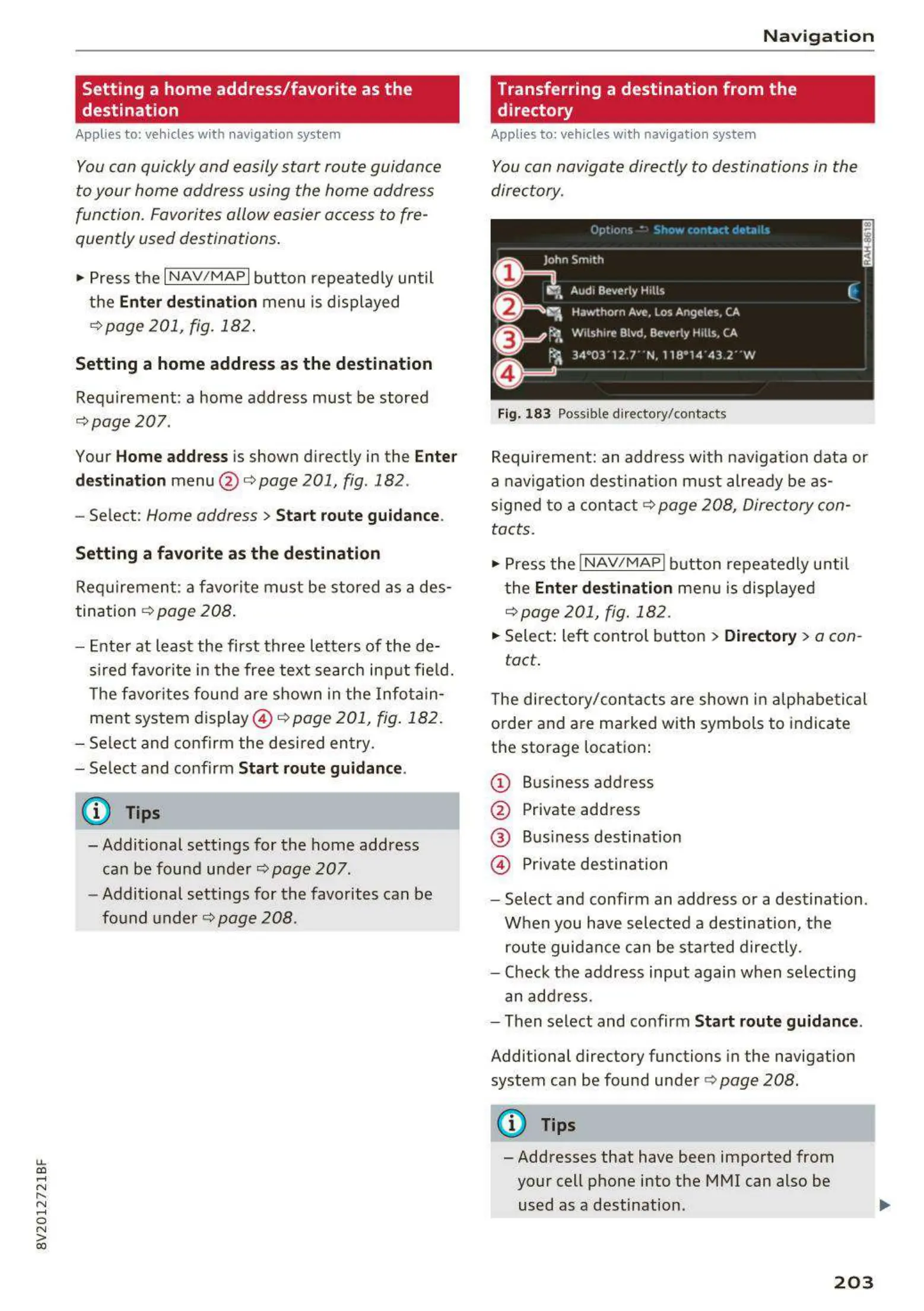
Fig. 18 3 Possible directory/c onta cts
Requireme nt: an address with navigation d ata or
a naviga t ion d est inat ion must already be as-
signed t o a contac t ¢
page 208, Directory con-
tacts.
.. Press the INAV / MAPI button repeatedly u ntil
t he
Enter destination men u is displayed
¢ page 201, fig. 182.
.. Sele ct: left con t rol but ton > Directory > a con-
tact .
The directory/con t act s are shown in a lphabe t ical
order and are marked with symbols to indica t e
the storage locat ion:
@ Bus iness add ress
@ Private add ress
@ Business destination
@ Private des t ination
- Select and confirm an address or a des tinat ion.
W hen you have selected a destination, t he
route guid a nce can be sta rt ed directly.
- Check the address input again when se lecting
an add ress.
- Then select and confirm
Start route guidance.
Additional directory functions in the navigation
system can be found unde r ¢ page 208.
{!) Tips
-Addresses that have been imported from
your cell phone into the MMI can also be
used as a destination.
203



 To Next Page