u.
00
.-<
N
l'-
N
.-<
0
N
>
00
CD drive
Applies to: vehicles wit h a CD drive
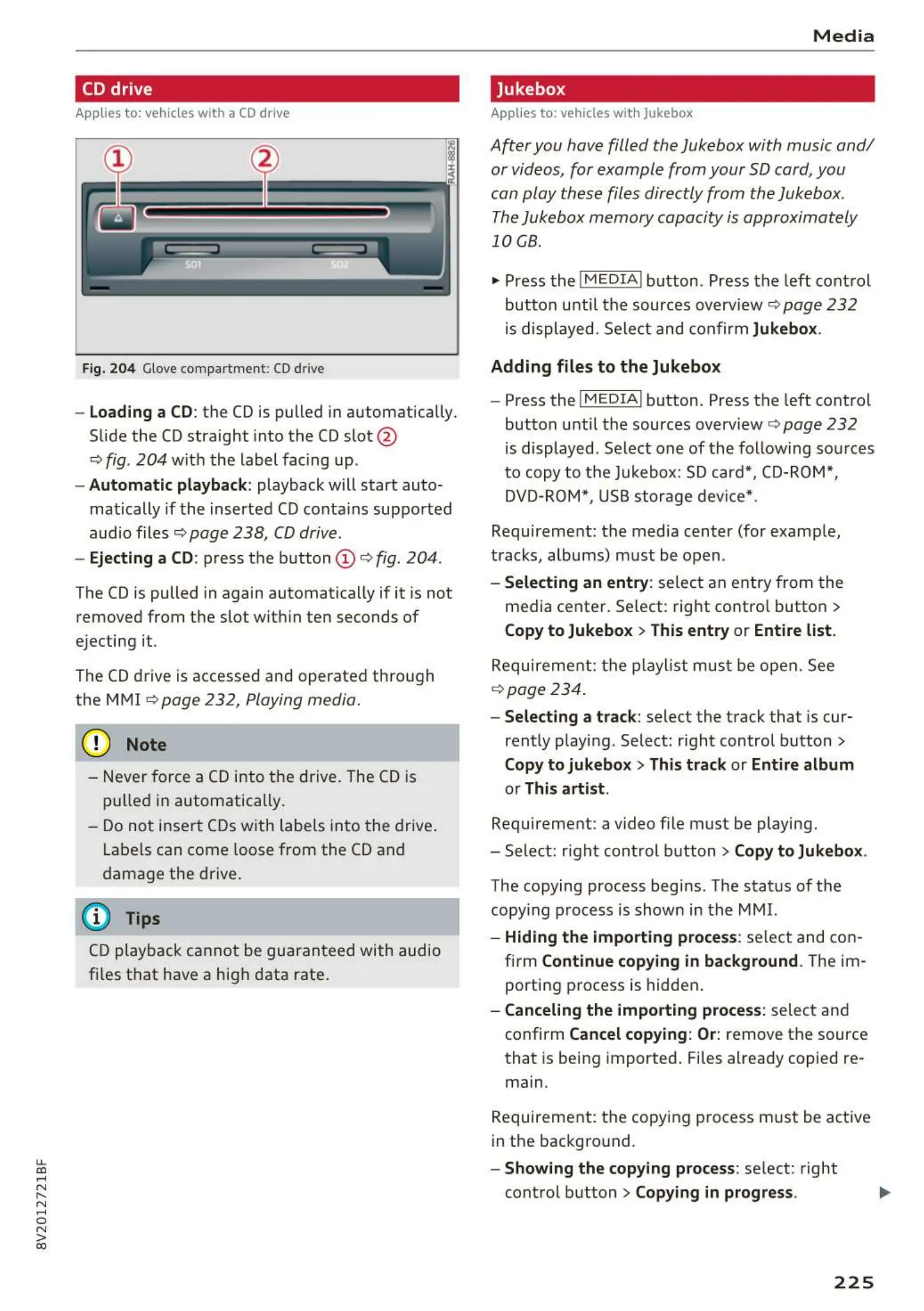
Fig. 204 Glove comp art ment: CD driv e
- Loading a CD: the CD is pulled in automatically .
Slide the CD straight into the CD slot @
ca:> fig . 204 wit h the label facing up.
- Automatic playback : playback will start auto-
matically if the inserted CD conta ins sup port ed
audio files
ca:> pag e 238, CD drive.
- Ejecting a CD: press t he button (D <=:> fig . 204 .
The CD is pulled in again automatically if it is not
removed from t he slot wit hin ten seconds of
ejecting it.
The CD drive is accessed and operate d th rough
the MMI <=:>
page 232, Playing m edia.
{Ll) Note
- Never force a CD into t he drive. The CD is
pulled in auto matically .
- Do not insert CDs with labels into th e drive.
Labels can come loose from the CD and
dama ge the drive.
(D Tips
CD playback cannot be guarant eed with audio
files t hat have a high data rate .
Media
Jukebox
Appli es to : vehicles w it h Jukebox
After you have filled the Jukebo x with music and/
or videos, for example from your SD card, you
can play these files directly from the Jukebo x.
The Jukebox me mory capa city is approximately
10 GB .
.,. Press the I MEDIA ! button . Press t he left cont rol
butt on unt il th e sources overview <=:>
page 232
is displayed. Select and confirm Jukebox.
Adding files to the Jukebox
- Press th e I MEDIA ! button . Press t he left cont rol
button unt il t he sources overview <=:>
page 23 2
is displayed . Select one of the following sources
to copy to t he Jukebox: SD card*, CD-ROM*,
DVD-ROM*, USB stor age device*.
Requirement: t he media center (for examp le,
t racks, albums) must be open.
- Selecting an entry : se lect an ent ry from the
media cente r. Select : right contro l butto n
>
Copy to Jukebox > This entry or Entire list.
Requiremen t : th e playlist must be open. See
<=:> page 234.
- Selecting a track : select the t rack that is cur-
rent ly playing . Select: right control button
>
Copy to jukebox > This track or Entire album
or This artist .
Requirement: a video file must be playing.
- Select: right contr ol button
> Copy to Jukebox.
The copying process begins . The stat us of the
copying process is shown in the MMI.
- Hiding the importing process: select and con-
firm
Continue copying in background . Theim -
porti ng process is hidden .
- Canceling the importing process: select and
confirm
Cancel copying : Or: remove t he source
that is being imported . Files already copied re-
main.
Requirement: t he copying process must be active
in the background.
- Showing the copying process: se lect: right
contr ol button
> Copying in progress.
225



 To Next Page