40
Menu/Task Bar Icons
MacOS
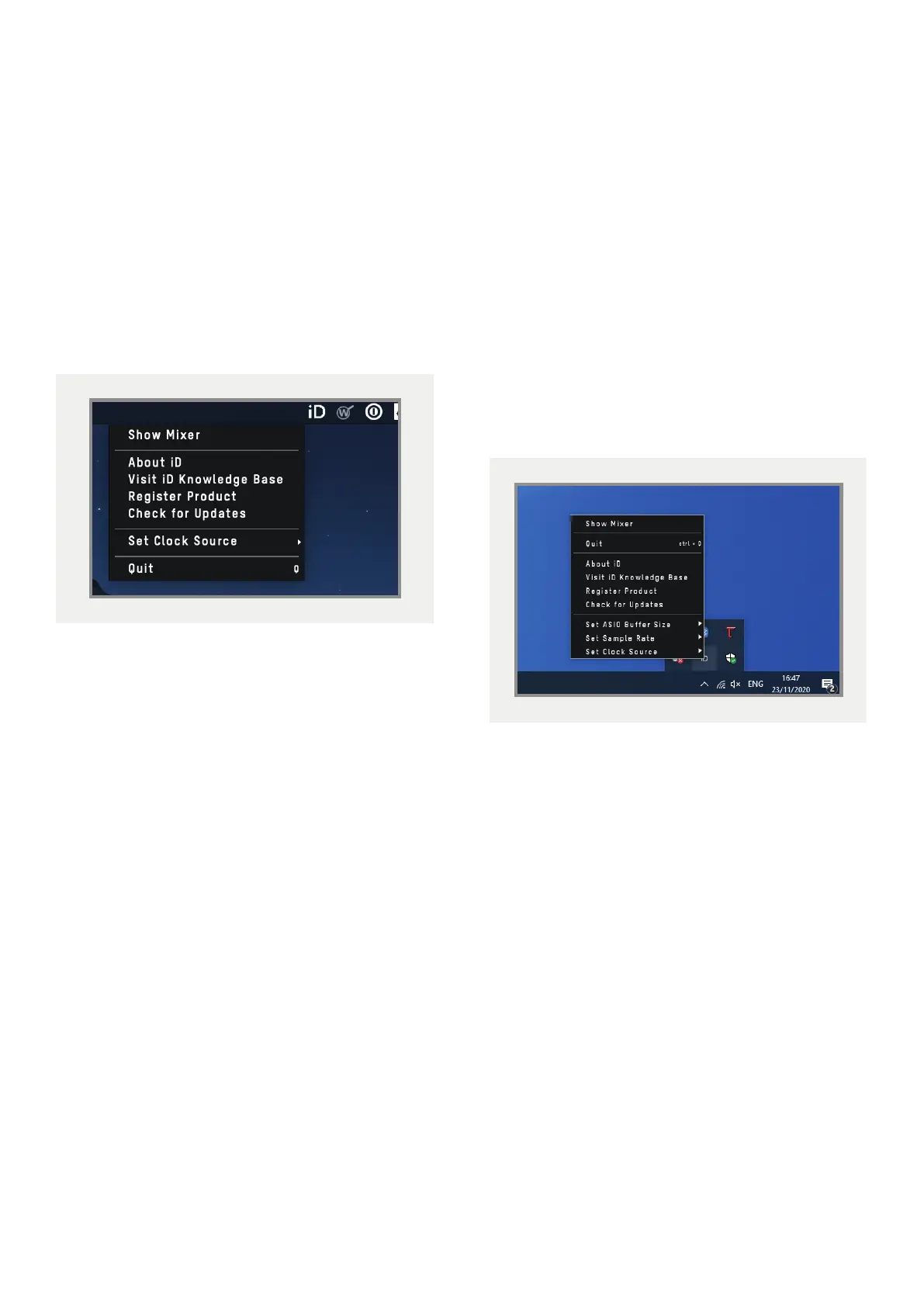
On MacOS, the iD icon appears in the
menu bar in the top right hand corner of the
screen. This gives you quick access to various
functions of the iD44.
Quit
Fully closes the iD mixer application.
About iD
Displays information regarding the current
version of the iD mixer application.
Visit iD Knowledge Base
Opens a browser window for the Audient
Helpdesk with helpful articles and FAQ’s
.
Set Clock Source
Allows you to quickly adjust the clock source
between the internal and optical clocks.
Check for Updates
The iD app will check with the Audient
update server for any available firmware
updates for iD44.
Windows
The Windows system tray icon has all the
options of the MacOS menu bar icon but
also includes some Windows specific options.
Set Sample Rate
Sets the operating sample rate of iD44. 44.1,
48, 88.2 and 96kHZ are the four options
available.
Set ASIO Buer Size
Sets the buer size of the iD44 between 16
and 8192 samples. Higher sizes will take
processing load o your computer but will
cause increased latency.



 To Next Page