54
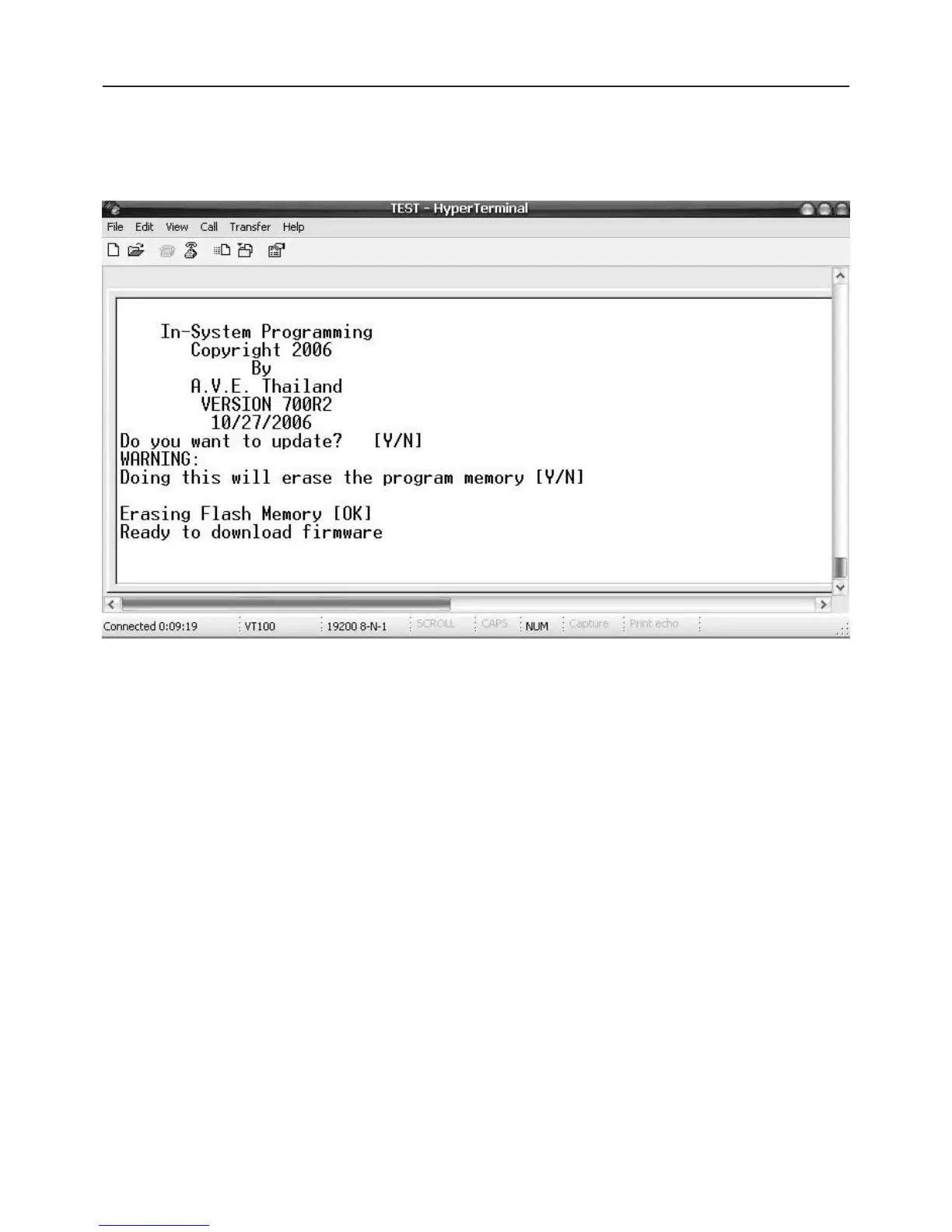
Second, you go to the menu of the VSI-Pro “Download/Upload Setup” then select ==> “Update Firmware” and then
press Set. Now you will see message in Hyper Terminal.
“Do you want to update? [Y/N]”
Press “Y” to accept update.
You will see message warning again.
“Doing this will erase the program memory [Y/N]”
Press “Y” again to accept update.
NOTE: Pressing “Yes” again will permanently erase the entire program memory and the VSI-Pro will not function
until firmware is loaded. Make sure you have the proper firmware file ready or the VSI-Pro will be rendered
useless.
Finish erasing the program memory step.
Next, you have to send file to update firmware by click on “Transfer Menu” and select “Send Text File” and wait
until finished programming. Progress dots will be displayed on the terminal program until finished and takes
approximately 2.5 minutes.
NOTE: If for some reason you are disconnected from the VSI-Pro during downloading, power is lost to the VSI-
Pro or PC or the firmware update does not finish for any reason you can repeat the procedure above again. The
bootstrap loader never is erased and will always request for a valid firmware update until achieved.
To do this just power up the VSI-Pro or press reset while the terminal program is connected and you will see the
prompt messages as above window.
PROGRAMMING
Figure P8 In-System Programming Display


 To Next Page