Avery
®
Personal Label Printer
120
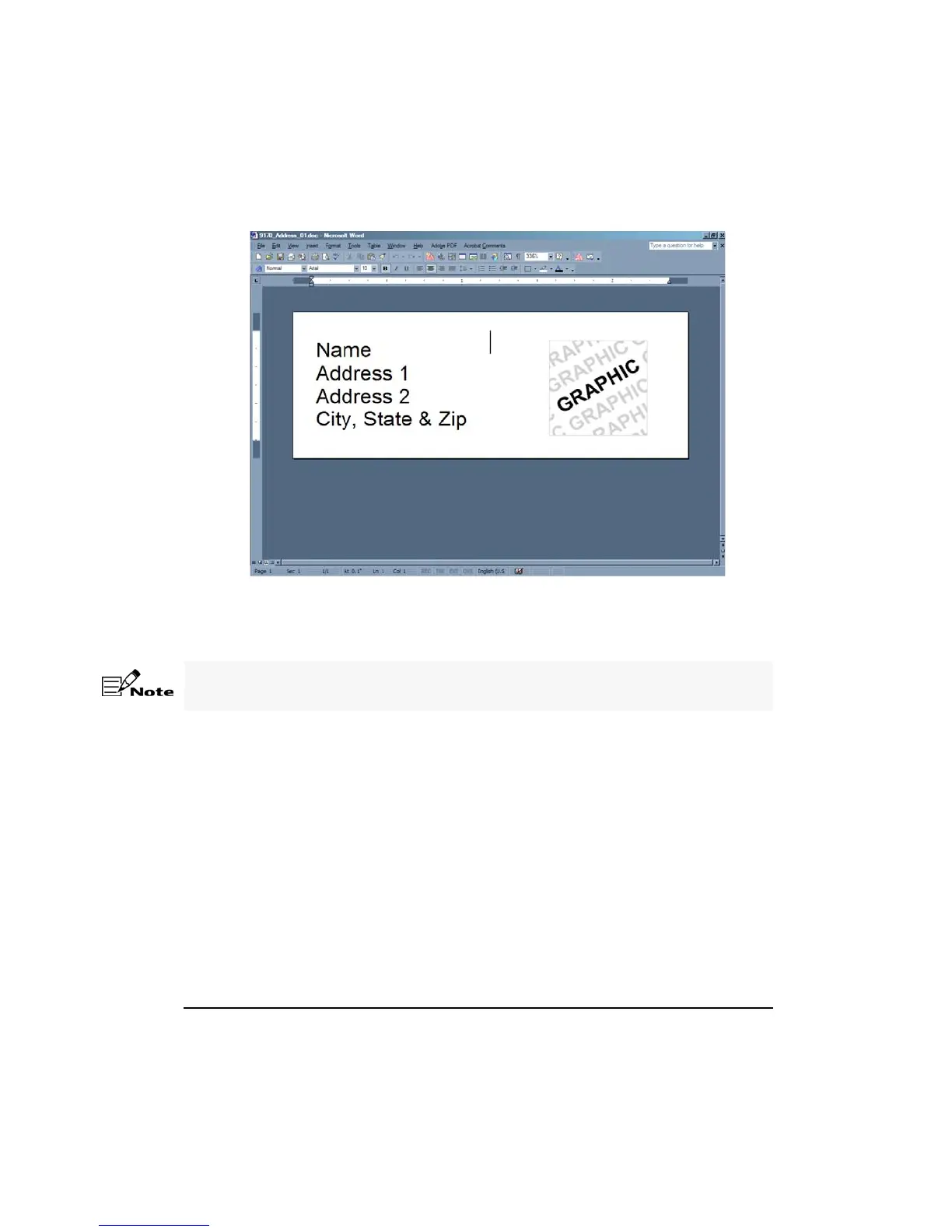
3. Select the Name, Address 1, Address 2, City, State & Zip text and type your address
information. Format the text as desired.
4. Select File > Save. Navigate to the drive and folder where the label project is to be saved.
5. Type the File name and click Save.
6. Select File > Print. Change the Printer Name to Personal Label Printer from the drop
down list.
7. Click OK to print the label.
To add graphics using text boxes, refer to Use Text Boxes and Graphics in Microsoft
Word.










 To Next Page