Avery
®
Personal Label Printer
55
2. To move an object, click on the object frame. Place the cursor on the edge of the object until
it changes to a four-arrow pointer . Click and drag the object to the new location. Release
the mouse to complete the move.
Finishing Your Project
We will finish this lesson by showing you how to display and navigate between the records in
your database and how to save and print your project.
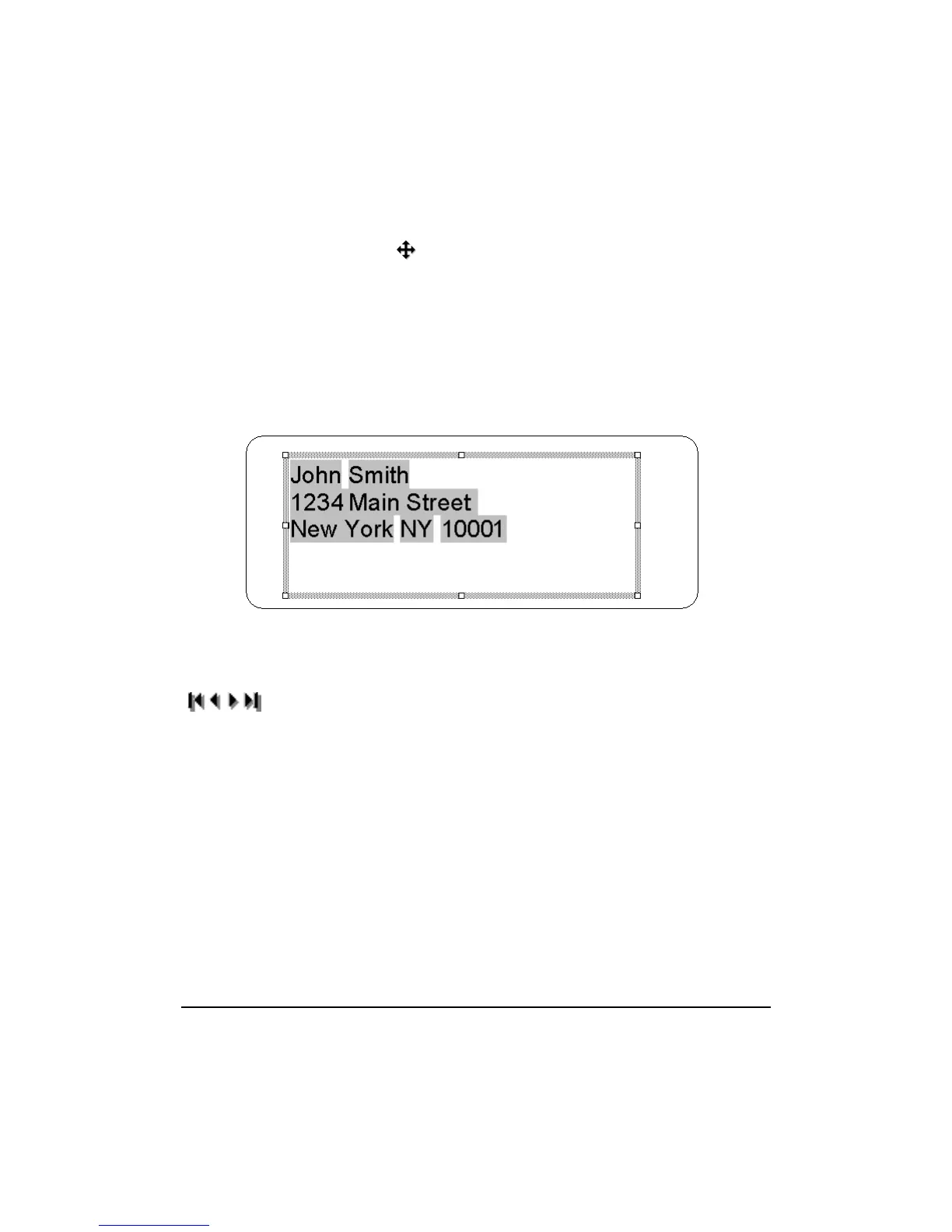
1. The Master tab contains the field names of your database. To view the record information
from your database instead of the field names, select Database > Display Field Contents. A
database record appears on the Master tab.
2. Scroll through the names in the database by selecting Database > Go To and selecting First
Record, Previous Record, Next Record or Last Record. The selected record appears on the
Master tab. You can also scroll through the records by clicking the navigation buttons
on the Advanced toolbar.
3. Select File > Print. Select Master Label Only and click Print Preview to view the label
sheet. Select 100% from the pull-down list box to enlarge the preview. The top three labels of
the sheet contain the database information. Click Close to return to the Design screen.
4. Save and close this project for later reference.










 To Next Page