Specifying the Product’s TCP/IP Address
To let other devices on the network identify the product, you need to set an IP
address for the product. Follow these steps to set an IP address:
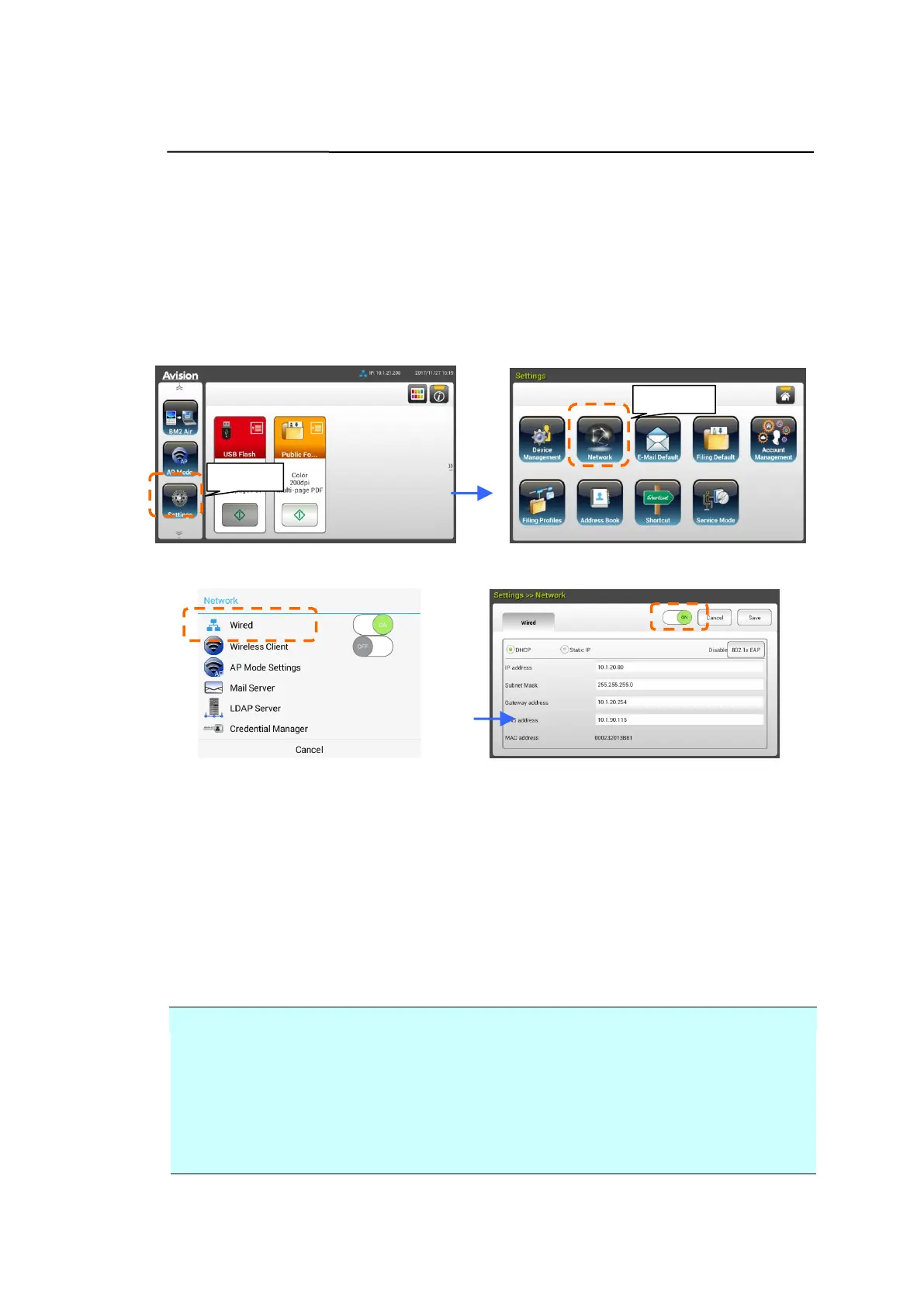
1. On the Home Screen of the LCD Touch Panel, tap
[Settings]>[Network]>[Wired] in succession and then set the IP address
for the product.
- Check [DHCP] if you wish to enable DHCP.
- Check [Static IP] if you wish to specify a static IP address. If [Static
IP] is selected, tap the IP Address/Subnet Mask/Gateway
IP/DNS Server field respectively to bring up the soft keyboard and
then enter the relevant values.
2. Tap [Save] to save the setting and go back to the previous screen.
Note:
If the system administrator has chosen DHCP, then the IP address of TCP/IP,
gateway, subnet mask, and DNS server will be automatically given.
When installing the product for the first time, it is recommended that the
Administrator retain the default system settings. The settings can be
customized at a later date once you are familiar with the operation and
functionality.



 To Next Page