Creating a Shortcut Button
By setting frequently used scan settings and destinations as Shortcut on the
Home screen, the product helps you to streamline your workflow and complete
your scanning task in just one single step.
Plus, if the cloud server has been setup as a shortcut button on the main screen,
the login name and password will be remembered to save you the trouble of
having to enter the information each time you access the cloud server.
To create a Shortcut button,
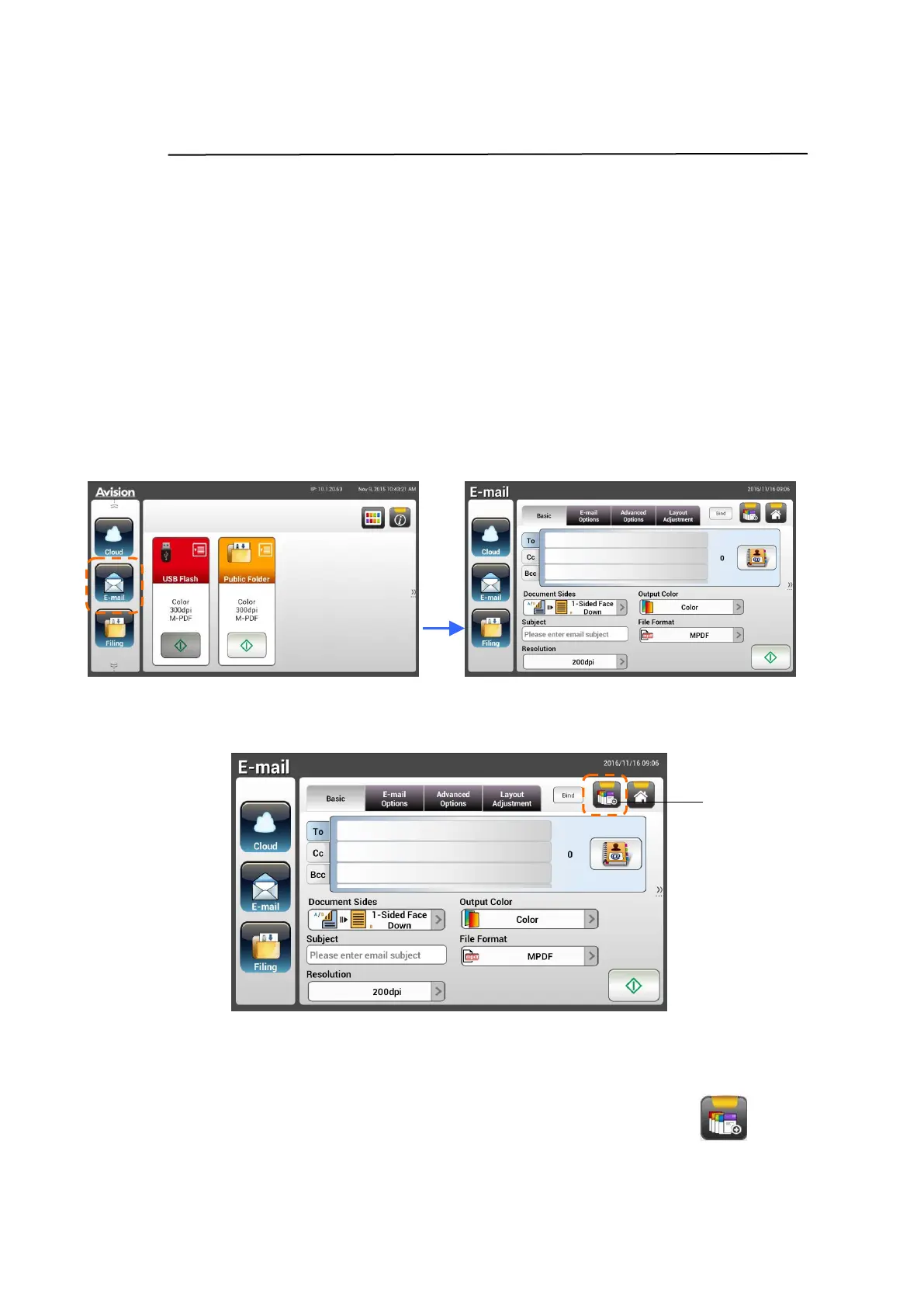
1. Select your frequently operational mode on the left panel. For example,
E-mail. The E-mail screen will be displayed on the right panel.
2. Select your frequently used E-mail address in the [To]/[CC]/[BCC] field.
3. On the [E-mail options] screen, type your [From] address.
4. Check if any of the scan settings needs to be changed to suit your
frequently used E-mail task.
5. If the scan settings are satisfactory, tap the [New ShortCut] to
create your new ShortCut.
Add a New
ShortCut
Button



 To Next Page