How to import e-mail address from a LDAP Server
1. Configuring Your LDAP Server Setting:
(1). Open your browser and type the IP address of the device on the URL
address. The webpage of the device appears.
(2). Login the webpage. (default user name and password: admin)
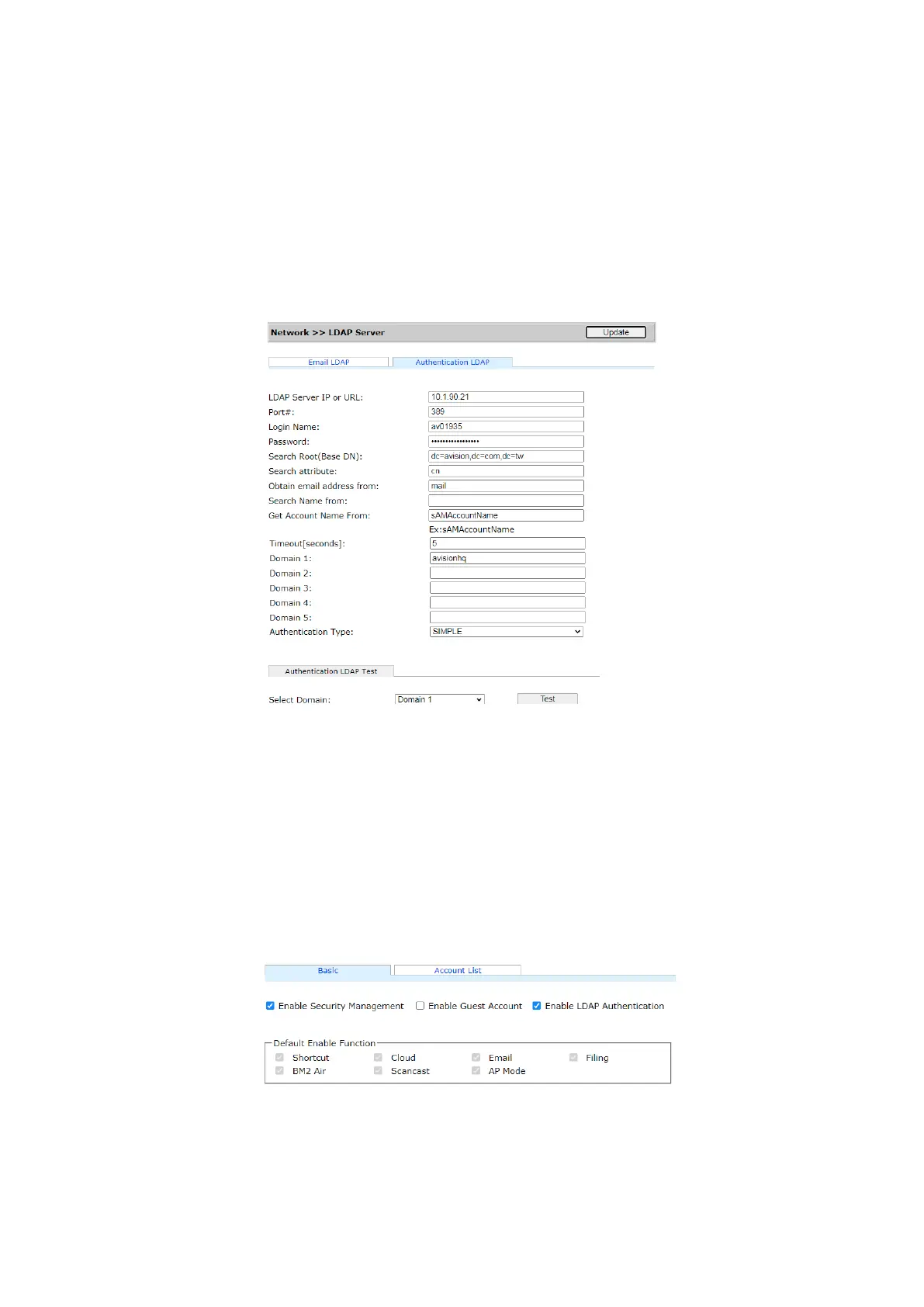
(3). Choose [Network]>[LDAP Server]>[Authentication LDAP] in
succession.
(4). Enter your LDAP information respectively and then click [Update] to
complete. Refer to the following example.
(5). You may try [Authentication LDAP test] to check if the connection
and login test successful with admin's AD(ActiveDirectory) account.
2. Set Accounts with LDAP authentication:
(1). On the device’s webpage, choose [Account Management] and
check [Enable Security Management] & [Enable LDAP
Authentication].
(2). Click the [Account List] tab, and click [New]. Check [LDAP
Authentication].
(3). Click [LDAP Search] and then enter your account and click [Submit]
to search your AD account. The search result will be displayed as
illustrated.



 To Next Page