Connecting the Scanner to a Wi-Fi Network in a Client Mode
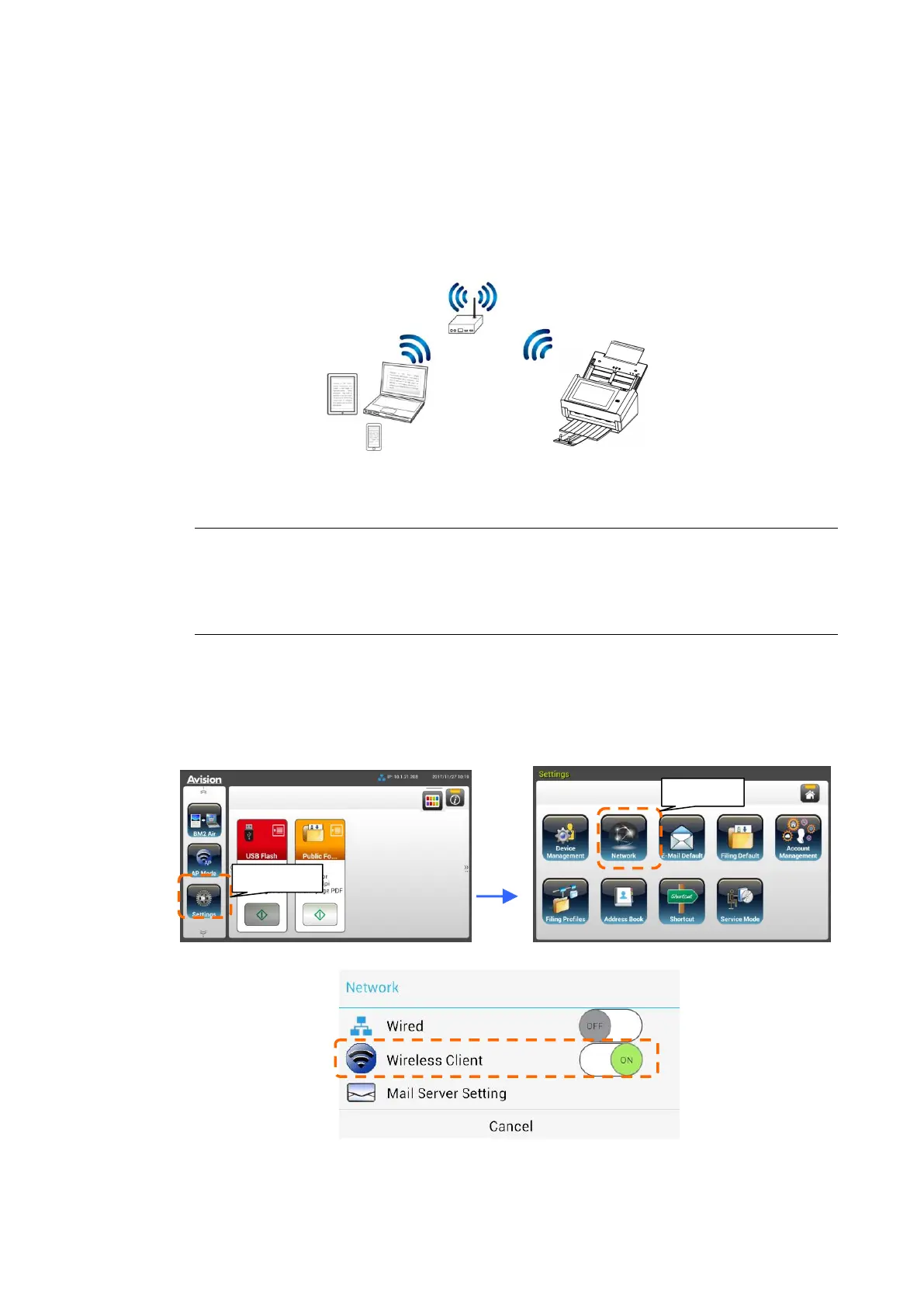
In a Client mode, your mobile devices and scanner are connected wirelessly
through an additional AP (Access Point). This mode is also the default wireless
mode.
Connecting Your Scanner to an Access Point:
Important:
Note the wired and wireless mode can not work at the same time. To connect the
scanner in a wireless network, please first disconnect the Ethernet cable
connecting to your scanner.
1. If you have connected a wired Ethernet cable to the scanner, disconnect
the network cable.
2. On the Home Screen of the LCD Touch Panel, tap [Settings]>[Network].
Make sure that [Wireless Client] is turned on.
3. In a second, current wireless networks near you will be displayed as shown
below.



 To Next Page