Scanning and Sending Your Document to E-mail
Addresses
Basic Operation
Using the Default Setting
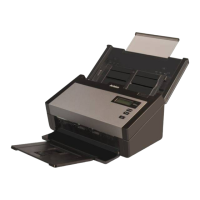
1. Load your document in the ADF with the 1
st
page facing down and the top of
the pages pointing to the feeder.
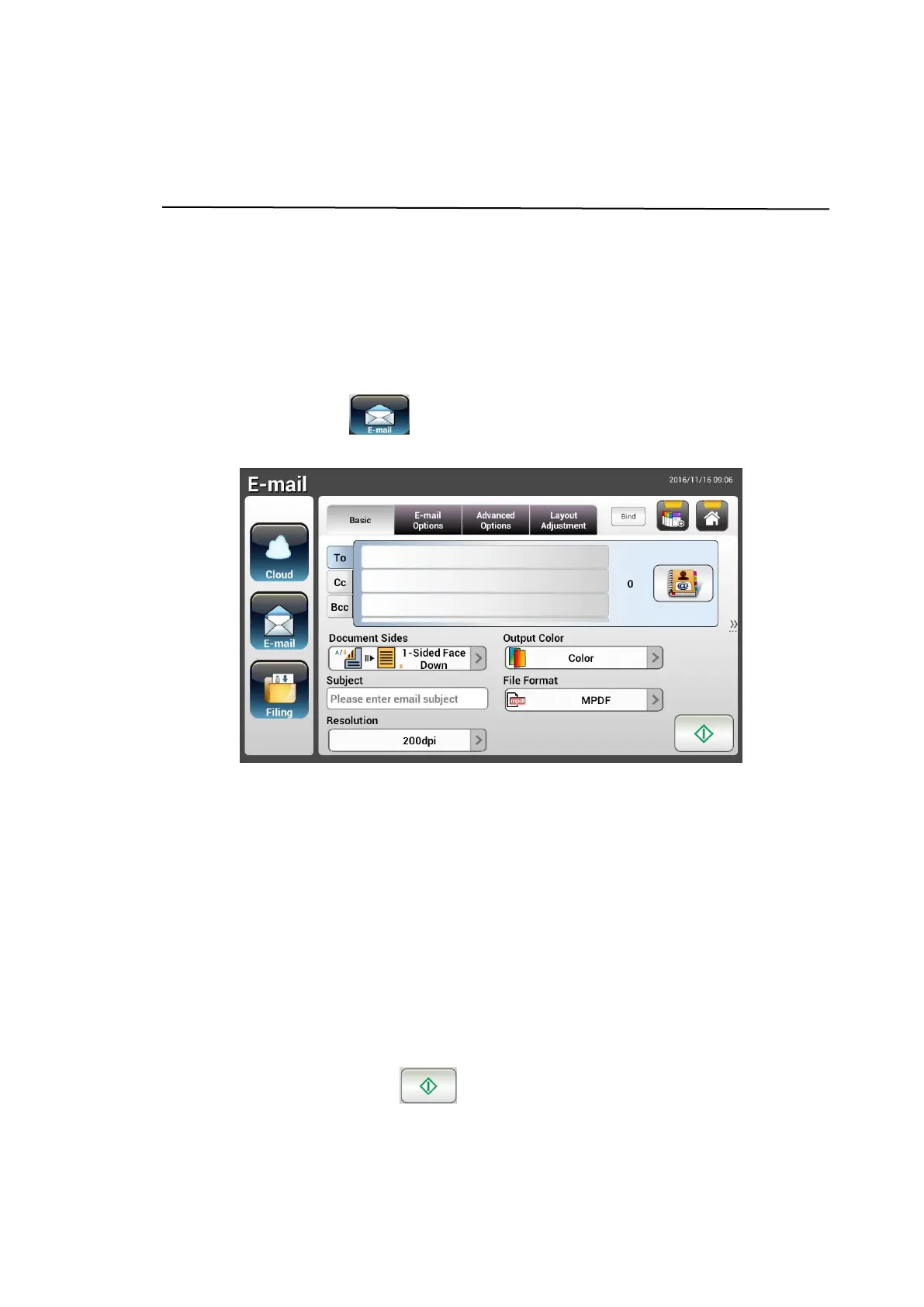
2. Press the E-mail button on the Home screen. The following
E-mail main screen will be displayed in the right side.
3. Enter the E-mail address.
- Touch any place on the “To” field (the empty box in the center) to bring
up the “soft keyboard” to type your email address. Tap the 2
nd
field to
enter your 2
nd
E-mail address.
- You can delete the E-mail address by touching the [Delete] button after
you input your email address.
4. Enter or select CC and BCC address as well, if necessary. Enter the subject
of your E-mail via the soft keyboard. If not, the “Default Subject” will be
displayed in recipients’ E-mail message.
5. Check if the Document Sides, Output Color, or File Format meets your
requirements. If not, change the settings to suit your needs.
6. Tap the [Start] button ( ) to start a scan.
7. The product starts scanning and the preview image will be displayed.



 To Next Page