How to Send Your Image to SharePoint
SharePoint (Server) is a web-based platform that your company owns and
operates. You can use the web site as a secure place to store, organize, share
information from any device through a web browser.
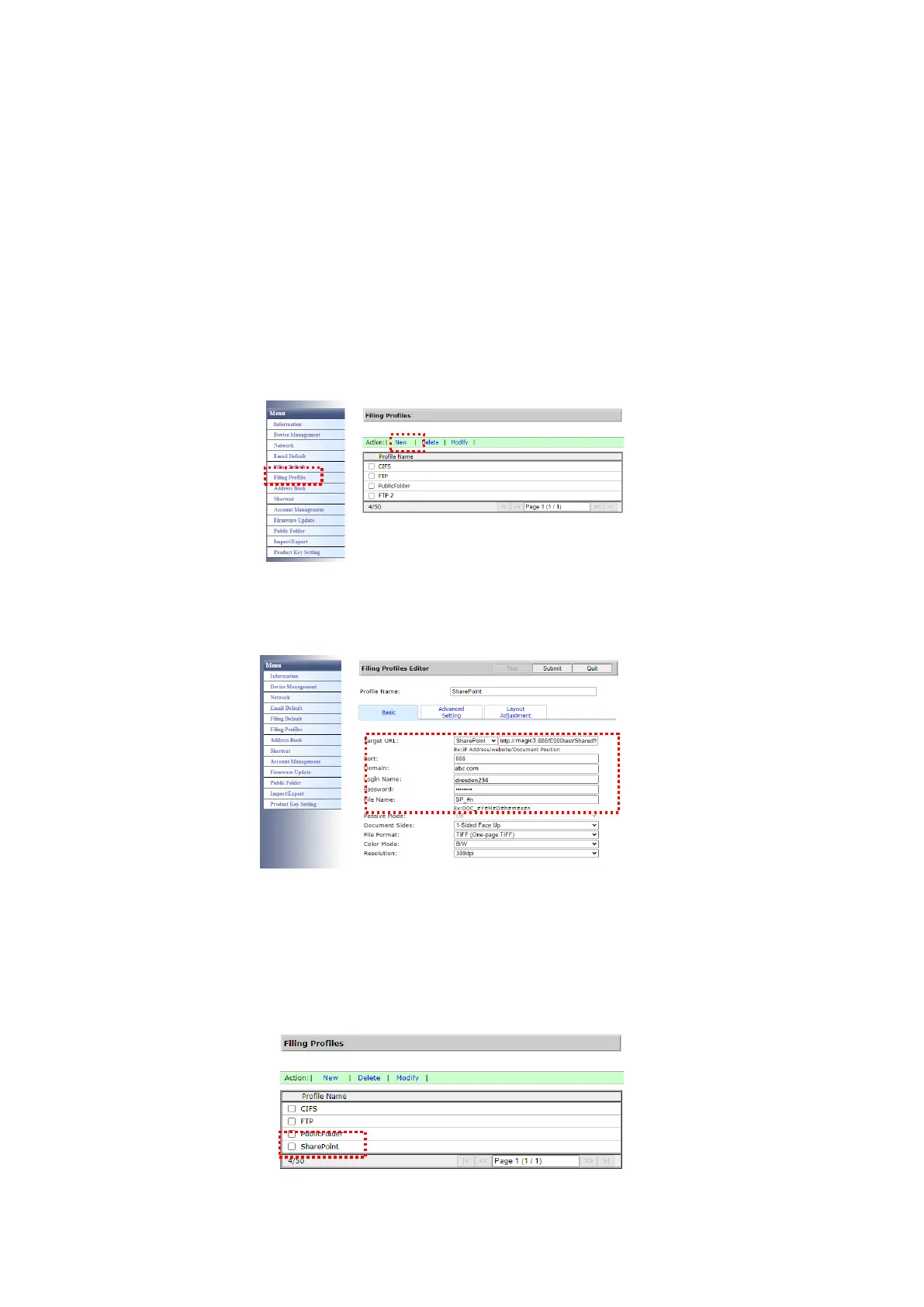
To add a SharePoint server for your filing profile,
1. Open your browser and type and IP address of your scanner. An embedded
webpage appears.
2. Login the page to acess more settings with default user name and
password – admin.
3. Click [Filing Profile] and then [New] to create a new filing profile.
4. Enter your Profile Name. For example, SharePoint.
5. Select [SharePoint] from the [Target URL] field and then type the IP
address or domain name of the SharePoint server provided by the IT
department of your company as illustrated in below:
You may also check with your IT personnel for the server port, domain
name and make sure that you have an authorized account.
6. Enter your login name and password.
7. Click [Submit] to complete the SharePoint settings.
8. If successful, a [SharePoint] profile will appear on the Profile list as shown
in below.



 To Next Page