6. Tap the Layout Adjustment tab to prompt the Layout Adjustment
screen. Change original size and preview if the default settings are not
satisfactory. (For more information about the settings, see the settings
description described in the preceding section – Scanning and Sending Your
Documents to E-mail Addresses on page 30.)
7. Tap the Start button. The scanner starts scanning your document.
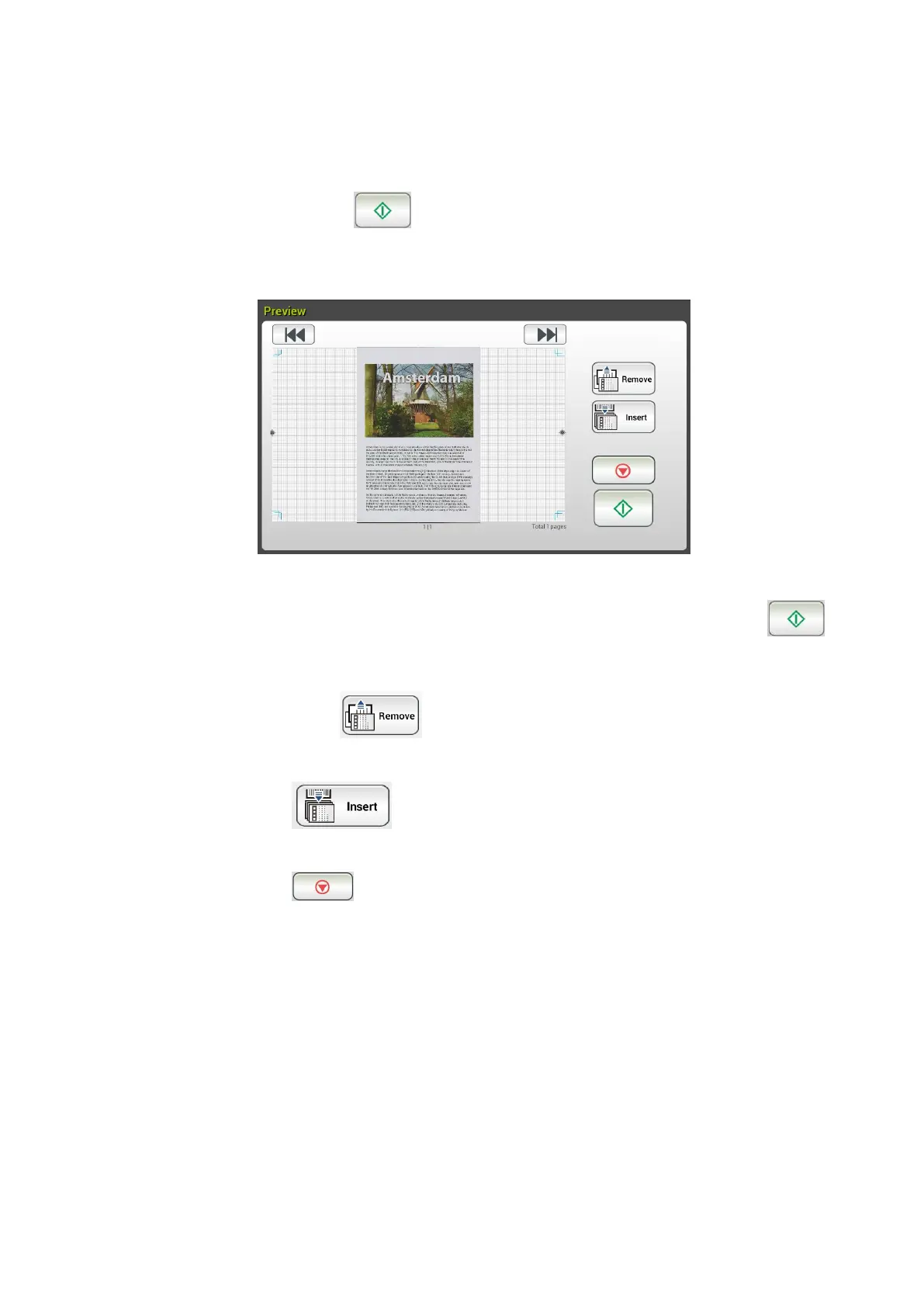
8. The product starts scanning and the preview image will be displayed.
9. On the Preview screen,
Start: If the scanned image is OK, press the [Start] button ( )
on the touch panel to distribute the scanned image.
Remove: If the scanned image is not satisfactory, tap the [Remove]
button ( ) to delete the scanned image.
Insert: You may also insert more pages by taping the [Insert]
( ) button on the bottom of the screen.
Cancel: If the scanned image is not OK, tap the [Cancel] button
( ) to abort the job.
11. In a second, the scanned image will be sent to your specified network
folder.



 To Next Page