7: GPIO xNode • 34
© 2016 Axia Audio - Rev 2.0
Simple Setup
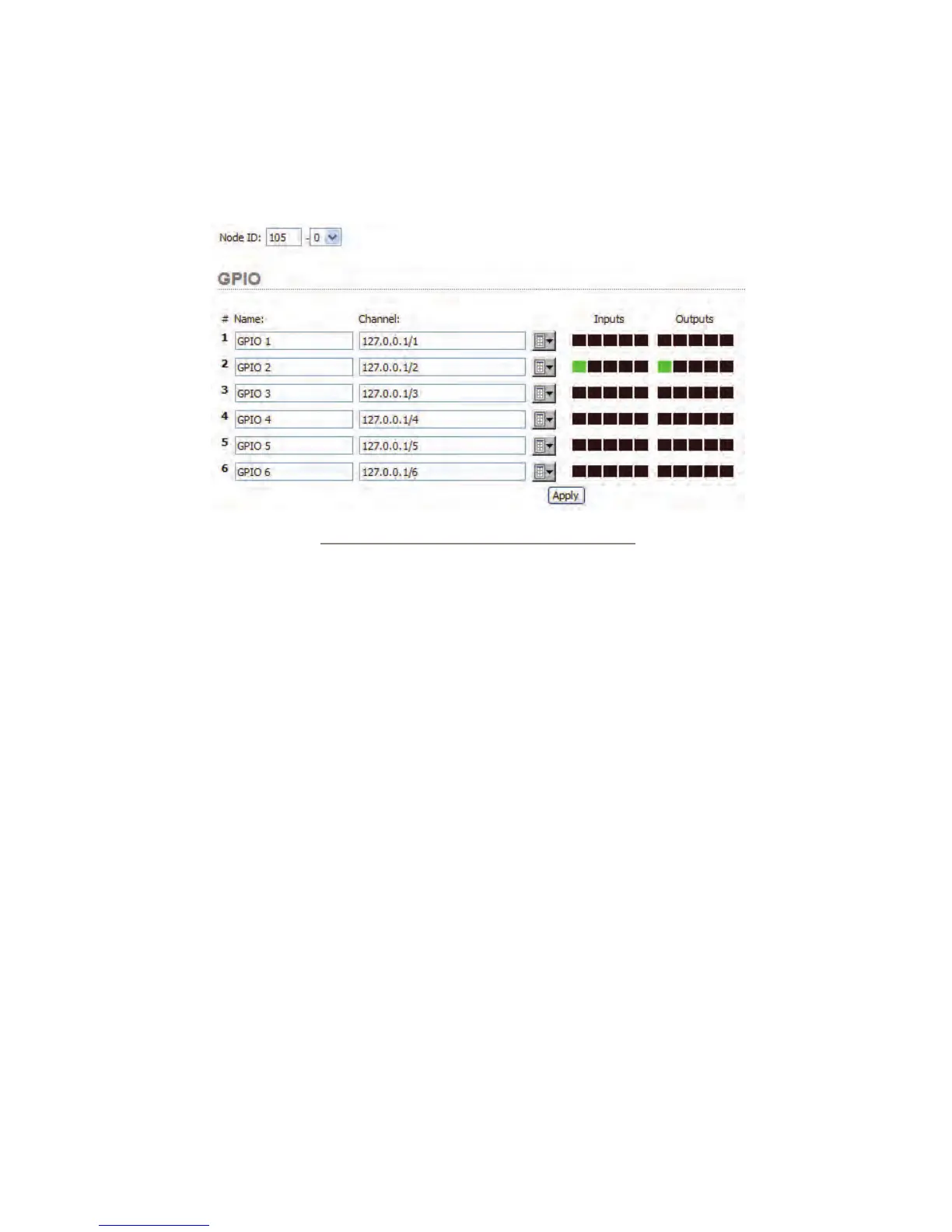
The GPIO xNode has a simple setup page which provides access to the node ID (a node ID was likely already
assigned from the front panel at install) and conguration of the 6 GPIO ports. Included also in the page is a Java
script which provides status on each of the inputs and outputs.
Figure 7-8
Each port is represent by a row. The name column is used to assist with documenting the function of the port (or
the device which is connected to the port). The Channel column is used to congured the port. The input and output
columns show a grouping of boxes that represent each of the 5 GPIs and 5 GPOs. A high state (not active) is repre-
sented by a black box. A low state (active) is represented by a green state.
Conguration of a port can be accomplished in three different ways.
1. Port routing – The GPI activity on a port will trigger the GPO of the port you are conguring. (you are
routing the GPIs of a port to another port’s GPOs). This is done by entering in the IP address of the device
with a GPIO port followed by a forward slash and the port number. 10.216.0.121/5 – equates to port 5 at
address 10.216.0.121 new line 127.0.0.1/1 assigned to port 1 would be a loopback; GPI activity on the port
would trigger the GPO of the same port (used for testing)
2. Channel assignment – The GPIO port will follow the logic as dened by a control surface. Axia control
surfaces have predened logic for a source loaded to a fader. The logic is shared on the network through the
use of the unique channel number for a source. Refer to appendix A for common predened functions. To
assign a port to a channel, either manually type in the channel number in the eld OR use the browse button
to search the network for advertised sources.
3. Pathnder control – The Pathnder series of products has the ability to observe GPIO activity as well as
trigger GPO activity. Nothing is required to congure in the GPIO xNode, all the conguration is done in
Pathnder. Please refer to Pathnder documentation for detailed information.


 To Next Page