20
Android Mirror Link Function
1) On your phone enter Settings > Developer Options > Turn on the
Developer Options > Select USB DebuggingDQGFRQ¿UP
2) Connect a compatible USB cable. On the unit, select the
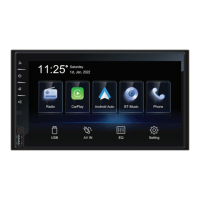
EasyConnected icon in the APP section. Your mobile device will
then display “Allow USB Debugging”. Check “Always Allow from
this PC”DQGFRQ¿UPWRFRQQHFW
3) Click the mobile icon to enter USB LINK connecting interface. After
connecting successfully; “Whether install the application Drive Mode” will
pop up.
Apple iPhone Mirror Link Function
1) On your iPhone, turn on the Wi-Fi Hotspot by entering Settings,
then enter Personal Hotspot. Turn on Personal Hotspot name and
password.
2) On the unit, select the EasyConnected icon in the APP
section, then tap the “iPhone Wi-Fi” icon.
3) Select your phone name on the displayed phone on the unit.
4) Open the shortcuts control bar on the iPhone by sliding up from the
bottom of the screen. Select AirPlay Mirroring then select EC-Mirror.
5) Your phone’s screen will now display on the audio unit.
NOTE:
• You cannot operate the iPhone on the unit.
,IXVLQJWKH:L)L+RWVSRWRIWKHXQLWRQO\WKH³3HUVRQDO+RWVSRW´VWHSLV
GL௺HUHQW$OORWKHUVWHSVDUHWKHVDPH
6RPHLQVWUXFWLRQVPD\GL௺HUDVPRELOHEUDQGVDQGPRGHOVDUHGL௺HUHQW
127(7KHFRQQHFWLRQWLPHPD\EHORQJHUZKHQFRQQHFWLQJIRU¿UVWWLPH


 To Next Page