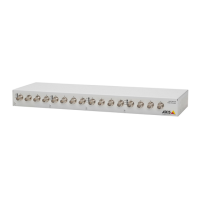
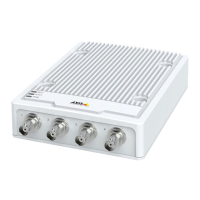
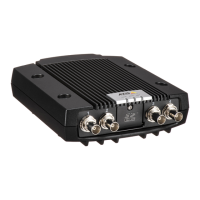
AXIS M7014
Troubleshooting
Troubleshooting
Checking the firm ware
Firmware is s oftware tha t determi n es the functionali ty of network devices. One of your first actions when troubleshooting a problem
should be to check the current firmware version. The latest version may contain a corr ection that fixes your particular problem. The
current firmware version in the Axis product is displayed in the page Setup > Basic Setup and in Setup > About.
Upgrading the firmware
When you upgrade the product with the latest firmware from Axis website, the product receives the latest functionality available .
Always read the upgrade instructi ons and releas e notes available with each new release, before upgrading the firmware.
To upgrade, follow these instructions:
1. Save the firmware file to your computer. The latest version of the firmware is available free of c harge from Axis website
at www.axis.com/techsup
2. Go to Setup > System Options > Maintenance in the pro ducts web pages.
3. Under Upgrade Server, click Browse and locate the file on your computer. Click Upgrade.
After starting the upgrade process, always wait at least 5–10 minutes before restarting the product, even if you suspect the
upgrade has failed.
AXIS Camera Management can be used for multiple upgrades. See www.axis.com for more information.
Note
• Your dealer reserves the right to charge for any repair attributable to faulty upgrade by the user.
•Preconfigured and customized settings are saved when the firmware is upgraded (providing the features are available in
the new firmware) although this is not guaranteed by Axis Communications AB.
Emergency r ecovery procedure
If power or network connection is lost during the upgrade, the process fails and the product becomes unresponsive. Flashing red Status
indicator indicates a fa ile d upgrade. To recover the product, follow the steps below. The serial number is f ound on the product’s label.
1. In UNIX/Linux, type the following from the com m and line:
arp -s <IP address> <serial number> temp
ping -s 408 <IP address>
In Windows, type the following from a command/DOS prompt:
arp -s <IP address> <serial number>
ping -l 408 -t <IP address>
2. If the product does not reply within a few seconds, restart it and wait for a rep ly. Press CTRL+C to stop Ping.
3. Open a browser and type in the product’s IP address. In the page that appears, use the Browse button to select the upgrade
file to use. Then click Load to restart the upgrade process.
4. After the upgrade is complete (1–10 minutes), the product automatically restarts and shows a steady green on the Status
indicator.
5. Reinstall the product, referring to the Installation Guide.
If the emergency recovery procedure does not get the product up and running again, contact Axis support at www.axis.com /techsup/
39



 To Next Page