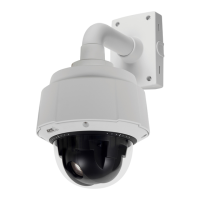
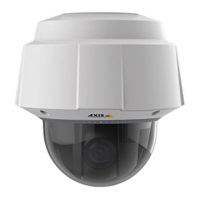
AXIS Q6032-E PTZ Dome Network Camera
System Options
To open the Script Editor, go to System Options > Advanced > Scripting. It is recommended to create a backup file be fore
customizing the scr ipts. If a script causes problems, reset the product to its factory default settings, see
page 46
.
For m ore information, see www.axis.com/developer
File Upload
Files, for exam p le web pages and im ages, can be uploaded to the Axis product and used as custom settings. To upload a file, g o
to System Options > Advanced > File Upload.
Uploaded files are accessed through http://<ip address>/local/<user>/<file name> where <user> is the
selected user group (viewer, operator or administrator) for the uploaded file.
Plain Config
Plain Config is for advanced users with experience of Axis product configuration. Most parameters can be set and modified from this
page. Help is available from the standard help pages.
To ope n Plain Config, go to System Options > Advanced > Plain Config.
Reset to Factory Default Settings
This will reset all parameters, including the IP address, to the factory default s ettings:
1. Press and hold the Control button and the Power button for about 15 seconds until the Status indicator flashes amber (see
Hardware Overview, on page 4
).
2. Release the Control button but continue to hold down the Power button for about 1 minute until the Status indicator
turns green.
3. Release the Power button and re-assemble the product.
4. The process is now complete, the product has bee n reset to the factory default settings. The default IP address is
192.168.0.90
5. Re-assign the IP address.
It is also possible to reset parameters to factory default via the web interface. Go to Setup > System Options > Maintenance.
46



 To Next Page