20
The Menu
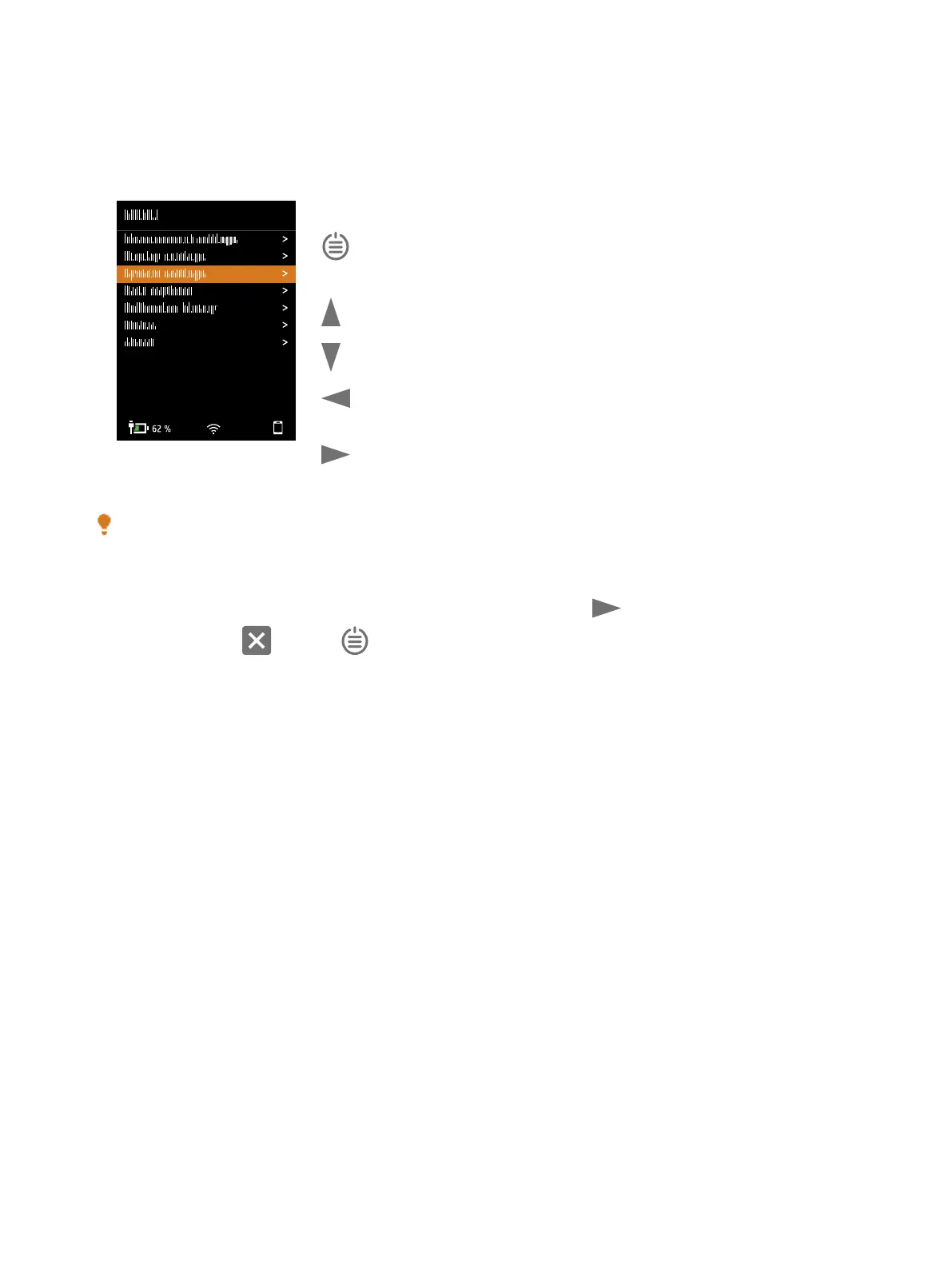
Use the buttons on the instrument to interact with the menu.
: open / close the menu;open a response dialog;confirm a setting in a
response dialog;enable/disable parameter selection boxes
: navigate up a list; increment a value in a response dialog
: navigate down a list; decrement a value in a response dialog
:navigate down a level in the menu; exit a response dialog (without confirming
a setting)
: navigate up a level in the menu;enter a response dialog
Hint:
l The menu is hierarchical. Your current location in the menu is shown in the header
l The menu opens at the location from which it was closed
l
An arrow (>) on the far right indicates that there is a sub-menu, press to access it
l
Navigate to the and press to exit parameter menus
How to Display the GUI in a Web Browser
You will need:
l Your instrument
l A computer or mobile device with Wi-Fi® and a web browser installed
Procedure:
1. Go to: System settings > Network settings > Web server display.
2. Select Enabled.
3.
Network your devices. One way to do this is:
a. On the instrument, go to: System settings > Network settings > Wi-Fi settings > Wi-Fi mode.
b. Select Act as hotspot.
c. Make note of the hotspot name (example: BK2245-000000) and password.
d. Connect your device to the hotspot as per the manufacturer's instructions.
4. On your mobile device or computer, open a web browser.
5.
Type <IP address/display> in the address bar of the browser. When acting as a hotspot, the IP address of the
instrument is 10.42.0.1, so you will type <10.42.0.1/display>.
Get Started: Instrument GUI



 To Next Page