K5905271 /16 Display Controller
19
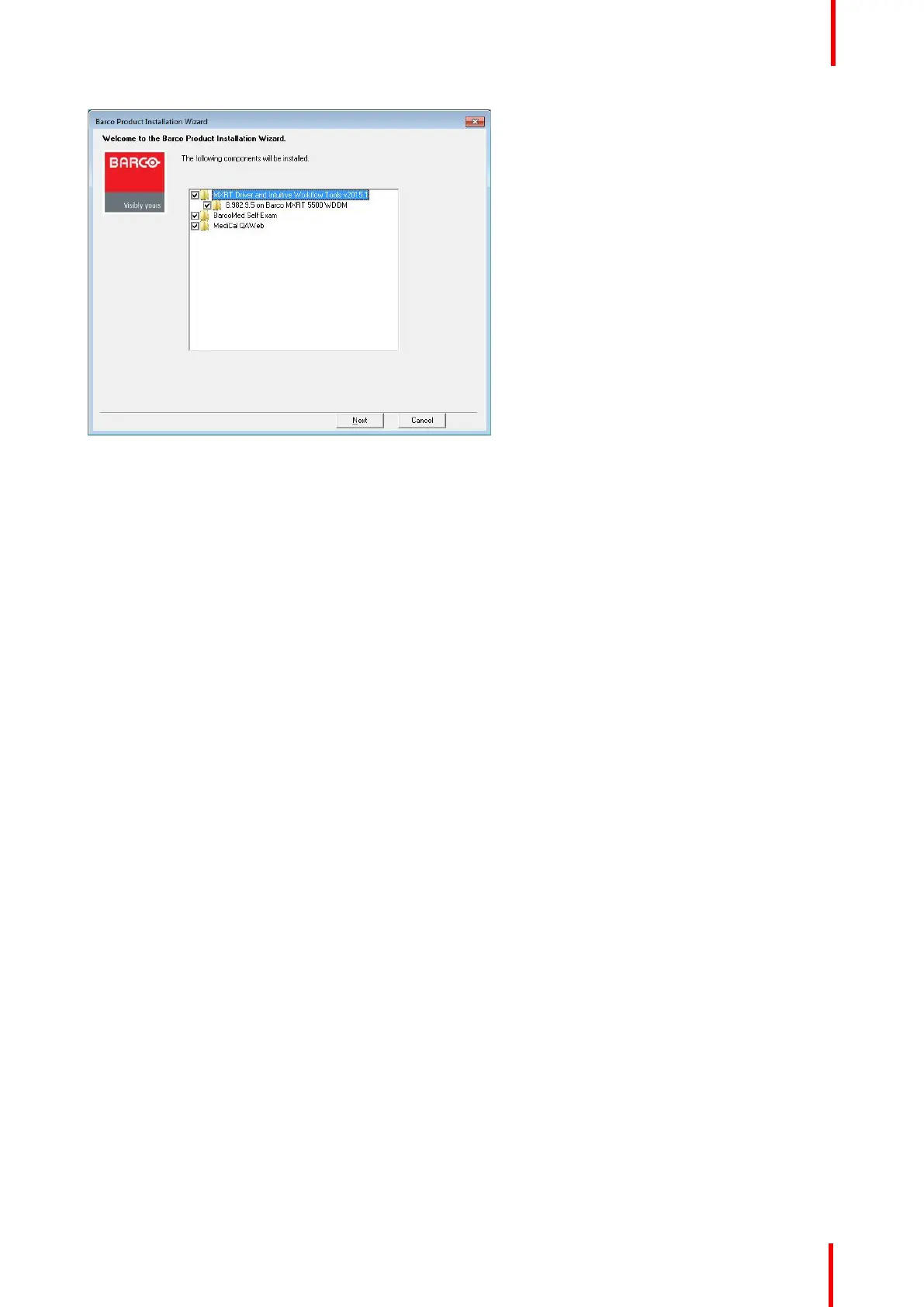
Image 3-1: Barco Product Installation Wizard
• MXRT Driver and Intuitive Workflow Tools: Barco MXRT Display Controller drivers and accompanying
software for supporting Intuitive Workflow Tools
• BarcoMed Self Exam: Barco diagnostic tool
• MediCal QAWeb Agent: Barco calibration software
5. If a previous installation of an MXRT driver exists, the installation wizard will detect it and guide you through
the uninstallation process if necessary.
6. During installation, the desktop may flash, and the Installation Wizard window may appear on different
displays. This is expected behavior.
7. When the installation of all components has completed, the system must reboot to complete the changes, and
an automatic reboot window will be displayed.
3.3 Silent installation
Installation procedure
Navigate to the Barco installation folder and execute the command master_setup.exe -silent.
This can be done from the command shell, from the Run command, or from a command shortcut. The setup
program will automatically install the drivers for any MXRT boards that are present, the BarcoMed Self Exam
program, and QAWeb (if part of the installation package).
Configure silent installation options
You can modify the setup. ini file at the Barco root folder to customize certain silent install behavior. The
configurable options are listed in the [Custom] section of the setup.ini file.
Reboot
• Locate the [Custom] section of setup.ini.
• If set to Yes (default), the installer will prompt the user or launch a timer to reboot following software
installation. If No, the prompt/timer is not shown.
Driver and software installation



 To Next Page