K5905271 /16 Display Controller
41
SpotView Mag highlights a region of interest, boosts luminance, and applies 2x zoom to the area. It is
controlled through the Barco Touchpad or by the mouse and a hotkey (default: Control +Shift +Z). For the
touchpad, while holding one finger to show SpotView, tap a second finger to toggle on (or off) SpotView Mag.
SpotView Invert inverts pixels in the region of interest. It is controlled through the Barco Touchpad or by a
mouse and a hotkey (default: Control +Shift +S). For the touchpad, while holding one finger to show
SpotView, double-tap a second finger to toggle on (or off) SpotView Invert. SpotView Invert can be used
simultaneously with SpotView Mag with the Barco Touchpad or by a mouse and hotkey (default: Control
+Shift+A).
When using the hotkey to turn on SpotView, the Spot will appear with the current cursor position being the
center. When the Spot is moved onto a display that does not support the feature, it will not show the spot.
SpotView Align implements SpotView technology in different shapes to enable alternative uses. The two
alternate shapes are a bar and a vee. They are only available through use of the Barco Touchpad, and both
allow custom angles specified by the user.
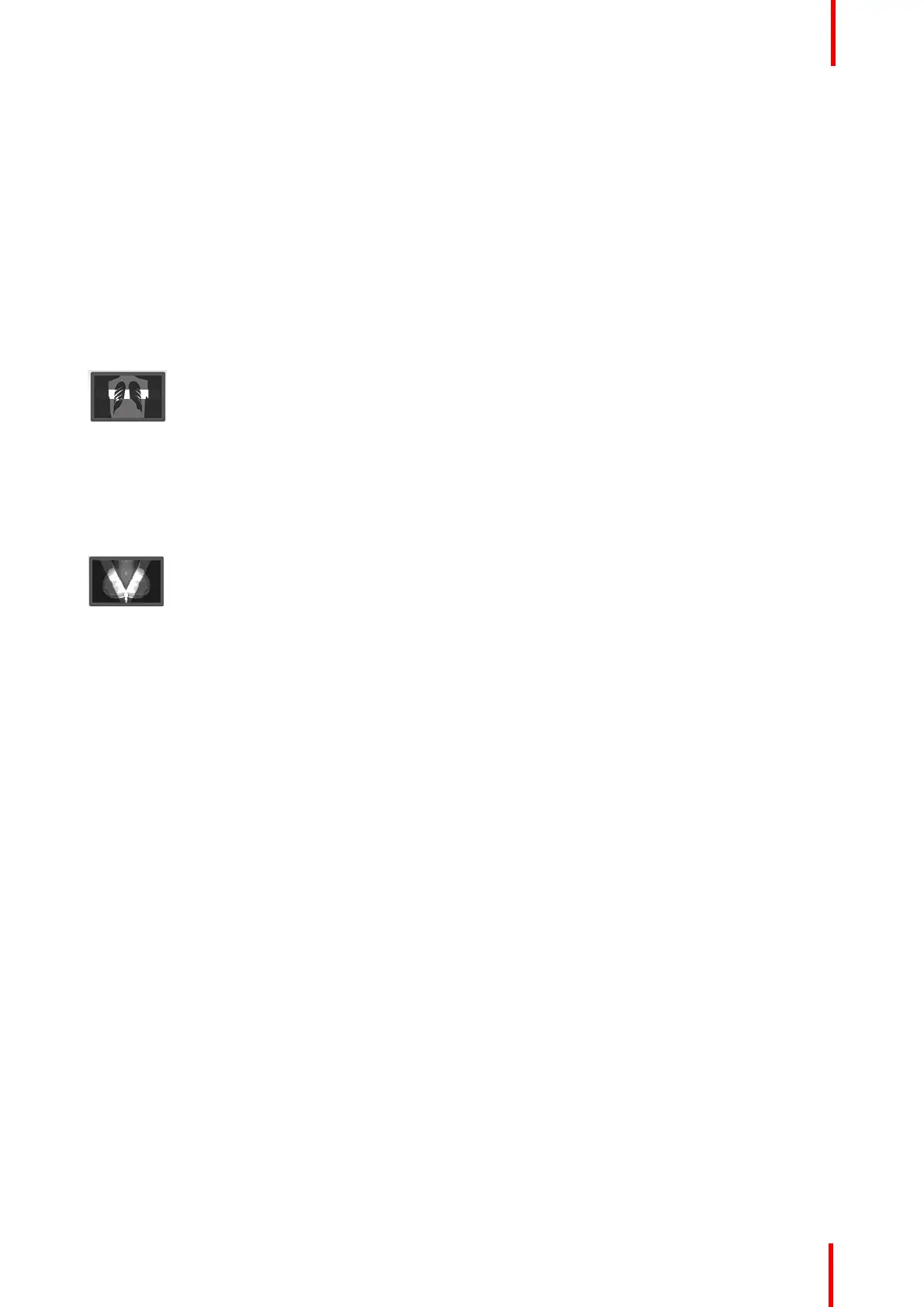
Image 5-17
To enable the SpotView Align bar shape, first hold one finger on the touchpad to show SpotView then hold two
fingers on it to show SpotView Align. Rotate two fingers for the desired angle, and keep just one finger to lock
the angle. The bar can be moved by dragging the one finger. The angle of SpotView Align can be adjusted
again by rotating two fingers on the touchpad. While holding one finger to show SpotView Align, tap or double-
tap a second finger to toggle on (or off) SpotView Mag or SpotView Invert.
Image 5-18
To enable the SpotView Align vee shape, first enable the bar shape, then hold three fingers to show the mirror-
image vee shape. Rotating two fingers will rotate the right bar, and the left image will follow. While holding one
finger to show SpotView Align, tap or double-tap a second finger to toggle on (or off) SpotView Mag or
SpotView Invert.
5.14.3 Configuration
Configuring SpotView
• Enable SpotView for these displays: All displays that support SpotView are listed in the configuration
section. Click on the checkbox to enable the feature on that display.
• Enable Dynamic Contrast Enhancement: Click on this checkbox to turn on the contrast enhancement
feature. This is only available for the standard SpotView circle shape.
• Enable Dynamic Size Adjustment for spot: Click on this checkbox to allow the SpotView diameter to
change with the scroll wheel or keypad pinch.
• Show cursor in spot: Enabling this feature shows the cursor when controlled by a mouse. The touchpad
behavior is unaffected.
• Bar: Check this box to enable the SpotView Align bar shape by holding down two fingers on the touchpad.
• Vee: Check this box to enable the SpotView Align vee shape by holding down three fingers on the
touchpad.
• Luminance outside of spot: This slider bar sets the luminance on SpotView enabled displays outside of
the spot.
• SpotView size, SpotView Mag size, and SpotView Align Width: These sliders control the diameter of
their spots and the width of the SpotView Align bar.
Note: These sizes are described in centimeters. The apparent size will vary due to parallax, rounding of the
display size, and the shaded penumbra of the spot. It is not intended to be used alone to make exact
measurements of body parts.
• Hotkeys: SpotView and SpotView Mag, both with and without SpotView Invert, have individual hotkeys.
Click Clear to remove a hotkey. Click on the hotkey box to enter a new one.
Driver and Intuitive Workflow Tools



 To Next Page