K5905271 /16 Display Controller
24
4.1 Display resolution
Changing resolutions
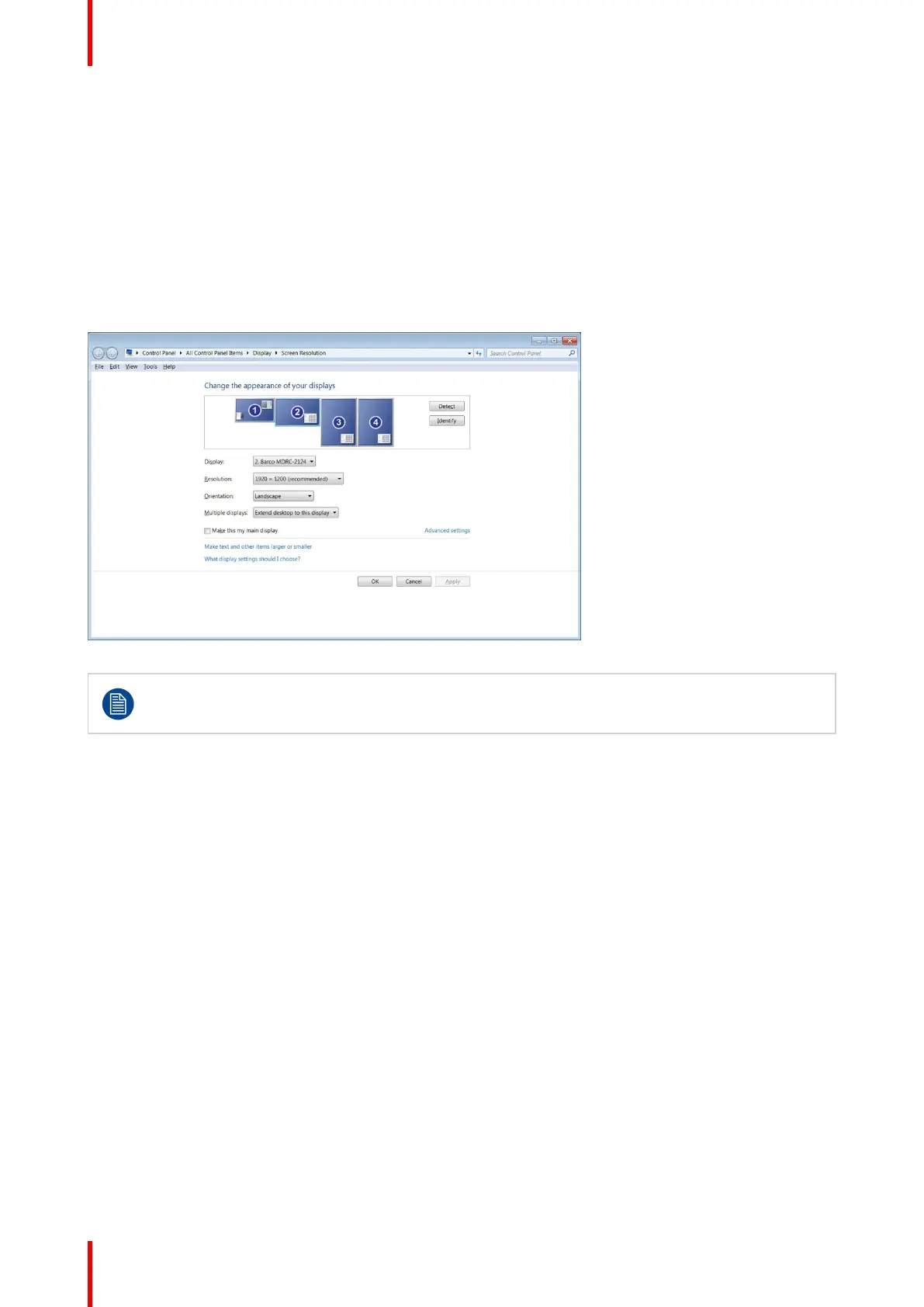
1. Click on the Configure Displays button on the Barco System Settings Control Panel or right click on the
desktop and select Screen resolution in Windows 7 and 8.1. This will open the Windows Control Panel
shown in Image 4-1. In Windows 10, right click on the desktop and select Display settings to launch a control
panel with similar functions but a different look and feel.
2. Click on the Resolution drop down box to show the list of resolutions.
3. Select the desired resolution, and click Apply.
Image 4-1: Windows Display Control Panel
In Windows 7, the maximum horizontal resolution of the desktop is 8192 pixels for a single display
controller. Your calculation should include the VirtualView display, if used. Please refer to Microsoft
Knowledge Base article 2724530.
4.2 Software rotation
Configuring screen orientation
Software rotation is only necessary for displays that do not support hardware rotation, such as MDRC displays
and some third-party displays.
1. Right click on the Desktop, and select Screen Resolution in the context menu.
2. Select a Display.
3. In the Orientation drop down list, these options are available:
• Landscape
• Portrait
• Landscape (flipped)
• Portrait (flipped)
4. Select the desired setting, and click Apply.
Configuring Barco displays in Windows



 To Next Page