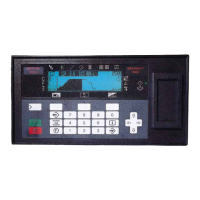
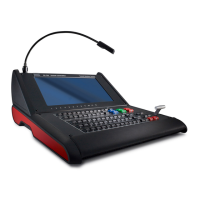
K5905271 /16 Display Controller
30
2. Edit the new file:
• Change line 3 from names=<profileName> to names=Default
• Change line 5 from [<profileName] to [Default]
3. Replace the default profile in C:\Program Files\Barco\ProductivityTools\Default.ini with
the new one.
5.2 Application Appearance Manager
Application Appearance Manager is pending medical device clearance and is currently not available
in all markets.
5.2.1 Description
Overview
The high luminance of Barco diagnostic displays may not be necessary when using the displays to view non-
diagnostic applications, such as text documents and emails. The Application Appearance Manager (AAM)
feature allows the user to set all windows of specific applications to a lower desired luminance, while retaining
the full diagnostic luminance for all other applications.
For the SteadyColor™ displays, such as the Coronis Uniti and the MDNC-6121, AAM can also change the
output color profile of specific applications to match the application expectations. For example, a web browser
used for non-diagnostic purposes could be set to an sRGB color space.
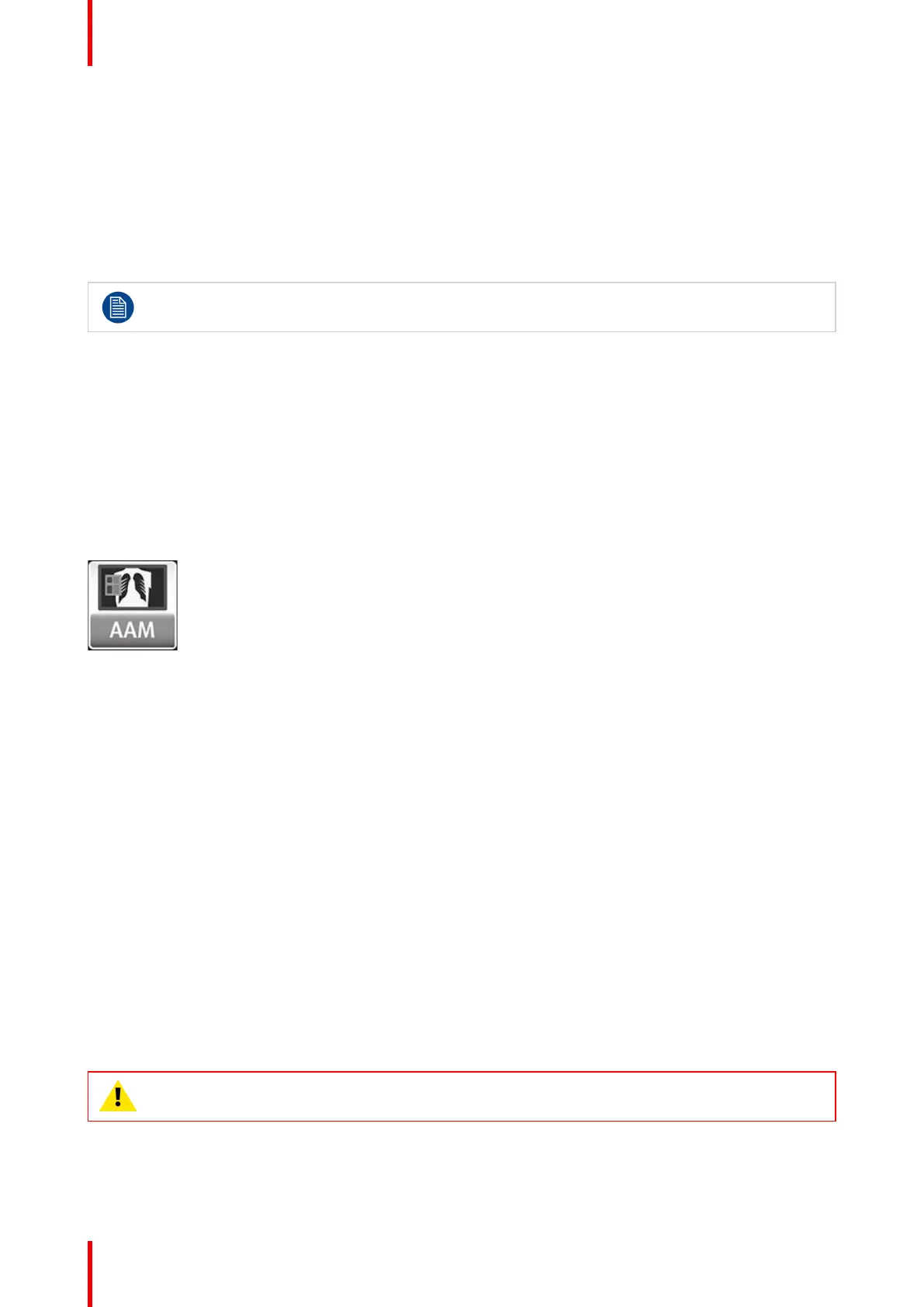
Image 5-2
Supported display controllers
When driven by an MXRT-x500 or later display controller, AAM can be enabled on selected Barco Coronis,
Nio, and Mammography displays. These include the MDCC-6530, MDCC-6430, MDCC-6330, MDCC-4430,
MDCC-4330, MDCC4230, MDNC-6121, and MDMC-12133.
The color profile management feature is supported on SteadyColor calibrated displays. The MDMC-12133 is
supported when calibrated with QAWeb (1.13.01 or later) or QAWeb Enterprise. The MDNC-6121 is
supported when calibrated with QAWeb (1.13.10 or later) or QAWeb Enterprise. The MDCC-6530 and MDCC-
4430 are supported when calibrated by QAWeb Enterprise (2.2 or later).
5.2.2 Operation
Using Application Appearance Manager
Select each desired application executable to add it to the list of AAM-managed applications. Independently
edit the luminance and color profile for each managed application.
Applications can be blocked from being managed by AAM. In the directory C: \ProgramData \Barco
\ProductivityTools, open the AAMBlackList. txt file. Enter the name of the application executable,
and after rebooting the system, the application will not appear in AAM. If the name of the executable is not
known, launch the application, enable AAM, and note the name of the executable from the unmanaged list. To
edit the file, launch the editor with the Run As Administrator option.
CAUTION: If you are using a web browser-based DICOM viewer, do not change the AAM setting for
your web browser.
Driver and Intuitive Workflow Tools



 To Next Page