26
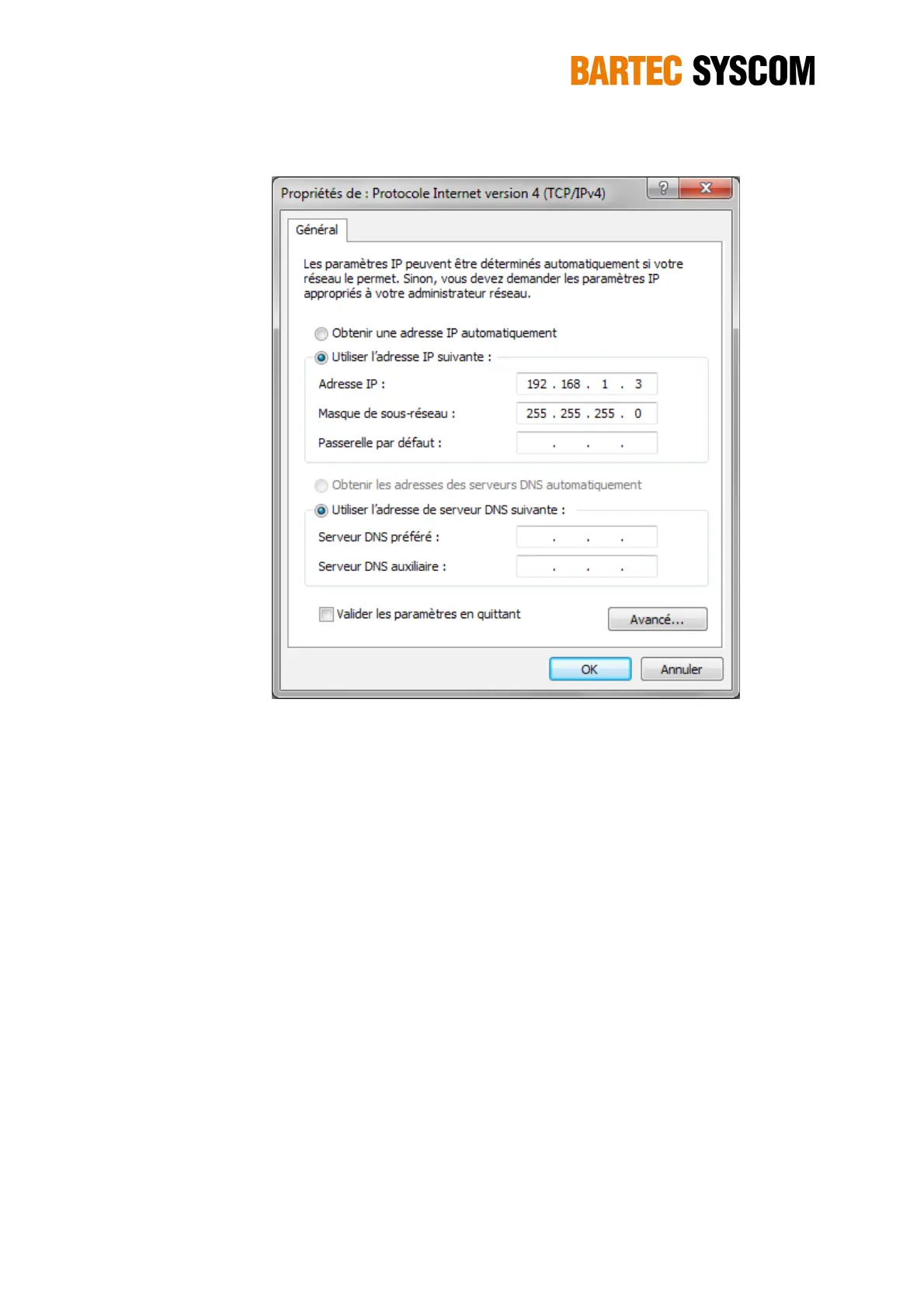
Figure 3.1.2. Settings of the LAN port on the personal PC.
3.2 Connecting to the MR3000DMS in the field (remote connection)
For a remote connection (from your office to the DMS at site) you need Internet access and you
have to enable the OpenVPN or DDNS service.
You can use an existing Internet access point at site (DSL, cable TV line, ...) and you simply
connect the MR3000DMS with the router using the LAN/FO cable – as you would do in your office.
If the router has the DHCP feature enabled – and you have enabled it in the DMS as well, the
router will assign an IP address to the DMS. You may check the Internet connectivity with the PING
feature (see Section 5.3.10).
As the DMS is not accessible through the IP address, you will have to enable the DDNS or the
OpenVPN service to communicate to your DMS through the WebUI. To establish communication
with the MR3000DMS you have to enter the Domain Name (DDNS) or the virtual address
(OpenVPN) in the Web browser. For OpenVPN you have to install the OpenVPN client on your PC
(or smartphone) with the appropriate certificates, as well. To communicate with the DMS, you have
to start the VPN service on the PC.
For a remote connection (from the control room to the DMS at site location), you need to be
connected to the same intranet network. Then, with the intranet IP addresses you can easily
remotely connect to any DMS devices in the same intranet.


 To Next Page