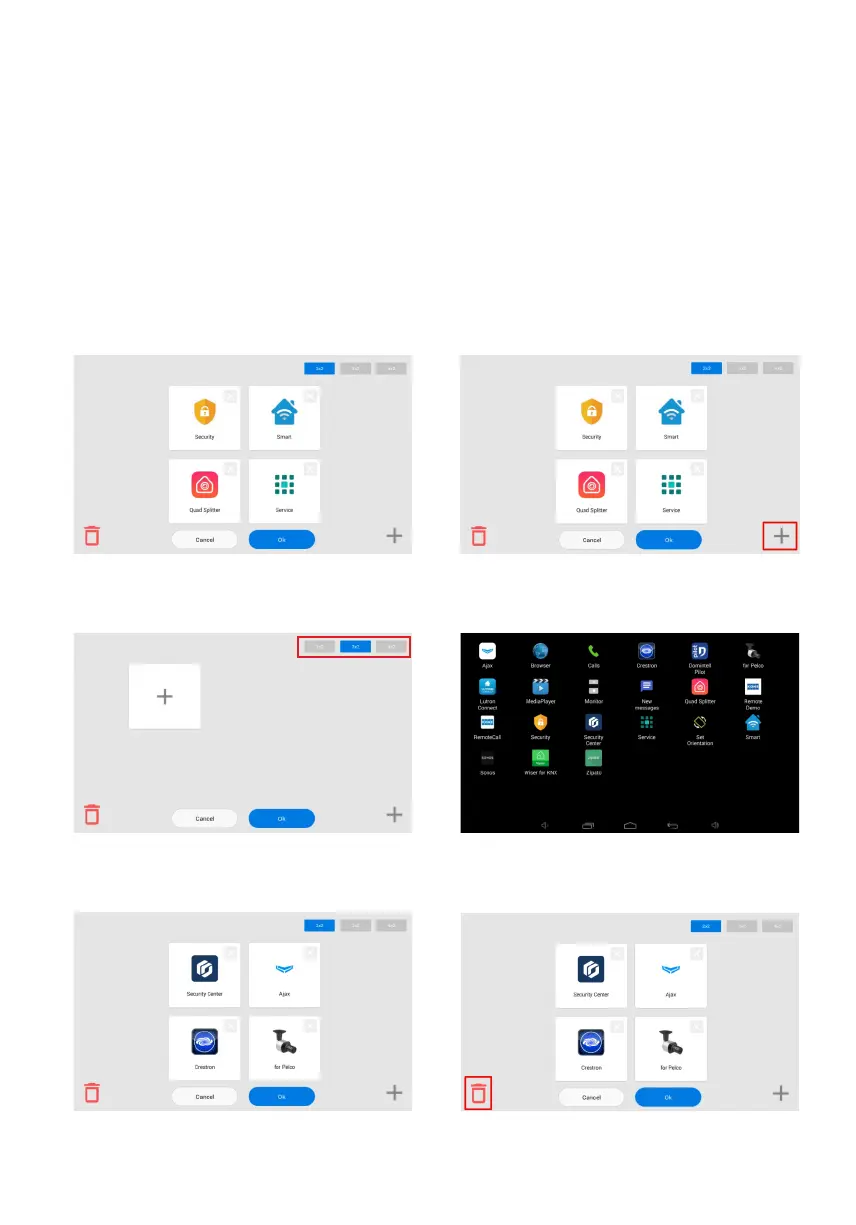
Clamp any of the icons on the additional
desktop for one second, after which the
desktop will go into edit mode
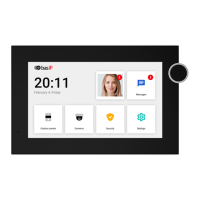
Click on the button to add a new desktop
in the lower right corner
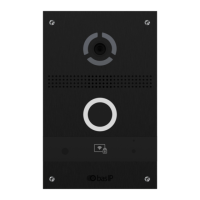
Select the required number of icons
displayed on this desktop:
2 x 2 / 3 x 2 / 4 x 2
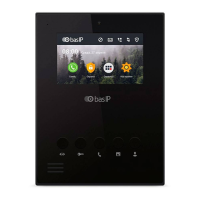
Click on the add application icon and select
the necessary ones in a new window
After adding the necessary applications
to the desktop, you must click on the «Ok»
button to return to normal mode.
To remove the desktop, go to edit mode
and click on the «Delete» icon
in the lower-left corner.
To add a new desktop, you must:
How to change an application on the main desktop
You can change the main sections of the monitor menu (calls, messages, entrance panel
monitoring menu, IP camera viewing menu) into any other app.
To do this you must:
Press the app icon to be replaced and hold for a few seconds.•
Select the desired application in the opened tab.•
Press the new icon and hold for a few seconds to return the default app. •
Adding a new desktop and apps



 To Next Page