55
NAVIGATION MODE >>>
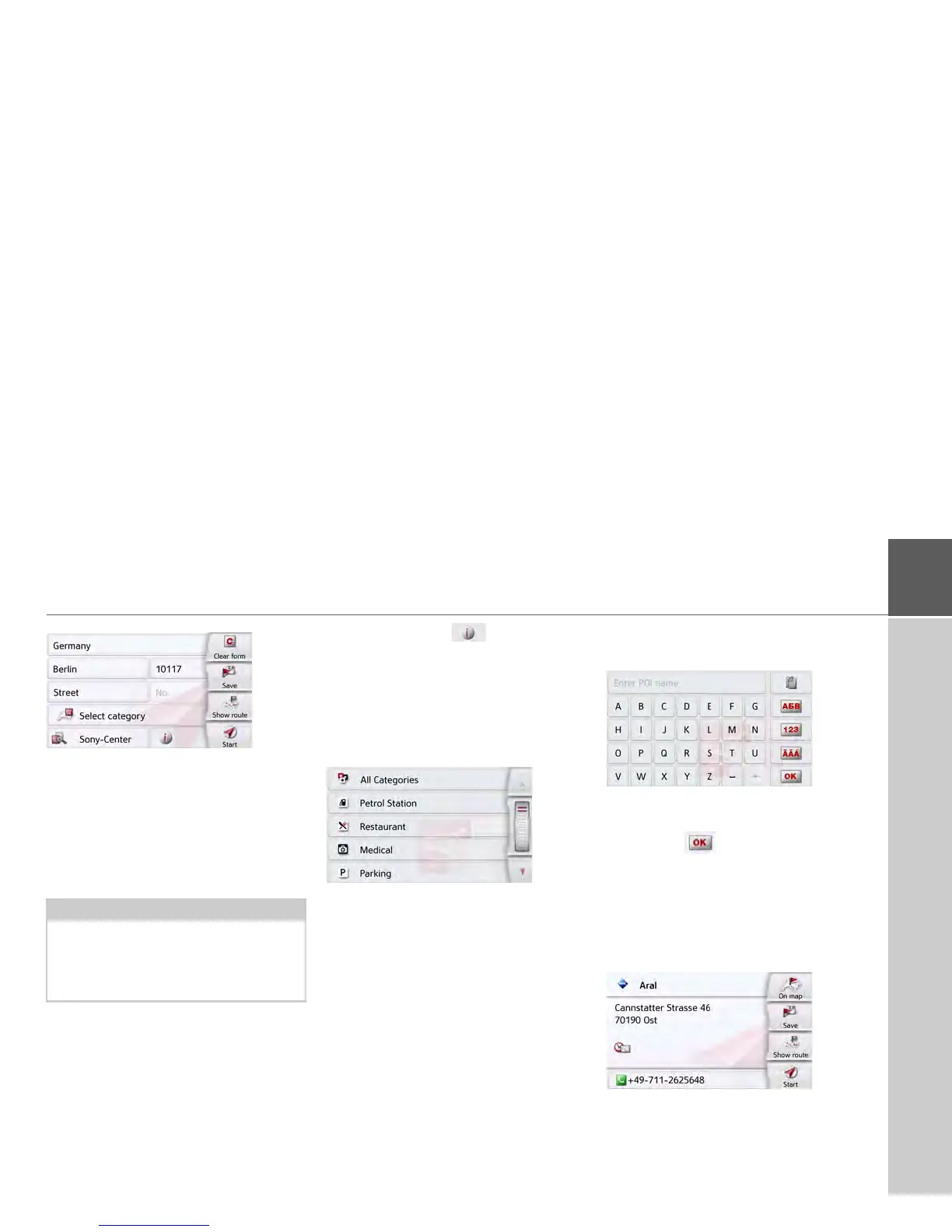
> Press the Start button to begin route
guidance to the point of interest
directly.
However, you can also store your
chosenpoint of interest in fast access
mode (
Save) or display the route to the
point of interest (
Show route).
By pressing of the button next to
the selected POI, you can display the
additionally available information for the
destination.
Point of interest near to destination
> Press the
POI near destination button.
The categories available near to the
destination are displayed.
> Select the desired point of interest as
described under "Point of interest in
the vicinity" on page 53.
POI on route
> Press the
POI on route button
The available Point of Interest categories
available on the whole route will be
displayed.
> Select the desired point of interest on
the route as described under "Point of
interest in the vicinity" on page 53.
Entering a point of interest directly
> Press the
POI search by name button.
> Enter the desired point of interest or
part of the name.
> Press the button.
The Navigation device displays in a list all
the points of interest corresponding to
the name entered.
> Select the desired destination in the
list.
You will now receive additional informa-
tion about your chosen destination.
Note:
Your can also press the
Select Point of
Interest
button. An input menu will then
open and you can enter the name of a
point of interest directly and confirm it.



 To Next Page