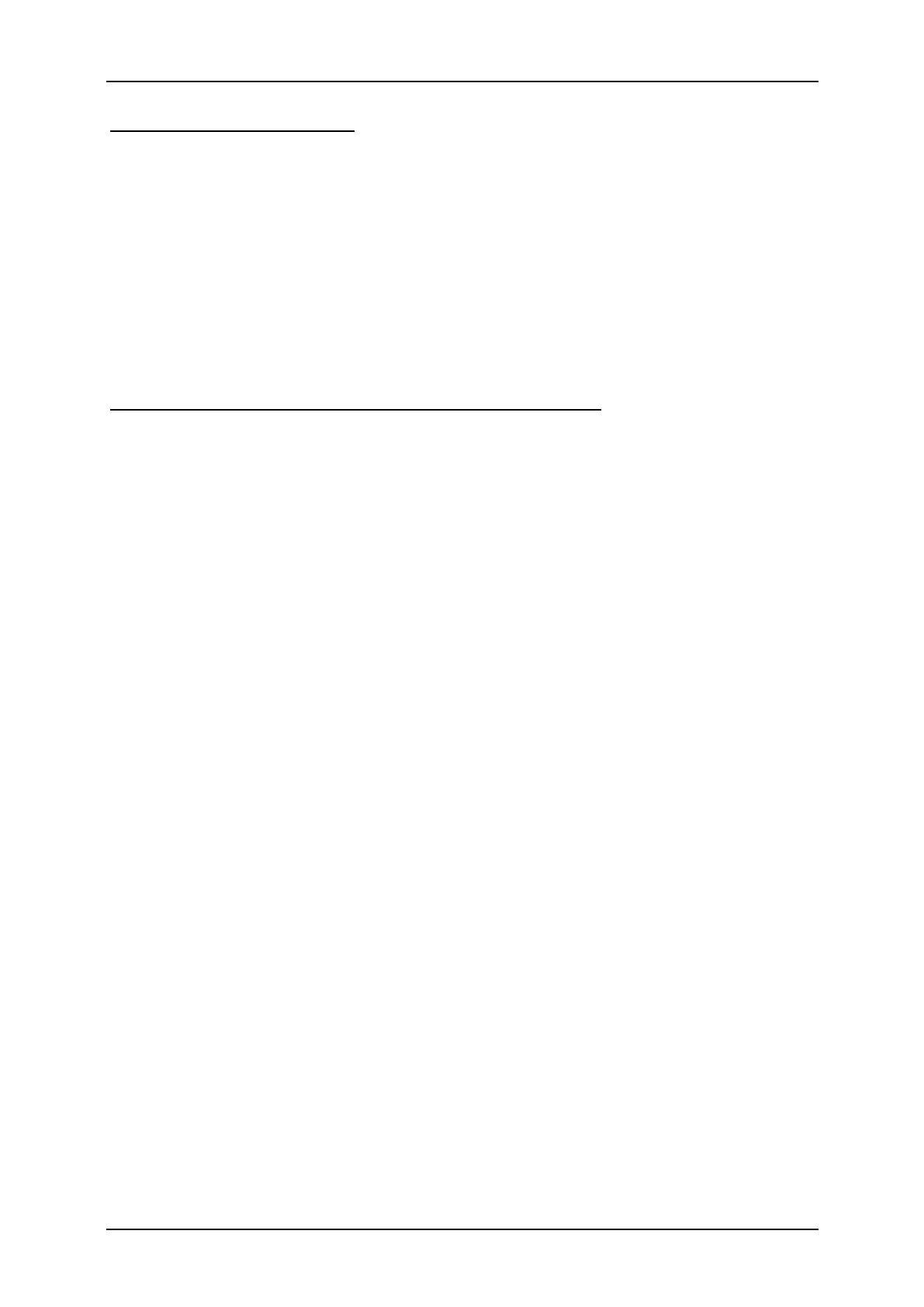
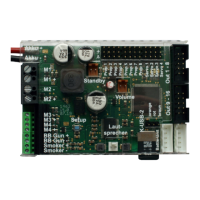
GB Sound speed controller SFR-1
06.02.2019 BEIER-Electronic 49
Starting the Sound-Teacher
During the installation of the Sound-Teacher an entry is added to the start menue,
which can be used to start the program. Click on the “Start” button at the bottom left-
hand corner of the screen then on “Programs”, on to “SFR-1 Sound-Teacher” and
finally click on “SFR-1 Sound-Teacher”. The program should now start.
If you chose to place an icon on the desktop during the installation procedure you
can start the program by double-clicking on that icon.
When the program starts, it automatically opens the project on which you last
worked.
Brief instructions for loading new sounds onto SD-card
Please follow the instructions below, for transferring a new sound onto SD card:
1. Insert the SD card into a cardreader, which is connected to the PC.
2. Start the SFR-1 Sound-Teacher.
3. Chose the SD card in the menu “SD card“.
4. Klick in the menu “File“on “Open project“.
5. Now select the desired sound project (.sfr file) e.g. from the “SFR-1 Sounds”
folder on the DVD-ROM, and click on the button “Open”.
6. If required, the configuration of the project can be changed.
7. Press the button “Save project data onto SD card“.


 To Next Page