Operation
45
Projecting a 3rd party app
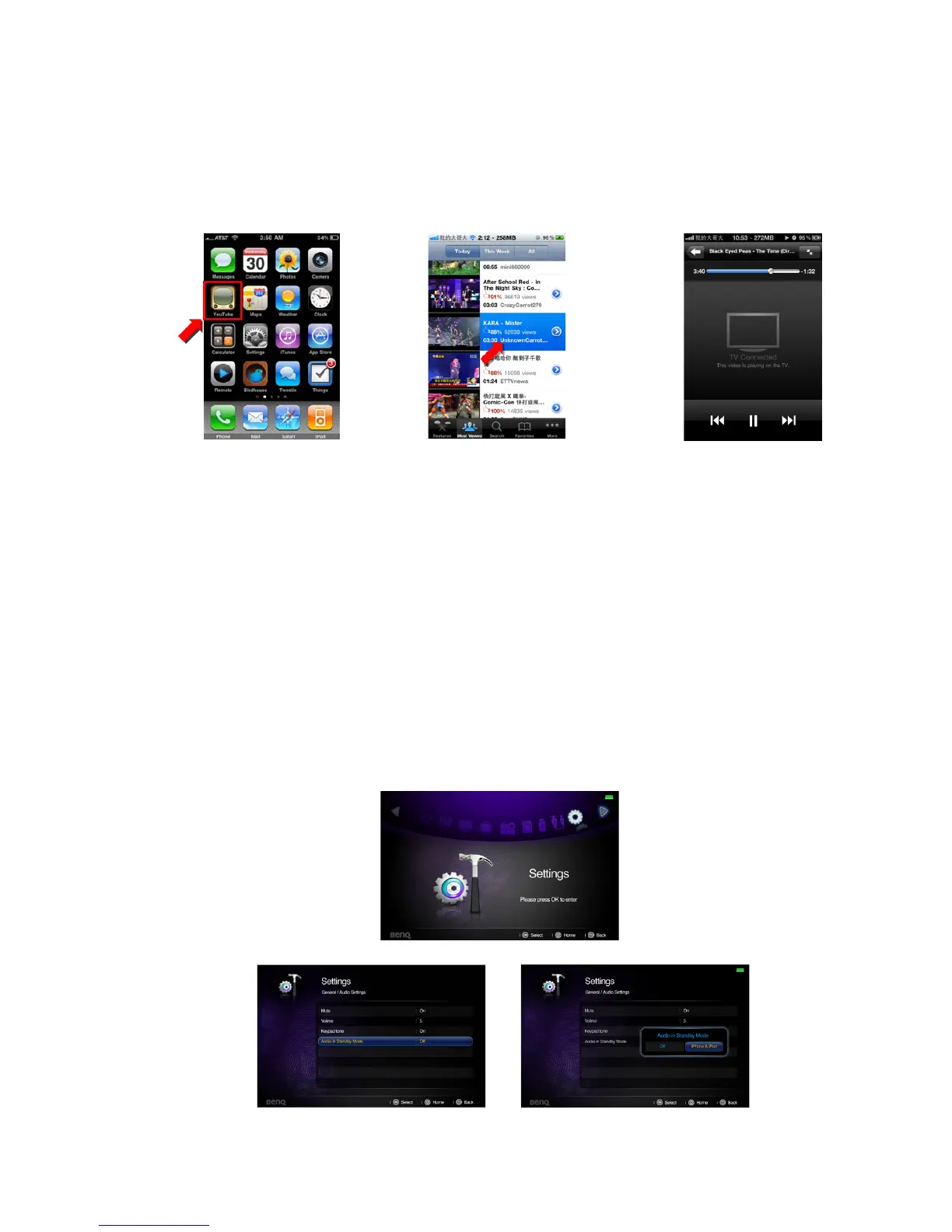
• Download and install an app that supports Apps TV-out function. (e.g., Youtube,
Netflix, TVOut genie) For a list of apps that support Apple's TV-out function, please
refer to TV-Out Enabled Apps for iOS Devices.pdf in internal memory.
• Launch the app from your device and the app will be automatically projected on a big
screen. (Here take a example of Youtube)
• For some apps such as games, additional steps may be required. Follow the onscreen
instructions of these apps.
Projecting a presentation
1. You must have a presentation app installed on your device that supports TV-out to
use this function. (e.g., Presentation Viewer )
2. Launch the presentation app and the app will be automatically projected on a big
screen.
3. For some presentation apps, the documents can only be viewed in slideshow mode.
4. Start the slideshow and the presentation will be instantly projected on a big screen.
<In stand-by mode>
You can turn the projector into a docking speaker for your iPhone or iPod when it’s in
stand-by mode. Follow steps as below.
1. Enter “Settings” menu in projector home screen.
2. Set General/Audio Settings/Audio in Standby Mode to iPhone/iPod .
3. Turn off the projector and it will become a docking speaker.



 To Next Page