50
6.2.2 Play Options
1. Power [On] the Digital Video Camera and make sure it is in the
[Movie Clip]/ [Voice] playback mode.
2. Press [MENU] Button. Then, press [4-way Direction] Button or
touch the screen to select the [Play Options] item. Press OK
Button or touch the screen to display submenu.
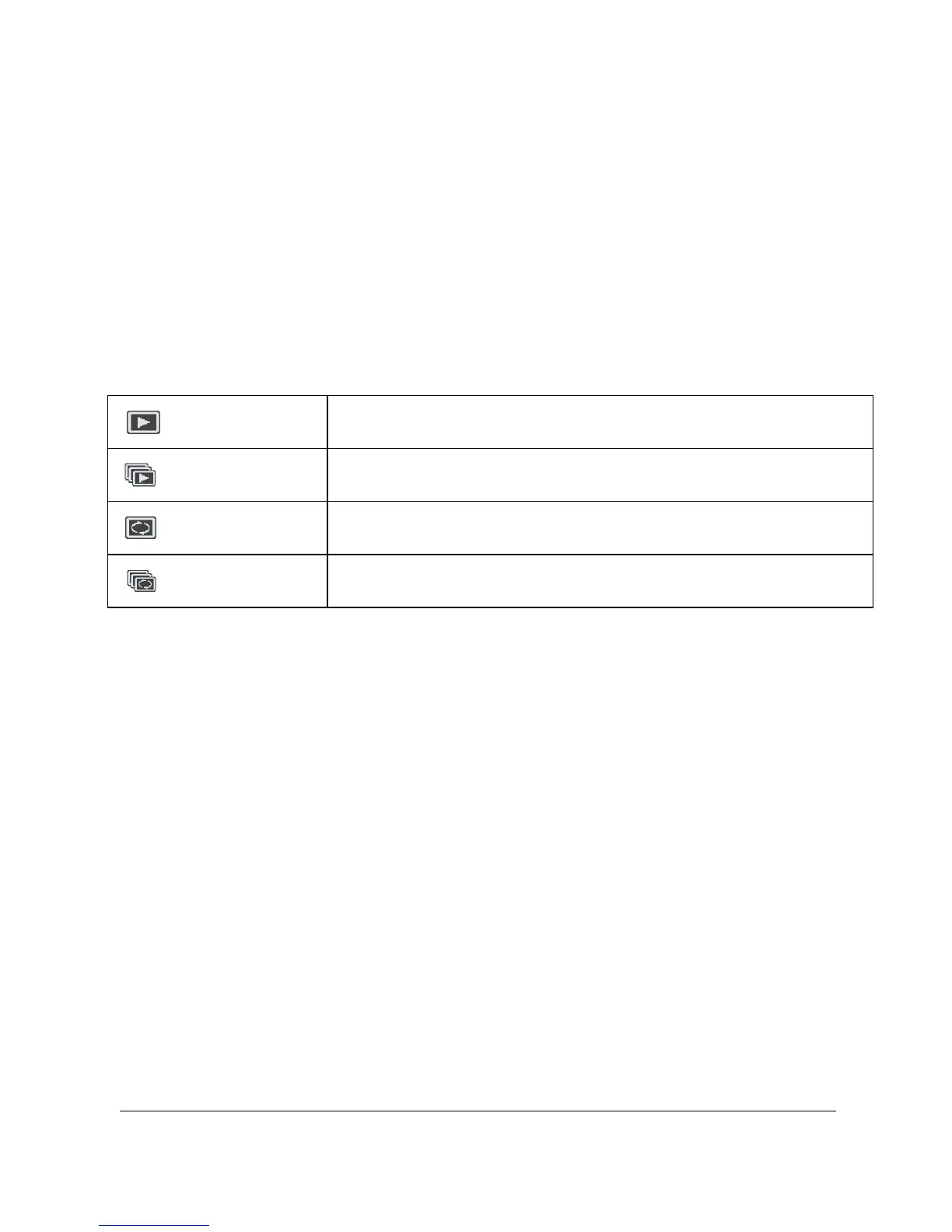
3. Use [4-way Direction] Button to select [Play One], [Play All],
[Repeat One], or [Repeat All], then press OK Button or touch the
screen to confirm. The movie clip will playback automatically.
Play One To playback one file.
Play All
To playback all files.
Repeat One
To replay single file.
Repeat All
To replay all files.
6.2.3 Delete
1. Power [On] the Digital Video Camera and make sure it is in the
[Movie Clip]/ [Voice] playback mode.
2. Choose the to-be-deleted file and press [MENU] Button/ press
[4-way Direction] Button down to select the [Delete] item; or
touch the screen to select the item.
3. Use [4-way Direction] Button to select [Delete One], [Delete All],
or [Delete Selections]; then press OK Button or touch the screen
to confirm.
4. Press [4-way Direction] Button or touch the screen to select [V]/
[X] and press OK Button to delete file(s).
5. You can choose the [Delete Selections] item to delete certain
file.



 To Next Page