Apps40
Set and save a customized camera view
To set a customized camera view and save it for future use, follow the steps below:
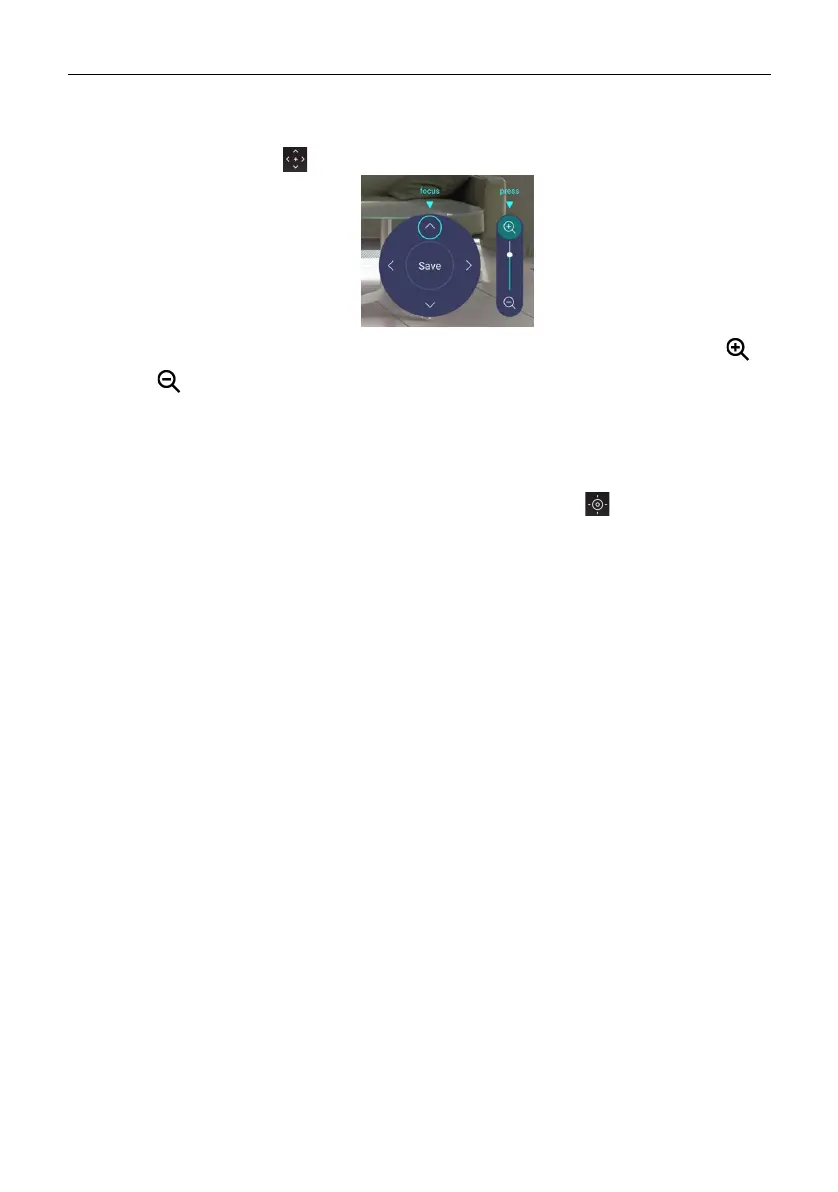
1. Tap Move view () in Camera Settings to adjust the camera angle.
2. Press ///on the remote control to pan or tilt the camera view. Press
/
on the remote control to zoom in and out.
3. After all adjustments are set, you can save the camera view to Viewpoint by
tapping Save in the middle of the pan and tilt wheel.
4. In the Save to preset window, choose to save your settings in Preset view 1/2/3.
Or select Cancel to discard current settings.
After the customized camera view is saved, go to Viewpoint ( ) to choose the
desired Preset view.


 To Next Page