Operation
40
Adjusting the sound
The sound adjusents made as below will have an effect on the projector speaker(s). Be
sure you have made a correct connection to the projector audio input. See
"Connection" on page 19 for how the audio input is connected.
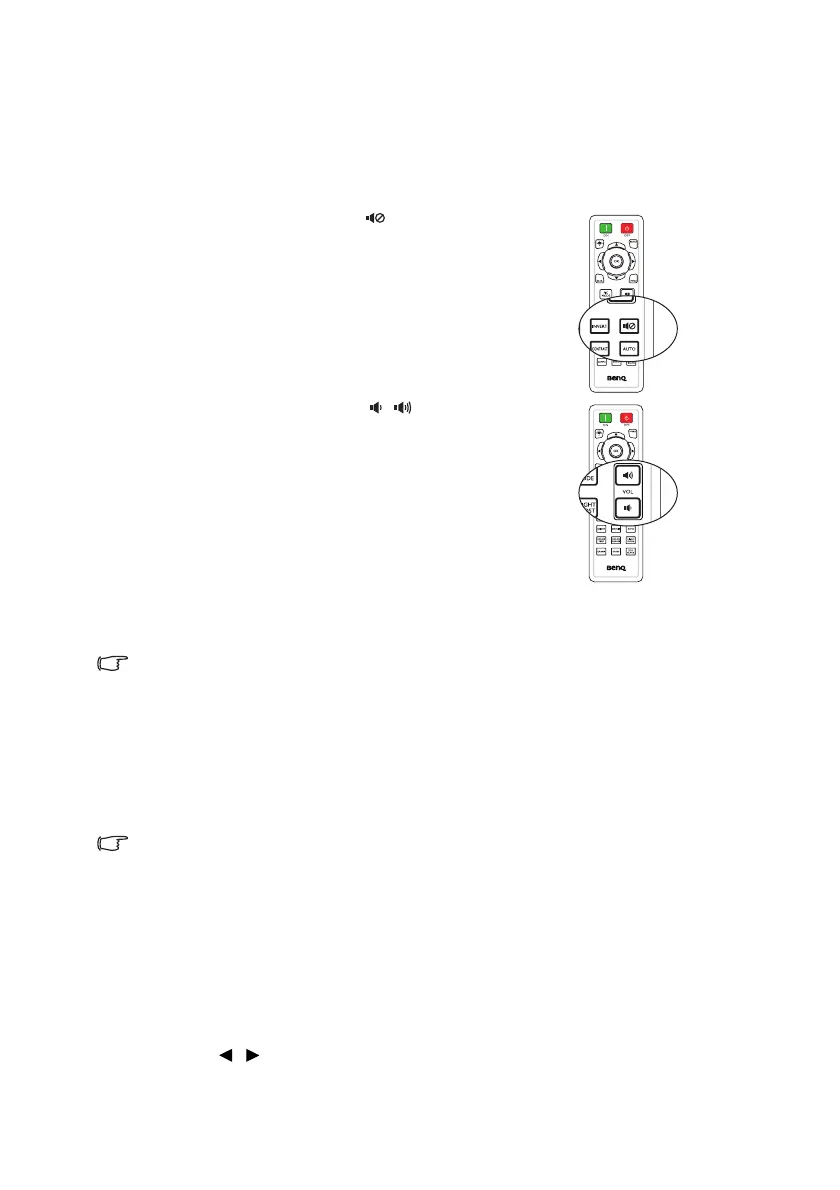
Muting the sound
To adjust the sound level, press on the
remote control, or:
1. Open the OSD menu and go to the Audio
menu (which is in the Basic menu or in
the Advanced menu > Audio menu).
2. Select Mute and select On.
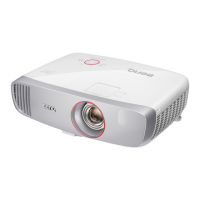
Adjusting the sound level
To adjust the sound level, press / on the
remote control, or:
1. Repeat steps 1 above.
2. Select Volume and select a desired sound
level.
Tu r n in g o f f t h e Power On/Off Ring Tone
To turn off the ring tone:
1. Go to the Advanced menu > Audio
menu.
2. Select Power On/Off Ring Tone and select Off.
The only way to change Power On/Off Ring Tone is setting On or Off here. Setting
the sound mute or changing the sound level will not affect the Power on/off ring
tone.
Adjusting the microphone’s sound level
To adjust the sound level:
1. Go to the Advanced menu > Audio menu.
2. Select Microphone Volume and select a desired sound level.
Microphone sound will still function even though Mute is activated.
Locking control keys
With the control keys locked, you can prevent your projector settings from being changed
accidentally (by children, for example). When Key Lock is On, no control keys on the
projector will operate except POWER
.
To lock the keys:
1. Open the OSD menu and go to the
Advanced menu > System Setup:
Advanced > Key Lock.
2. Press / to select On. A warning message appears. Select Yes and press
OK on the projector or remote control. The control keys lock.


 To Next Page