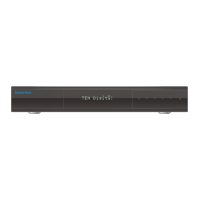
18 First Time Installation
Step 3
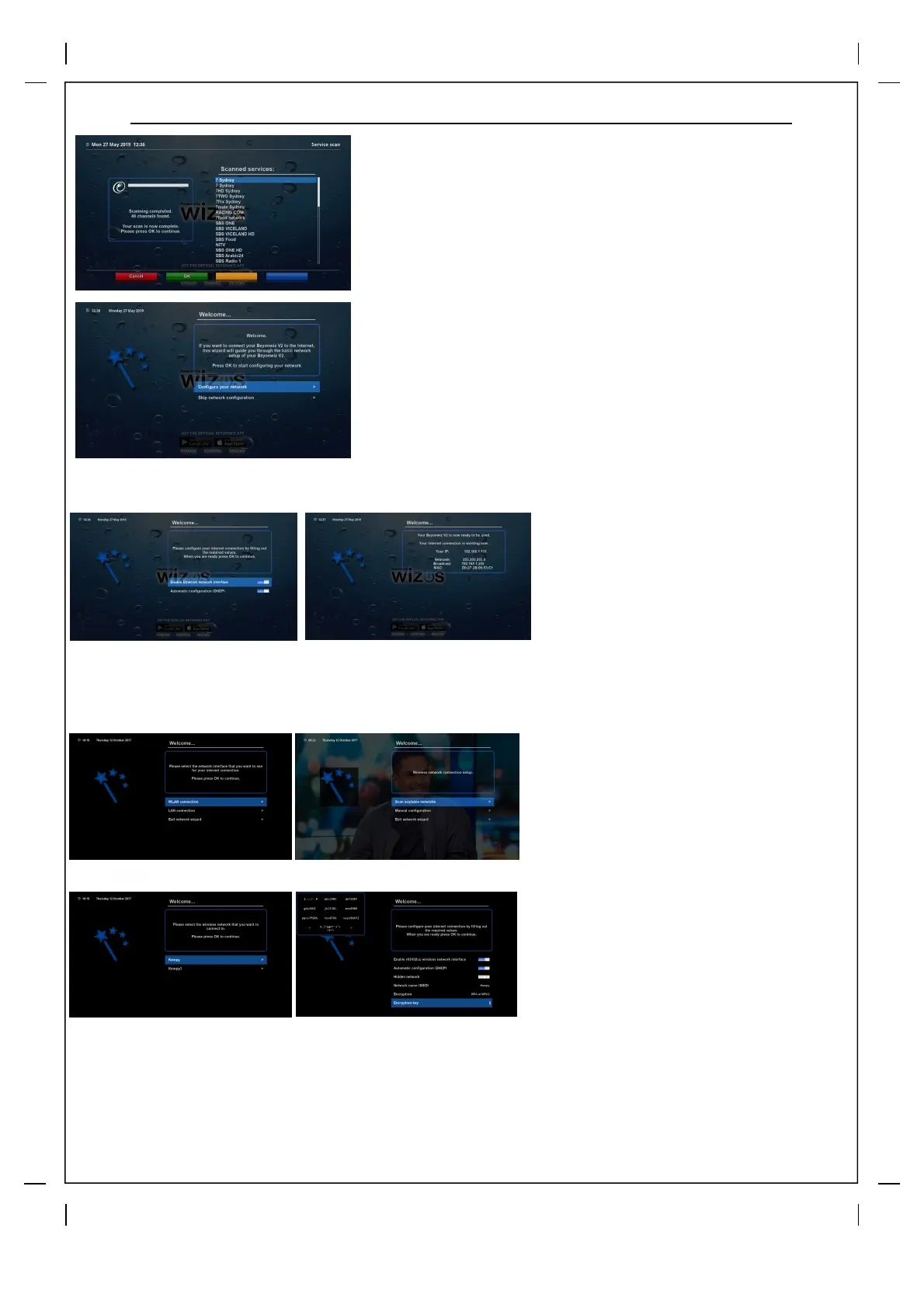
Once you scan is complete you will get a message in the info
box on the left hand side, simply press “ok” to move the next
part of the set up.
Internet Setup
The Beyonwiz is now ready to configure its
Internet connection. Even if you don't want to
have your Beyonwiz connect to the Internet,
you still need to press OK here to move to the
next screen.
Wired LAN Set-up
If you want to connect your Beyonwiz to
the Internet and are using a LAN Cable
leave both Use Interface and Use DHCP
“On” and simply press OK, this should
then give you a message that your internet
is connected and list your V2’s
IP address. Press “OK” to move to next
screen.
Wireless LAN Setup
You must have a USB Wifi Dongle inserted.
Select WLAN connection and
press “ok”, in the next screen click on
Scan available networks.
Select the network you wish to join and
press “ok”.
Make sure that the encryption is correct,
highlight and use the right / left arrow to
change, WPA or WPA2 would cover most
modern wireless routers.
Now enter your wireless password in the
encryption key, you can use the buttons
on your remote to type or press the “TEXT”
button to launch the on screen keyboard.
Once you enter the password press the
“ok” button on your remote.
You should now get a successful message
and an IP Address confirmation.
For troubleshooting network connections
please visit our user forum and click on
‘Networking your V2’.


 To Next Page