Personalizing your HomeSurf Tablet
28
Binatone Helpline: 0845 345 9677 (UK), 1300 768 112 (Australia), +91 7503011385 (India), +491805938802 (Europe)
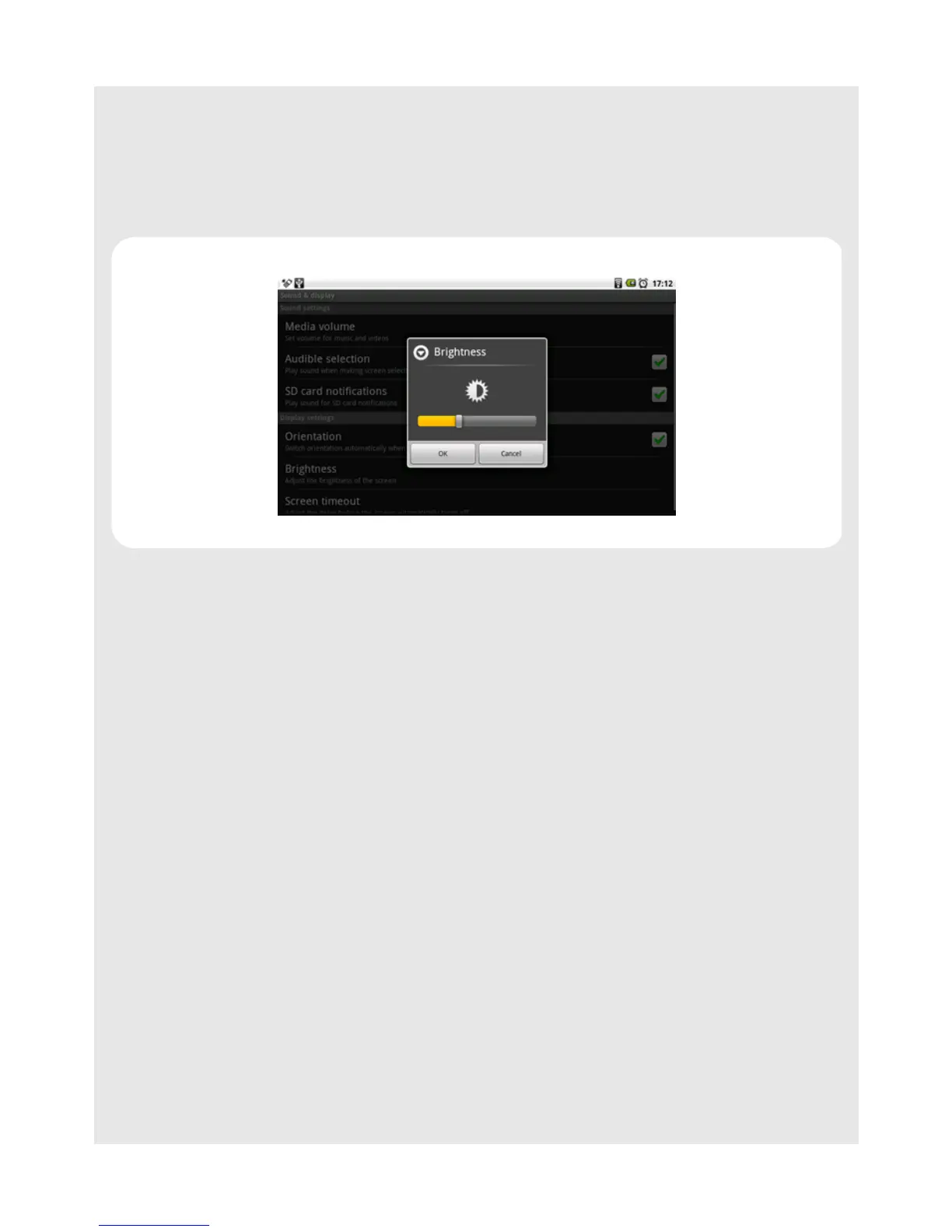
8.1.2 Adjust Screen Brightness
1 From the home screen, press O and then tap Settings > Sound & display >
Brightness.
2 Slide across the brightness control bar to reduce or increase screen brightness and tap
OK to confirm.
8.1.3 Set screen timeout
You can adjust the delay before the screen dims into power saving mode automatically.
1 From the home screen, press
O and then tap Settings > Sound & display > Screen
timeout.
2 Tap to select 30 seconds, 1 minute, 2 minutes, 10 minutes or Never timeout.
8.1.4 Re-arrange the icons on your home screen
1 Tap and hold the icon that you wish to re-arrange until it wiggles.
2 Slide to the position on which you wish to place the icon.
3 Release when the icon is correctly placed.
8.1.5 Add shortcuts to your home screen
1 Tap Program Launcher.
2 Tap and hold an application icon until it wiggles.
3 Drag the icon to the home screen.
A shortcut of the application will be automatically created and placed on the home
screen.



 To Next Page