Making a Wireless Connection
Binatone Helpline: 0845 345 9677 (UK), 1300 768 112 (Australia), +91 7503011385 (India), +491805938802 (Europe)
33
10 Making a Wireless Connection
Before you can surf the Internet, send and receive emails, download content and
applications etc., you must join a Wi-Fi network that is connected to the Internet.
For Wi-Fi networks that are not secured with a PIN code, you can easily connect to them
and access the Internet freely. However, for Wi-Fi networks that are secured with
password, you need to have the password to access the Internet.
10.1 Register your HomeSurf Tablet to a Wi-Fi Network
1 From the homescreen, press O.
2 Tap Settings > Wireless controls.
3 Tap Wi-Fi to turn on wireless connection.
appears in the Wi-Fi checkbox.
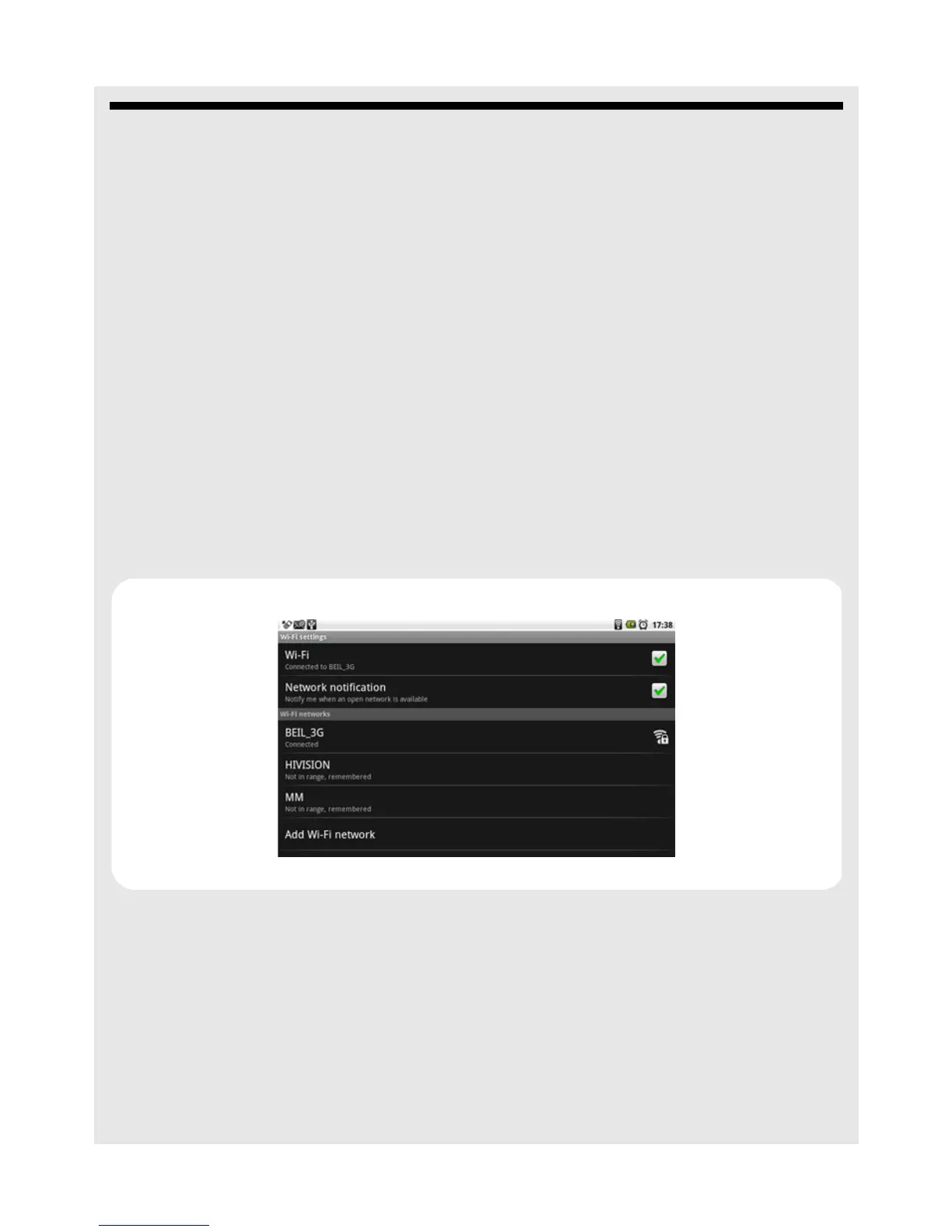
4 Tap Wi-Fi settings.
Your Homesurf Tablet will start to scan for the networks within range and display a list
of available Wi-Fi networks.
5 Tap the Wi-Fi network that you want your Homesurf Tablet to be connected with.
If the network is not secured with a password, your Homesurf Tablet will start to
establish a link with it.
If it is a secured network, you will be prompted to select the security option (for
networks secured with WEP) and enter the wireless password.



 To Next Page