ES File Explorer
Binatone Helpline: 0845 345 9677 (UK), 1300 768 112 (Australia), +91 7503011385 (India), +491805938802 (Europe)
75
21.1 Open ES File Explorer
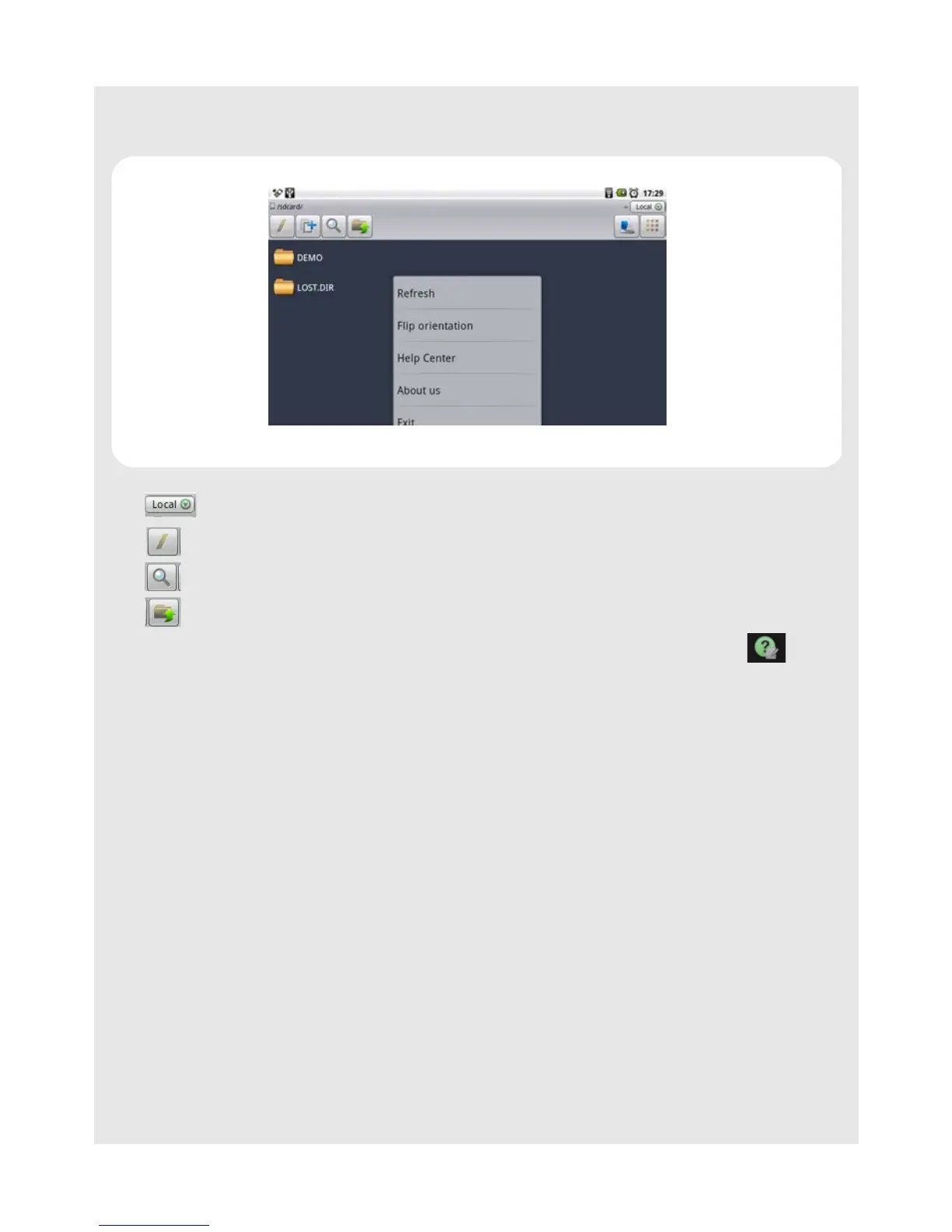
Tap Program Launcher > ES File Explorer.
Tap to browse the files and folders in your HomeSurf Tablet or SD card.
Tap to go to the root directory.
Tap to search for files or folders.
Tap to go to the previous directory or folder.
For more information on the short cut keys, tap More > Help Center, and tap for
help.
21.2 Open file as
1 Tap and hold the file you wish to open.
A pop-up menu appears.
2 Tap Open As and select Text, Audio, Image or Video.
21.3 Select all files in a directory
1 Go to the directory that you want to select all files.
2 Press MENU, tap Operations > Select All.
21.4 Create a new folder
1 Go to the location that you wish to create a new directory.
2 Press MENU, then tap New.
3 Tap to select Folder.
4 Enter Folder Name and tap OK.



 To Next Page