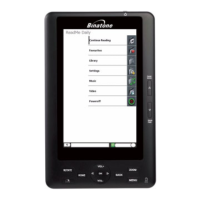
OVERVIEW OF THE PRODUCT
Binatone Helpline: 0845 345 9677 (UK), 1300 768 112 (Australia), +91 7503011385 (India), +491805938802 (Europe)
9
3 After touch screen calibration, your HomeSurf Tablet will save the new touch screen
data. This process might take up to a few minutes.
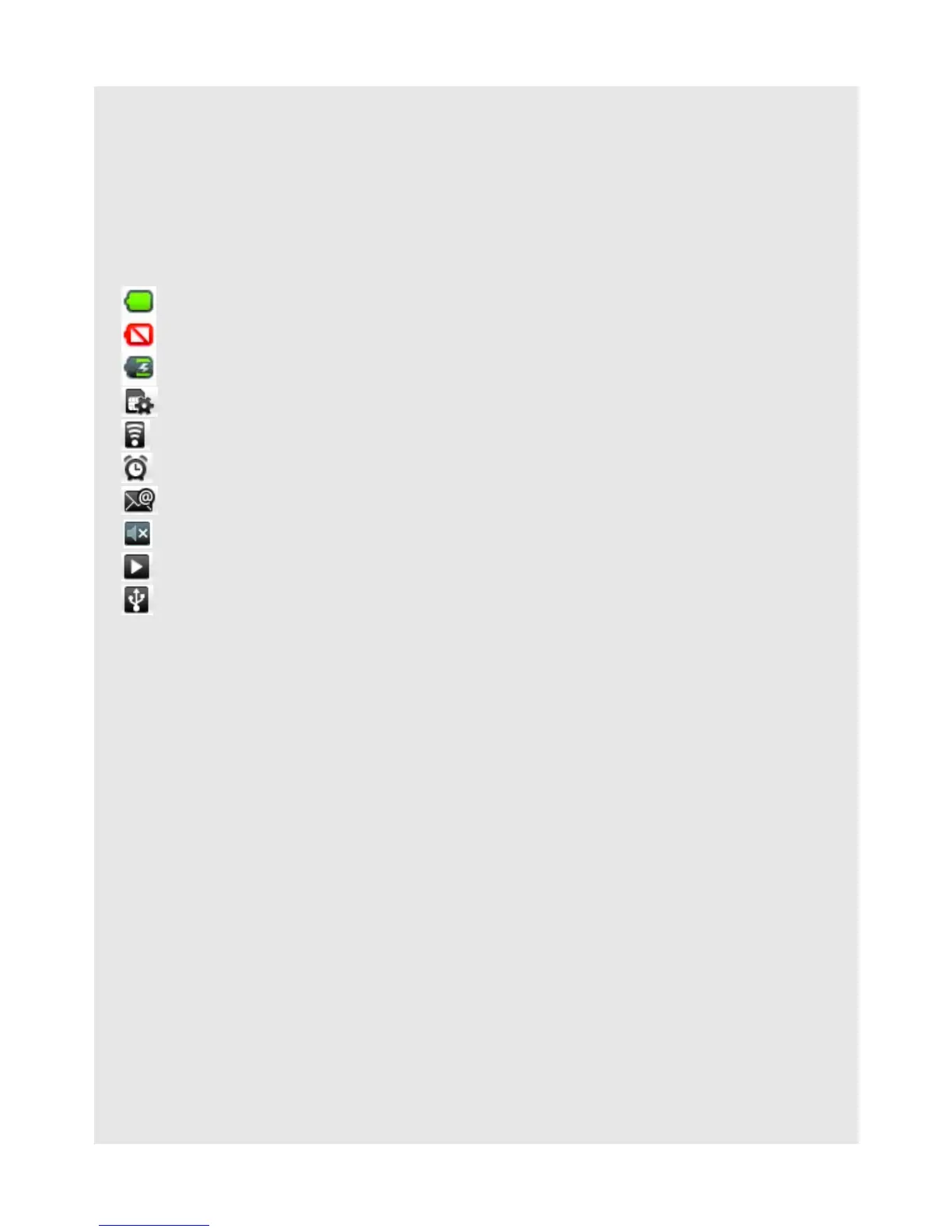
4.5.4 Status Icons
The icons in the status bar at the top of the screen give you information on the current
status of your HomeSurf Tablet.
4.5.5 Notifications panel
When the status bar displays a STATUS icon, tap and hold the status bar and slide
downward to open the notifications panel. Tap Clear to clear notifications.
You can also press
O and tap Notifications to open the Notifications panel.
To hide the notifications panel, press
B or tap and hold the bottom bar of the notifications
panel and then slide upward.
Icon Description
Battery is fully charged
Battery low
Battery is charging
SD card is inserted
Wireless connection is on
Alarm clock is set
New email
Speaker is muted
Song is playing
USB connection is on


 To Next Page