20 Instruction Manual TProfessional Basic 06/2011
In the Program Menu, existing programs can be edited or new programs can be created. Each
User has his own program directory, where individual programs are saved. Programs from other
user directories can be used, but not modified.
5.2 TProfessional Basic Software
5.2.1 Navigation within software menus
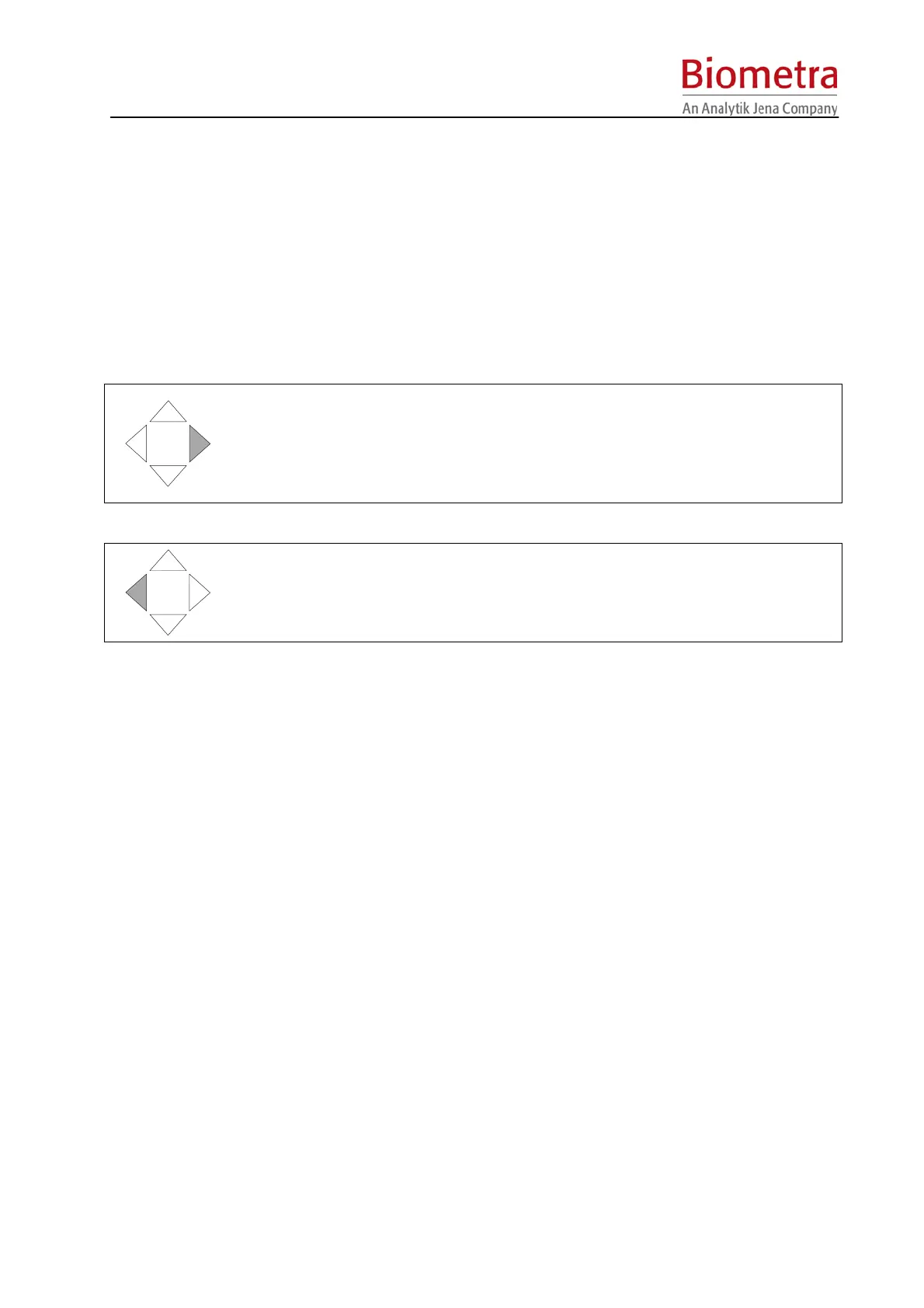
Four navigation keys provide easy navigation within the software screens. The [left] and the
[right] key have additional functionalities as described below:
The right cursor key moves the cursor to the next field.
This cursor can also be used to confirm data entry. By pressing the right cursor
settings will be saved and the cursor moves to the next field.
In the file directory, this key moves to cursor forward to the next (lower) level.
The left cursor key moves the cursor back to the previous field.
In most screens this cursor is equivalent to the ”back” key.
In the file directory, this key moves the cursor back to the higher level.
5.2.2 Log in
The TProfessional Basic manages up to 30 individual users. For each user a directory is
created, where programs are stored. Programs from other directories (i.e. users) can be read
but not modified. This allows to use all programs that are in the cycler memory, but to write only
in the own user directory.
Each User is identified by User Name plus Initials (2-3 letters).
Each User account can be protected by a PIN consisting of 1-7 digits. If no PIN protection is
wanted, leave the field “Enter PIN” empty and confirm with [Enter].
Note: If no PIN protection is used, programs in the User directory may be changed or deleted
by unauthorized persons.
5.2.3 Log in existing User
Press Menu Button [Log in/out] above the Display. A list of Users is shown


 To Next Page