APPENDIX E –ETHERNET PARAMETERS
General
Each Boca Ethernet Printer is assigned a unique MAC address based in part on the printer's serial number. All Boca
printers are factory configured in DHCP enabled mode. (Exceptions may be made by special request.) If the printer is
unable to get a dynamic IP address from the customer's network in the allotted time period (about four minutes), it will
default to the 169.xxx.xxx.xxx address. You can select a different fixed IP address either via a Web Browser (see below).
ETHERNET – Quick Installation Guide
1. Connect the printer to your network (the IP address will be automatically assigned by your DHCP server).
2. Load media into the printer.
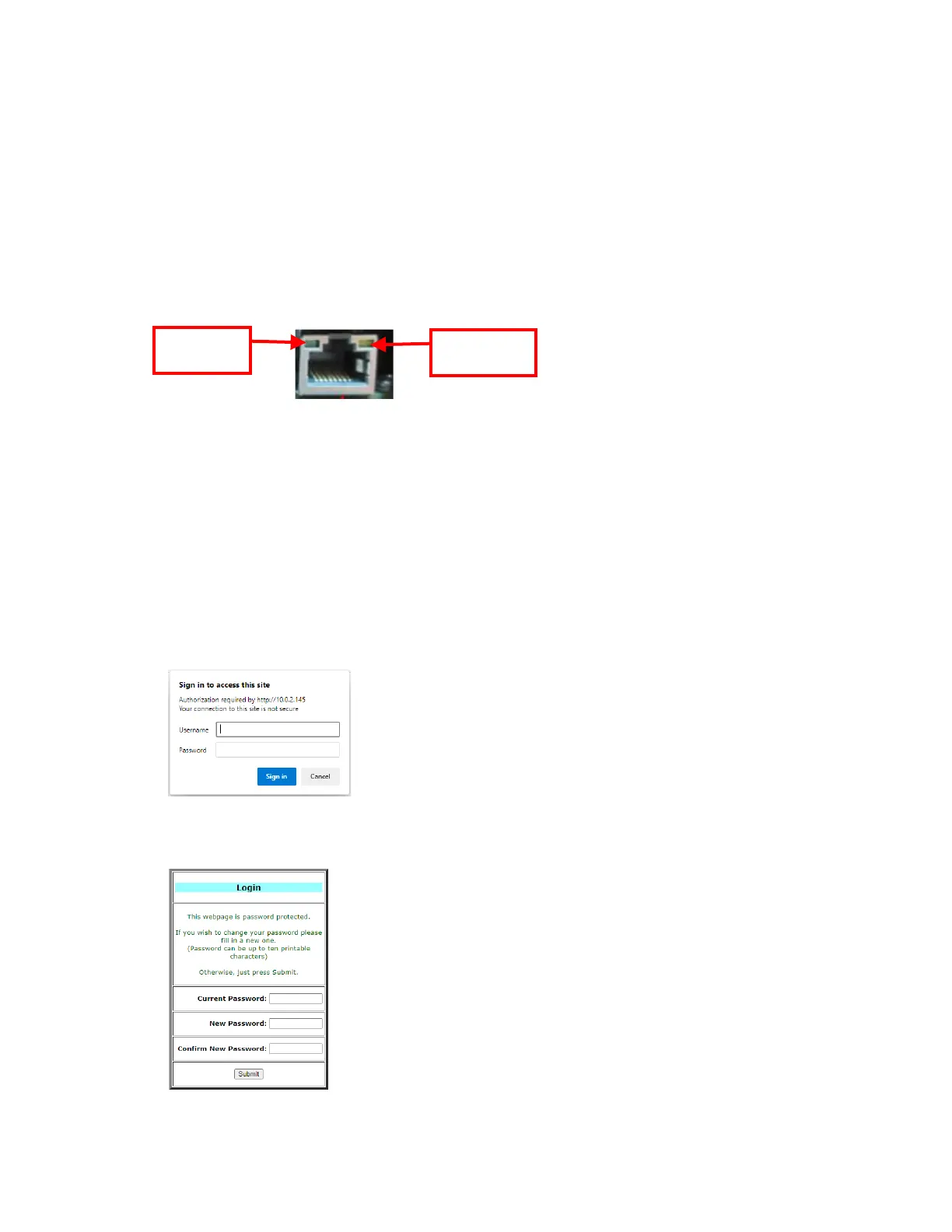
3. If you look the Ethernet connector you should see the below:
4. Wait four minutes to allow assignment of IP address.
5. Print a self-test by pressing the printer’s center TEST button, IP address is shown on this printout. If after four
minutes, if the printer does not receive an IP address from you network IP server, then the printer will default to
using IP address 169.xxx.xxx.xxx.
6. Open your web browser and type the printer’s IP address. For example, if the IP address was 010.000.000.192
they you would type //10.0.0.192.
7. The below login menu will pop up depending on what firmware you printer has:
a. If printer has “R” version firmware you will see the below. Username = boca & Password = printer. Your
IP address will be different than what is shown below.
The menu will come up, click on Submit button to go to the configuration page if you do no was to pass
work protect.



 To Next Page