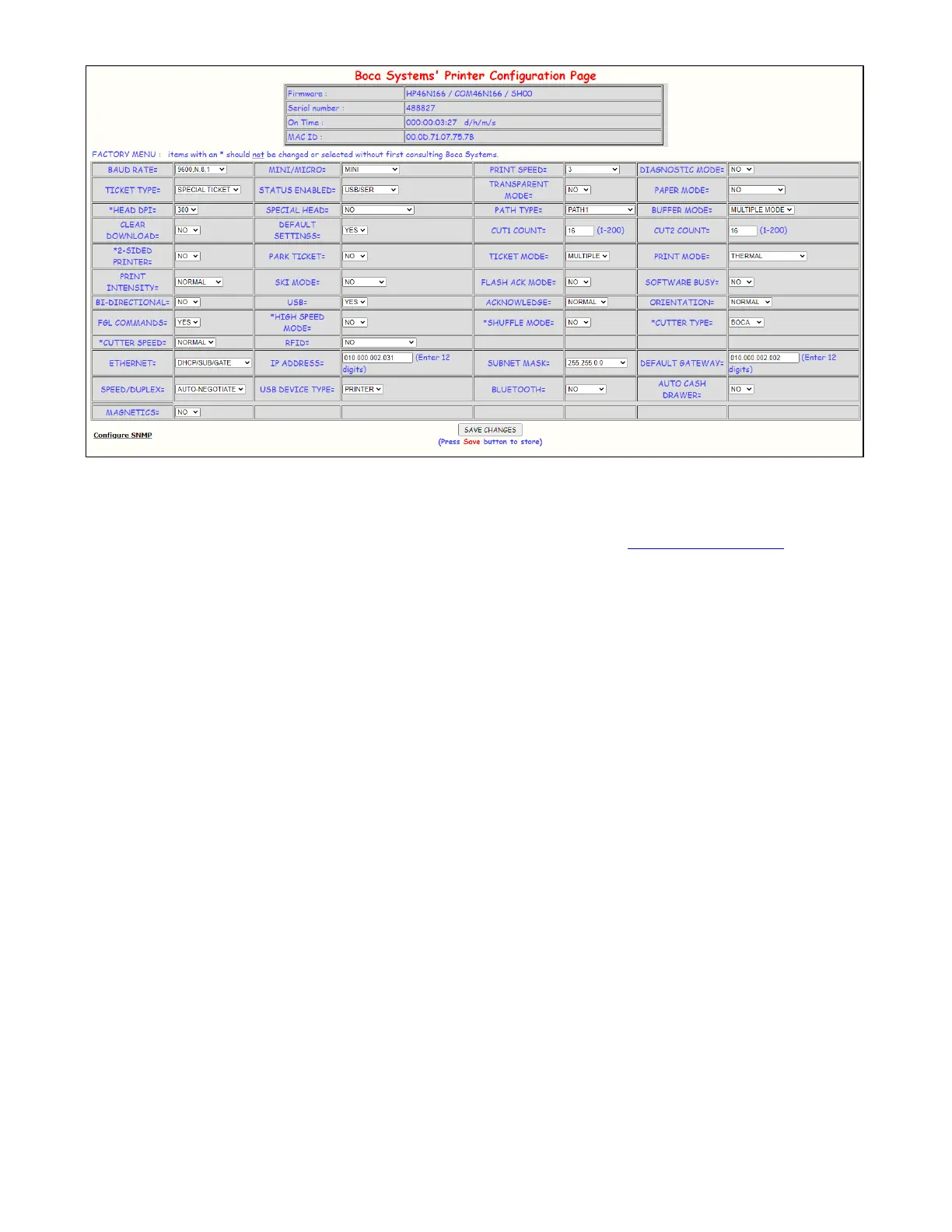
Below shows the configuration page
• If you are going to set a static IP address then you will need to change the ETHERNET setting to YES. Set IP
address, Subnet Mask and Default Gateway to the values you want.
• If you experience any problems, please refer to the Ethernet section of our FGL Programming Guide.
The below reviews how to set the printer for a static IP address if your system requires it.
Changing Ethernet settings if your printer has an LCD display
Please follow the below steps to create a static IP address on your Ethernet printer.
Change Ethernet setting
1. Depress both the MENU and CHOICES buttons while turning on the printer. Keep both buttons depressed unit
FACTORY MENU appears in the LCD window or the display starts scrolling through different topics.
2. Using the MENU button scroll down to the ETHERNET?
3. Using the CHOICES button select YES and press the TEST button.
4. The display will show EXIT AND SAVE, press the TEST button again (the printer will reset at this time).
Changing IP Address
1. Depress both the MENU and CHOICES buttons while turning on the printer. Keep both buttons depressed unit
FACTORY MENU appears in the LCD window or the display starts scrolling through different topics.
2. Using the MENU button scroll down to the IP ADDRESS? and press the CHOICE button.
3. The blinking cursor indicates the current IP numeric value selected. Every time you press the CHOICE button the
numeric value will change.
4. Using the TEST button will move you over to the next numeric value.



 To Next Page