24 BradyPrinter i5100
Selecting and Setting the Reflect/Notch Sensor using IP-Enabled Label Roll
1. Load the Label Roll following steps in “Loading Label Rolls” on page 18-- the front control panel should be lowered, the print module
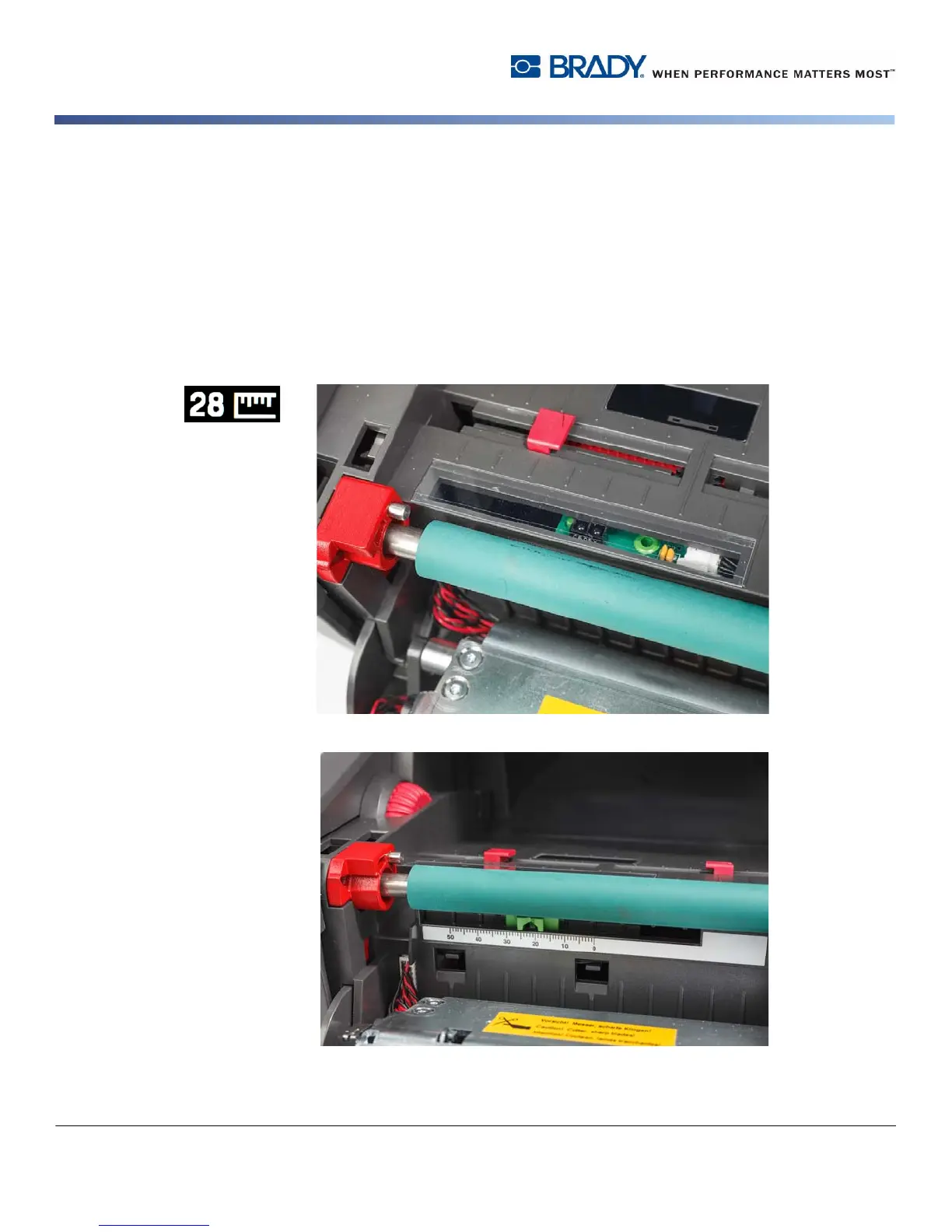
fully open, and you should have noted the display icon and numeral for the sensor.
2. If the printer detects the need for Notch Sensor the on-screen icon you see will be the Notch sensor icon with a number between
0 and 50.
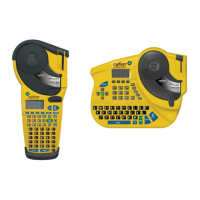
3. Locate the green notch sensor slider and white ruler scale beneath the rubber print roller
4. Move the slider left or right to the recommended numeral
5. Fully close the print module
6. From the printer display go into Setup > Labels > Label Sensor and select Bottom-Reflect, then the green check mark
7. Reopen the print module.
8. Proceed to Loading the Ribbon section


 To Next Page