EasyManua.ls Logo

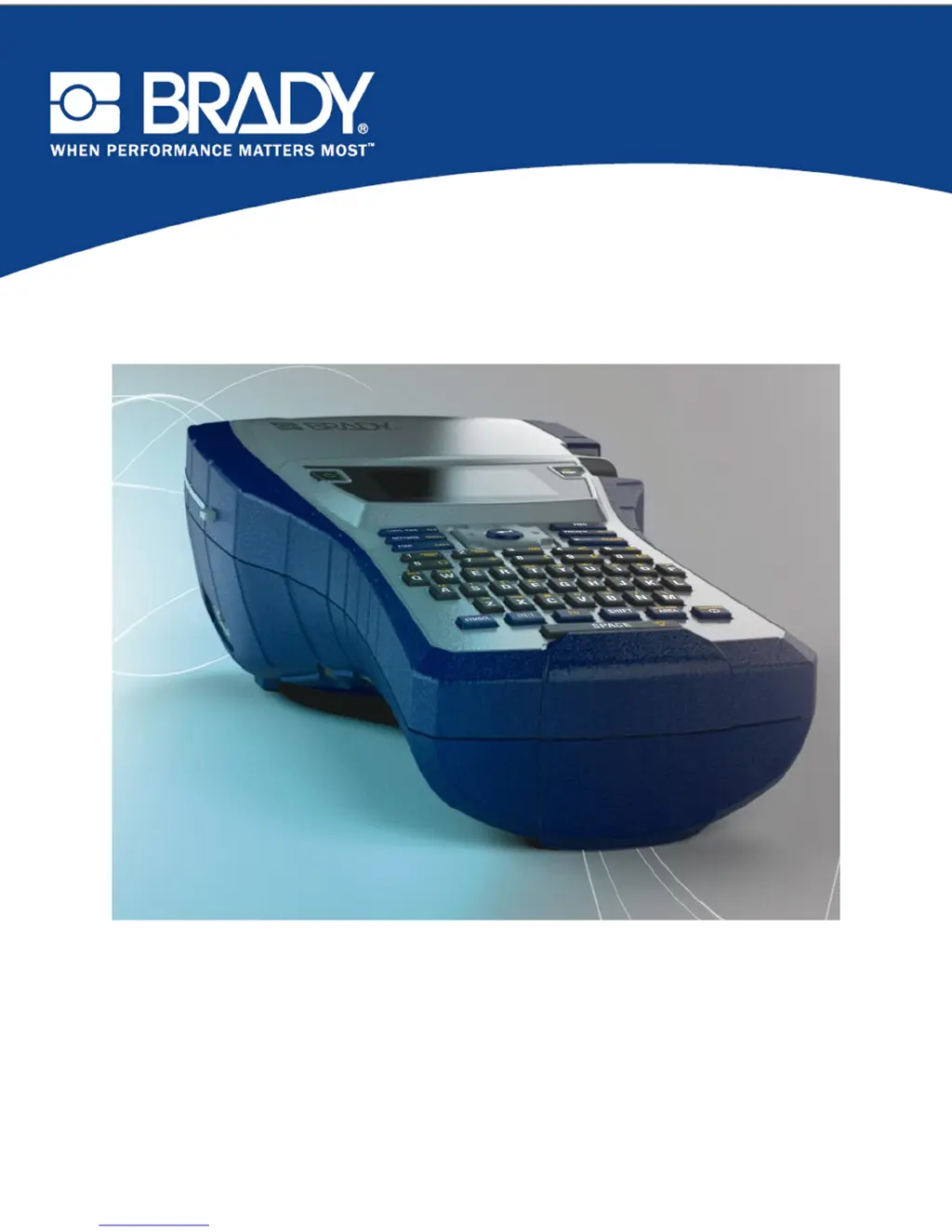
Brady BMP 41 - User Manual

Brady BMP 41
126 pages
Print Icon
To Next Page IconTo Next Page
Loading...
BMP
®
41 LABEL PRINTER
USER’S MANUAL

Table of Contents

Other manuals for Brady BMP 41

Questions and Answers

  • G
    George GonzalezAug 18, 2025
    What to do if my Brady Printer is jammed and cannot feed labels?
    • J
      jessekingAug 18, 2025
      If your Brady printer is jammed and unable to feed labels, it could be due to a blocked label exit chute causing label material to back up inside the printer. Here's how to clear the jam: 1. Open the printer cover. 2. Slide the locking lever to the unlock position to retract the platen. 3. Remove the cartridge. 4. Use tweezers or needle-nose pliers to carefully clear the label jam.
  • S
    sean42Aug 20, 2025
    What to do if my Brady Printer does not power up when turned on?
    • E
      Eric LeachAug 20, 2025
      If your Brady Printer doesn't power up when turned on, the battery pack might not be charged. To fix this, attach the AC Adapter to the printer and plug it into an electrical outlet. This will provide immediate power while charging the battery at the same time.
  • J
    Jamie FryeAug 23, 2025
    How to fix poor print quality on a Brady Printer?
    • L
      Larry MurphyAug 23, 2025
      Poor print quality on your Brady printer can occur for several reasons. It may be due to: * A worn-out battery pack that isn't holding a charge properly. Consider ordering a replacement battery pack. * Accumulation of dust or adhesives on the print head. Try cleaning the print head. * Unusable media. Try a different media cartridge.
  • M
    marshjuliaAug 25, 2025
    Why does my Brady Printer say Error - “Out of Media”?
    • C
      Christina SmallAug 26, 2025
      The “Out of Media” error on your Brady printer indicates that the label/media memory device has counted down to zero. To resolve this, replace the label/media or label/media roll holder and then press the [CLEAR/ESC] key to clear the error.
  • K
    Kristen SloanAug 27, 2025
    How to resolve a 'Head over temp' error on a Brady Printer?
    • M
      Michael ButlerAug 27, 2025
      The 'Head over temp' error on your Brady Printer means the print head has reached its maximum operating temperature. Allow the print head to cool down for about 10 minutes before re-initiating the print job.
  • S
    Samuel CunninghamAug 30, 2025
    Why does my Brady Printer say Error - "No media installed"?
    • A
      Austin WallerAug 30, 2025
      The “No media installed” error on your Brady printer can be caused by a damaged circuit board on the label/media roll. To solve this, replace the label/media roll and press the [CLEAR/ESC] key to clear the error.
  • A
    Anthony ThomasSep 1, 2025
    What does Error - “Locking lever not closed Close lever.” mean on my Brady printer and how to fix it?
    • H
      Heather MaddenSep 1, 2025
      The error “Locking lever not closed Close lever” on your Brady printer means the locking lever is not in the locked position. To resolve this, slide the locking lever to the right (locked position) and then push down firmly on the cover until you hear it latch.
  • A
    Antonio LangSep 3, 2025
    What does Error - “Top of form” mean on my Brady Printer and how do I fix it?
    • M
      Melanie CollinsSep 3, 2025
      The error “Top of form” on your Brady Printer indicates that the label/media or ribbon has caused a jam. To fix this, open the printer cover and remove any excess labels in the feed roller or exit chute areas. Then, press the [CLEAR/ESC] key to clear the error.
  • O
    Olivia CarlsonSep 6, 2025
    What does Error - “Cut while printing” mean on my Brady Printer and how can I resolve it?
    • N
      Nancy HansonSep 6, 2025
      The error “Cut while printing” on your Brady Printer means that the cutter was operated while labels were still printing. To resolve this, cut through the material completely, press the Clear key to clear the error, and then reprint the labels.
  • K
    Kimberly IngramSep 8, 2025
    What causes void areas or lines on printed text from my Brady Printer?
    • S
      ssmithSep 8, 2025
      Void areas or lines appearing on printed text from your Brady Printer are often caused by ribbon wrinkling. To fix this: 1. Remove the cartridge from the printer and advance the ribbon by rotating the take-up spool clockwise until the wrinkled/damaged ribbon is no longer visible (typically about one or two full turns). 2. Reinstall the cartridge and continue printing normally. Alternatively, try a new cartridge.

Summary

Copyright and Trademarks

Regulatory Compliance

International Compliance Statements

Details on FCC, Industry Canada, and European WEEE/RoHS directives for the printer.

Battery Disposal Information

Notice for Recyclers

Instructions for recycling lithium and NiMH batteries according to directives.

Brady Product Warranty

Technical Support

Support Contact and Services

Information on Brady's technical support numbers and repair services.

Introduction to BMP41

Printer Specifications and Characteristics

Details on the BMP®41 Label Printer's system specs, dimensions, and weight.

Initial Setup: Unpacking and Registration

Firmware Upgrades

External View of the Printer

Power Source and Safety

Loading the Battery Pack

AC Power Adapter Usage

Attaching the AC Adapter

Instructions on how to connect the AC adapter to the printer and power source.

Connecting the Printer

Connecting to a PC

Guide on connecting the BMP®41 printer to a PC via USB for data transfer.

Printer Drivers and Preferences

Media Cartridge

Loading the Media Cartridge

Step-by-step guide for inserting the media and ribbon cartridge into the printer.

Unloading the Media Cartridge

Powering On and Display

Display Screen and Status Information

Overview of the printer's display screen and status indicators.

Printer Keypad

Navigation and Editing Keys

Explanation of keys used for navigating menus and editing text.

Specialized Key Functions

Details on keys like Backspace, Clear, Superscript, and Subscript.

Keypad Text Formatting Keys

Functions for highlighting text, adjusting font size, and decimal points.

Printer Function Keys

Core Function Keys

Overview of essential function keys like Setup, Print, and File.

Specialized Function Keys

Explanation of keys for Barcode, International, Time/Date, and Area functions.

Menus and Sub-menus

Dialog Boxes

Printer Setup

Pause;Cut Configuration

How to configure the printer's pause and cut functionality.

Language and Font Settings

Initial Language Setup

Procedure for setting the initial display language for menus and functions.

Label Formatting

Font Formatting Options

Guide to applying font styles, sizes, and attributes for label design.

Font Size Adjustment

Expand and Condense Text

Labels and Areas

Fixed Length Labels

Setting a fixed length for continuous media labels.

Managing Label Areas

Justification Options

Rotating Label Content

Barcode Functionality

Barcode Settings

Configuration options for barcode symbology, ratio, height, and human readable text.

Serialization

Understanding Serialization

How the printer automatically adds sequential numbers or letters to labels.

Serialization Examples

Simple and Multiple Serialization

Examples of single, combined, and multi-sequence label serialization.

File Management

File Naming Standards

Rules for naming files, including length and uniqueness constraints.

Saving Files

Opening Saved Files

Deleting Saved Files

Printing

Initiating a Print Job

Instructions for printing the current label file.

Print Preview

Multi-Print Options

Collate Printing

Configuring collated printing for multiple copies or labels.

Non-Collated Printing

Label Types

Accessing Label Types

Guide to selecting and using specific label type templates.

WireMarker Label Type

Terminal Block, Patch Panel, 66 Block Labels

Flags Label Type

110-Block and Bix Block Labels

DesiStrip Label Type

Breaker Box Label Type

Troubleshooting Common Issues

Hardware Issues

Solutions for problems like head over temp, keyboard, and cutter malfunctions.

Power and Operation Issues

Troubleshooting printer power, freezing, and auto-shutoff problems.

Printer Jamming and Feed Issues

Steps to clear jams and resolve label feeding problems.

Print Quality Issues

Diagnosing and fixing poor print quality due to head or media.

Label Feeding and Registration Issues

Addressing uneven edges, dirty rollers, and damaged label notches.

Media and Program Errors

Resolving 'Out of Media,' file incompatibility, and invalid value errors.

Cleaning the Printer

Cleaning Procedures

Instructions for cleaning the display screen and internal components.

Appendix A: Symbols

Symbol Categories Overview

Introduction to symbol categories available for label applications.

Safety and Hazard Symbols

Collection of electrical, exit, fire, first aid, and hazard warning symbols.

Specialty and International Symbols

Includes CLP/GHS, Greek, HSID, International, and Laboratory symbols.

Prohibition and Warning Symbols

Mandatory, Misc, Packaging, PPE, Prohibition, Public Info, Warning, and WHMIS symbols.

Brady BMP 41 Specifications

General IconGeneral
Print TechnologyThermal transfer
DisplayLCD
Battery TypeRechargeable lithium-ion
ConnectivityUSB
Print Resolution300 dpi
KeyboardQWERTY
Label Types Supportedcontinuous, and die-cut labels
Weight1.5 lbs
Supported MaterialsVinyl, polyester, nylon, and paper
Maximum Print Width1.18 inches (30 mm)
Max Label Length39 inches (1000 mm)

Related product manuals